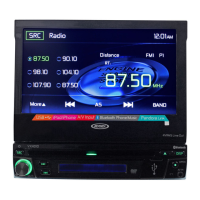
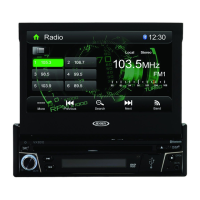
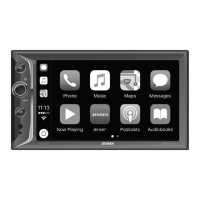
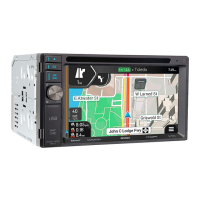
VX4012
3. Connect Your Smartphone (Refer to Wiring Diagram)
Connect your smartphone to the HDMI / MHL adapter. Connect one end of the
HDMI cable to the HDMI /
MHL adapter. Connect the remaining end of the HDMI
cable to the Jensen multimedia head unit HDMI input (Rear chassis panel).
Consult your smartphone documentation for instructions on how to access
HDMI / MHL on your device.
4. Touch Screen Calibration Start
Launch the HDMI / MHL Connect app on your smartphone (Android Devices
Only). Using the head unit touch screen, go to Settings in the HDMI/MHL
Connect app. Scroll down and press the Touch Screen Calibration "Start" button.
5. Touch Screen Calibration
Once the touch screen is calibrated (Android Devices Only), scroll up, and press
System Settings to return to the main HDMI / MHL Connect page. Press "Mobile
Home Page" to access your smartphone from the touch screen of the Jensen
multimedia head unit. Touch the "Car Home Page" to return to the Main Source
Menu of the head unit. This calibration is performed once per phone when
initially set-up.
Connecting Your Smartphone - Android / Apple
1.
Jensen HDMI / MHL Connect App Installation Procedure
Download and install the Jensen HDMI / MHL Connect app from Google Play
(Android Devices Only) onto your smartphone.
2. Smartphone / Head Unit BT Connection
In order to have full touch screen control (Android Devices Only) from the head
unit screen (via the HDMI / MHL Connect app), a BT connection is required
between your smartphone and head unit. Refer to the head unit / smartphone
documentation for further information on pairing / connecting devices.
58


 To Next Page