EasyManua.ls Logo

Jensen VX7528 - User Manual

Jensen VX7528
38 pages
Print Icon
To Next Page IconTo Next Page
Loading...
INSTALLATION &
OWNER'S MANUAL
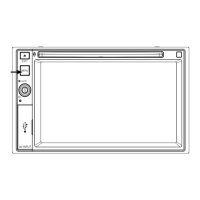
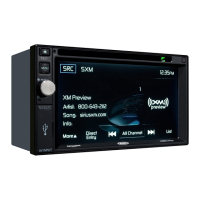
6.2" Double DIN Multimedia Receiver
AM-FM / DVD / Pandora / Bluetooth / iPhone® - iPod®/
USB / AV In / Rear Camera In / SiriusXM Ready / Navigation
VX7528

Questions and Answers

  • L
    Larry HayesAug 12, 2025
    Why Jensen Receiver unit will not turn on?
    • L
      Leslie AndersonAug 12, 2025
      If your Jensen Receiver unit isn't powering on, there could be a few reasons. The yellow or red wire might not be connected properly, or the voltage could be incorrect; in this case, check connections for proper voltage (11~16VDC). Alternatively, the black wire might not be connected to ground, so check that connection. Finally, the fuse might be blown, so try replacing it.
  • M
    Michele LiuAug 16, 2025
    What to do if Jensen Receiver unit blows fuses?
    • E
      Erika BowmanAug 16, 2025
      If your Jensen Receiver keeps blowing fuses, it could be due to a few reasons. The yellow or red wire might be touching the chassis ground; check for any pinched wires. Similarly, the speaker wires might be touching the chassis ground, so inspect those for pinches as well. Lastly, the fuse might have an incorrect rating; make sure you're using a fuse with the correct rating.
  • S
    Sarah HunterAug 19, 2025
    How to fix Jensen VX7528 Receiver when unit has power but no sound?
    • K
      Kimberly FranklinAug 19, 2025
      If your Jensen Receiver has power but isn't producing any sound, the speaker wires might not be connected properly; check the connections at the speakers. Another possibility is that one or more speaker wires are touching each other or the chassis ground; ensure all bare speaker wires are insulated from each other and the chassis ground.
  • G
    Gregory PrattAug 23, 2025
    What to do if Jensen Receiver displays ERR FILE?
    • R
      Rebecca Schroeder MDAug 23, 2025
      If your Jensen Receiver's display shows 'ERR FILE', it indicates a disc read error or that the disc is upside down or focus error. Try pressing the eject button or the RESET button.
  • M
    melissa35Aug 27, 2025
    Why does my Jensen VX7528 have excessive skipping?
    • J
      John GreenAug 27, 2025
      Excessive skipping on your Jensen Receiver could be due to incorrect mounting or an unsecure backstrap; check the mounting sleeve and backstrap support. It could also be caused by a physical defect in the media (CD, CD-R, or CD-RW); inspect the media for scratches.
  • M
    Michele WilliamsAug 31, 2025
    What to do if Jensen Receiver unit will not accept a disc?
    • A
      Ashley RobertsAug 31, 2025
      If your Jensen Receiver won't accept a disc, it could be due to the CD mechanism position being out of alignment; press EJECT to reset the CD mechanism position. Another possibility is that the CD transit screws are still in place; remove the 2 transit screws located on top of the unit.
  • K
    Kelly JohnsonSep 3, 2025
    What does NO FILE mean on Jensen VX7528 Receiver display?
    • S
      Shannon GarzaSep 3, 2025
      If 'NO FILE' appears on your Jensen Receiver's display, it means that no playable MP3 files were found on the device. Check the device for valid MP3 files.
  • D
    doylejustinSep 7, 2025
    What does NO SUPPORT mean on Jensen Receiver display?
    • M
      Mary MckenzieSep 7, 2025
      If 'NO SUPPORT' is displayed on your Jensen Receiver, it indicates that an invalid ID3 tag version is present. Version 1.0 to 2.0 ID3 tags are supported.

Summary

Preparation and Installation

Before You Start

Disconnect battery, avoid extreme temperatures.

Getting Started

Remove trim, transit screws, install sleeve, connect wiring, test.

Wiring Diagram and Notes

Wiring Notes

Rear camera and SiriusXM connection guidance.

Control Locations

On-Screen Display Controls

Identifies controls on the main display screen.

Remote Control Functions

Explains functions of buttons on the remote control.

General Operation Overview

Power, Source, and Volume Control

Turning the unit on/off, selecting sources, adjusting volume.

USB Port Usage

Connecting USB devices for media playback.

Main Menu Navigation

How to access and navigate the main menu.

General Settings Configuration

Setup Menu and Configuration

Accessing settings for language, time, display, panel, disc.

Radio and Bluetooth Settings

Configuring radio features and Bluetooth connectivity options.

SiriusXM, Illumination, Wallpaper Settings

Settings for SiriusXM, illumination colors, and screen wallpaper.

Radio Operation

Radio Source, Band, and Tuning

Switching sources, bands, and tuning methods.

Preset Station Management

Storing and playing preset radio stations.

Advanced Radio Settings

Radio Tuning and Selection Options

Tuning sensitivity, program type, direct entry.

Audio Settings and Traffic Announcements

Adjusting EQ, fader, balance, loudness, and traffic announcements.

CD Operation

CD Playback Controls and Navigation

Basic playback, file list navigation, and track skipping.

CD Audio Settings and Modes

Adjusting EQ, fader, balance, repeat, and random playback.

USB Operation

USB Playback Controls and Navigation

Basic playback, file list navigation, and track skipping.

USB Audio Settings and Modes

Adjusting EQ, fader, balance, repeat, and random playback.

iPod Operation

iPod Playback Controls and Navigation

Basic playback, file list navigation, and track skipping.

iPod Audio Settings and Modes

Adjusting EQ, fader, balance, repeat, and random playback.

Pandora Operation

Pandora Playback Controls and Station Navigation

Basic playback, skipping, and selecting Pandora stations.

Pandora Audio Settings and Feedback

Adjusting EQ, fader, balance, and using feedback features.

Bluetooth Operation

Bluetooth Preparation, Pairing, and Connection

Steps for pairing and connecting Bluetooth devices.

Bluetooth Phone and Music Functions

Using phone dialer, contacts, and playing music.

SiriusXM Satellite Radio Operation

SiriusXM Overview and Activation

Introduction to SiriusXM and activation process.

SiriusXM Channel Navigation and Controls

Searching channels, navigating lists, and controlling playback.

SiriusXM Band, Memory, Scan, and Audio Settings

Managing presets, scanning, and adjusting audio.

Unlocking a Channel

Unlocking Individual Channels

Steps to unlock a single channel using password.

Changing the Lock Password

Procedure for changing the channel lock password.

SiriusXM Radio Advisory Messages

Antenna and Tuner Troubleshooting

Troubleshooting steps for antenna and tuner related issues.

Signal and Subscription Messages

Information on 'No Signal', 'Subscription Updated', and channel status.

Media Compatibility

USB;SD Card File System and Format Support

Supported file systems, extensions, and MPEG formats.

USB;SD Card Technical Details

Sampling frequency, bitrate, ID3 tag support, and notes.

CD;DVD File System and Format Support

Supported file systems, extensions, and MPEG formats.

CD;DVD Technical Details

Sampling frequency, bitrate, ID3 tag support, and notes.

Supported and Unsupported Media Types

List of compatible and incompatible discs/files.

Media Playback and Recording Standards

Playback order, ISO9660 standards, and recommended MP3 settings.

Important Safety Warnings

Driving and Screen Operation Safety

Warnings against operating unit while driving and screen visibility.

Parking Brake Lock-out Safety

Ensuring proper installation and non-tampering of the parking brake feature.

DVD Operation

DVD Playback Controls and Navigation

Basic playback, chapter navigation, and track skipping.

DVD Audio, Subtitle, and Display Settings

Adjusting audio, subtitles, and screen display.

Front 3.5 mm Aux Input & Rear RCA A;V Input

Auxiliary and AV Input Operation

Connecting and selecting audio/video sources via front and rear inputs.

Rear Camera Operation - (Optional)

Rear Camera Selection Methods

Manual and automatic activation of the rear camera display.

Navigation System

Navigation Features and Operation

Navigation capabilities, call handling, and source switching.

Troubleshooting Guide

Power, Sound, and Fuse Issues

Resolving 'no power', 'no sound', and 'blown fuses' problems.

Playback, Display, and Disc Errors

Fixing skipping, file errors, and disc acceptance issues.

Technical Specifications

Tuner and Player Specifications

CD, FM, AM tuner specs, frequency response, sensitivity.

General and Power Specifications

USB charge, speaker impedance, output voltage, CEA-2006.

Limited One Year Warranty

Warranty Service and Coverage

Procedures for service, coverage details, and exclusions.

FCC Compliance Information

FCC Rules, Operation Conditions, and Interference

Compliance, operation rules, and interference prevention.

Jensen VX7528 Specifications

General IconGeneral
BluetoothYes
Radio TunerAM/FM
NavigationNo
Apple CarPlayNo
Android AutoNo
SiriusXMNo
Channels4
MP3 PlaybackYes
WMA PlaybackYes
Auxiliary InputYes
USB PortYes
Compatible FormatsMP3/WMA
TypeIn-Dash Receiver

Related product manuals