!
!
24!
!
• Subnet mask – The Subnet mask network setting for your mobile hotspot. The
default value 255.255.255.0 is standard for small (class “C”) networks.
• VPN Passthrough – When turned ON, this feature allows VPN clients on your
connected device to connect through your mobile hotspot to remote VPN servers.
• DHCP (Dynamic Host Configuration Protocol) server – The DHCP server is ON
by default. When turned ON, your mobile hotspot automatically assigns local IPs to
the devices connected to your mobile hotspot. When turned OFF, you will need to
set it up manually from the device you want to connect to your mobile hotspot.
• DHCP IP Range – Defines the local IP range that DHCP server assigns to
connected devices.
• DHCP Lease Time - The period between when your connected device obtained its
IP address from your mobile hotspot and the time when it expires. When the DHCP
lease time expires, your connected device automatically releases IP address and
asks your mobile hotspot to assign a new one.
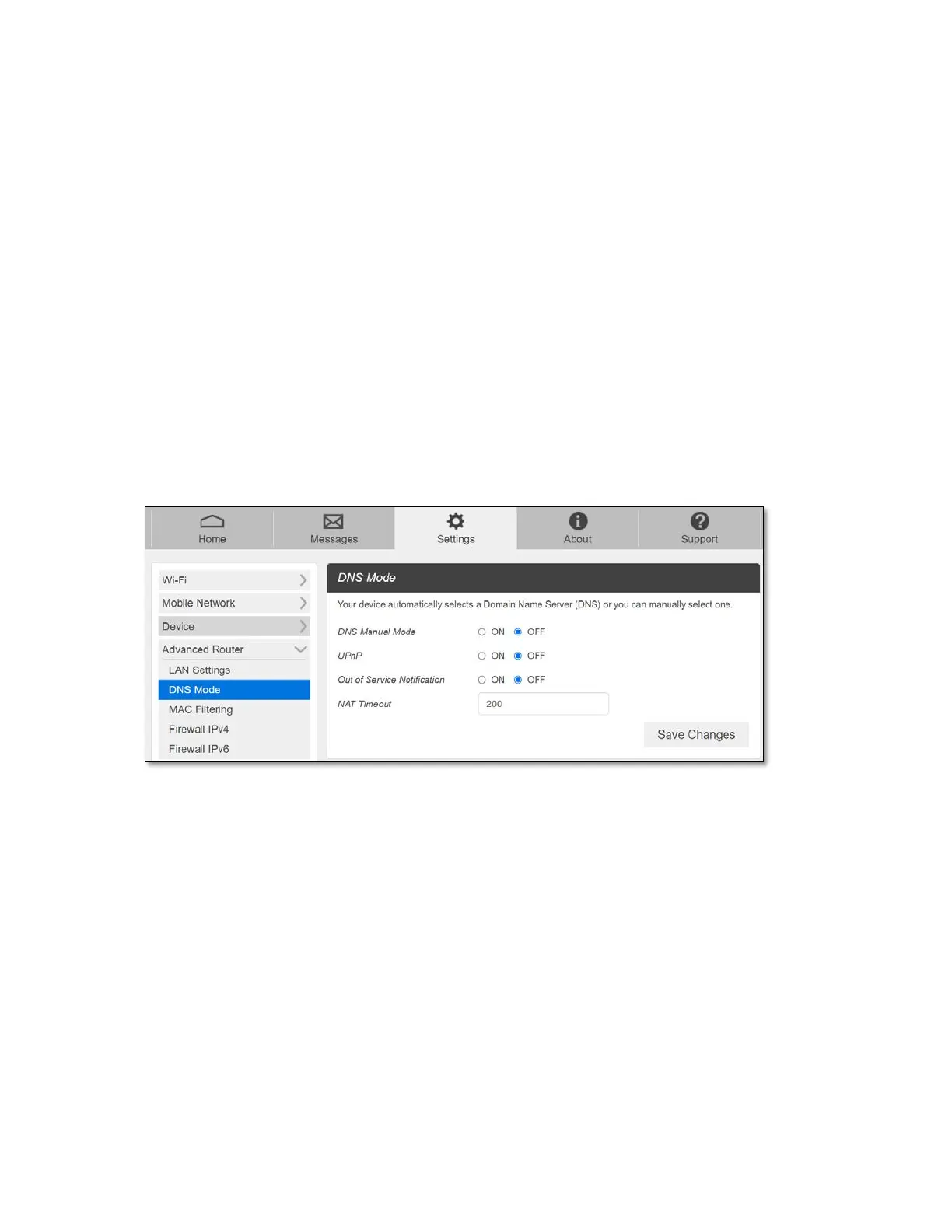
- DNS Mode
• DNS Manual Mode- Your mobile hotspot uses Domain Name Servers (DNS)
assigned by your network by default. The DNS Manual Mode option allows you to
use your own DNS service if you have.
To manually set a Domain Name Server:
1. Click the ON button to enable DNS Manual Mode.
2. Enter the IP address of the first DNS in the DNS 1 IP address field.
3. Enter the IP address of the second DNS in the DNS 2 IP address field.
4. Click Save Changes button.
• UPnP - Universal Plug and Play (UPnP) is a network protocol that allows compliant
devices to automatically set port forwarding rules for themselves. These devices can be
personal computers, printers, security cameras, game consoles or mobile devices that
communicate with each other and share data over your network
• Out of Service Notification: Notify when DNS service is not working


 To Next Page