!
!
31!
!
Overview
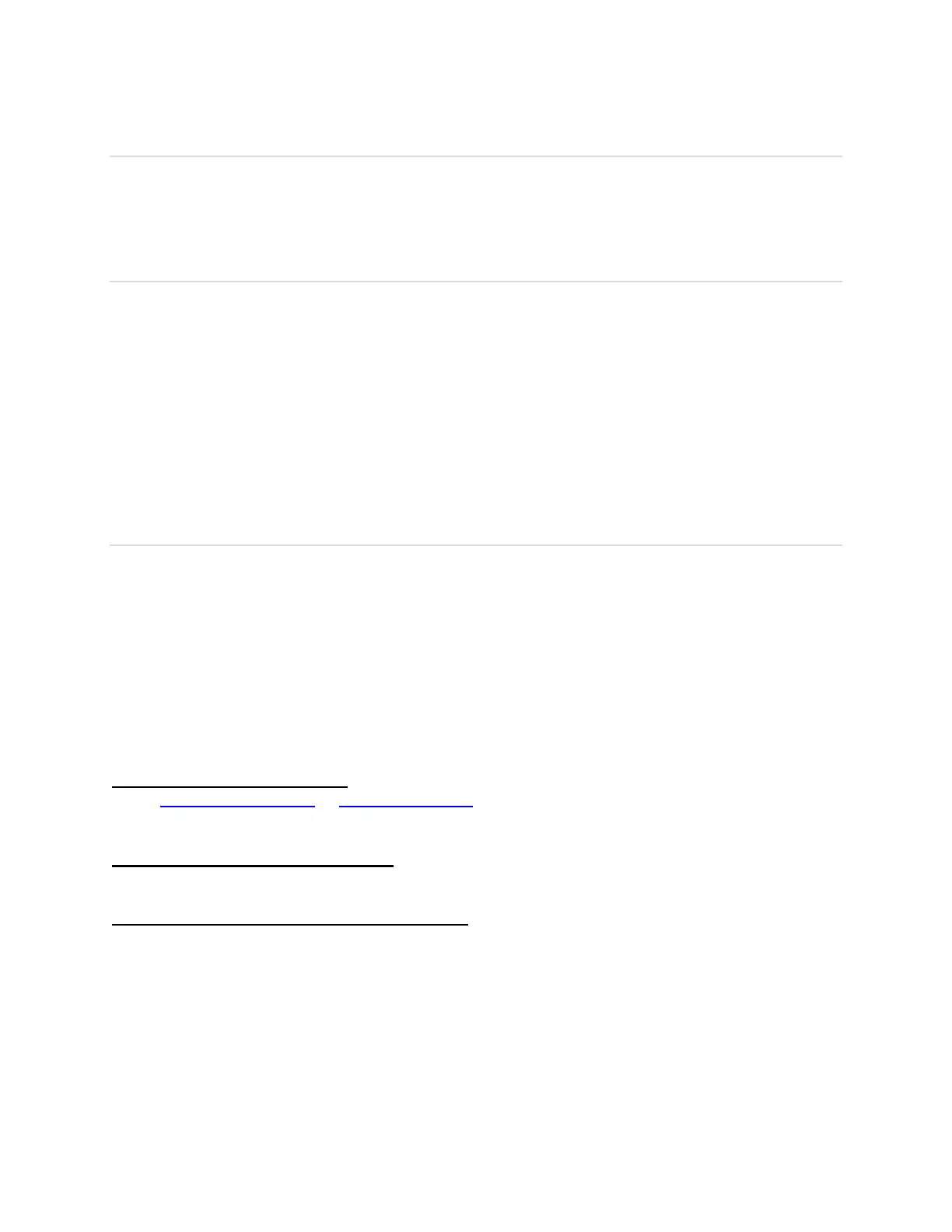
The following tips can help solve many common problems encountered while using your Mobile
Hotspot, RG2100.
First Steps
1 Make sure you are using your RG2100 in the correct geographic region (within coverage of
your service provider).
2 Ensure that your wireless coverage extends to your current location by using the interactive
Wireless Carrier’s coverage map tool.
3 Ensure that you have an active service plan.
4 Restarting your computer and your RG2100 can resolve many issues.
IMPORTANT! Before contacting customer care, be sure to restart both your RG2100 and any
host devices that are currently connected to your RG2100.
Common Problems and Solutions
RG2100 is just powered off without pressing the Power/Menu button. Why?
This may occur under battery depletion or overheating from excessive usage for a long time.
To restore power, manually press and hold the power button to turn on your RG2100. If the
battery is depleted, charge the battery with the AC charger provided.
IMPORTANT! If the power button will not start your RG2100, please open the battery cover, take
out the battery and re-install the battery after 5 seconds. Put the battery cover back and turn on
the RG2100 by pressing the power button.
How do I perform Factory Reset?
Using Web Admin Home page: Connect to your RG2100 and then open Web Admin home
page (http://mobile.hotspot or http://192.168.0.1). Select Settings > Device > Backup and
Restore and Click Factory Reset.
Using Mobile Hotspot Device Menu: Select Settings on the device display, then go to Factory
Reset menu. Select OK to perform Factory Reset.
Using the Factory Reset Button on the device: Remove the battery cover. Make sure the
battery is installed and your RG2100 is powered on. Press down the reset button for 3 seconds
and release. Then, your RG2100 will perform the reset and restart automatically.


 To Next Page