FX Supervisory Controller Installation Instructions 21
Fuse
The FX20/FX60 contains a non-user replaceable fuse
soldered on the circuit board. This fuse provides
protection from internal shorts or connection to
incorrect power supplies. If the fuse circuitry is
suspect, contact your technical support representative
for assistance.
Standard Replacement Parts
Standard replacement parts are listed in Table 6.
Table 6: Standard Replacement Parts
Part Number Description
LP-KITFX2BAT-0
NiMH Battery Pack: includes battery
bracket (See Replacing the Battery.)
New Replacement Unit
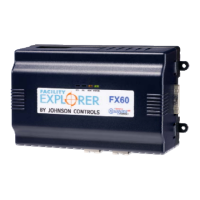
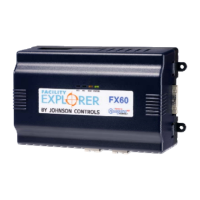
To replace a faulty FX20/FX60, order a new one. To
ensure proper credit for a FX20/FX60 still under
warranty, contact the Johnson Controls Product Sales
Operations Team for return authorization.
Replacing an FX20/FX60
IMPORTANT: Before handling circuit boards,
discharge any accumulated static by touching the
metal surface of the FX20/FX60.
To replace the FX20/FX60 in the field, follow these
procedures:
1. Use FX Workbench to back up the FX20/FX60
configuration to your computer.
2. Remove power to the FX20/FX60. The unit
powers down automatically.
Note: If NDIO accessory modules are installed, and
any I/O points have voltage, turn the devices off or
disconnect power from them.
1. Note the positions of all communications and other
wiring cables going to the FX20/FX60, as well as
all installed accessory modules (if they must be
removed). If necessary, label connectors and
accessory modules to avoid misconnection later
when you are replacing the FX20/FX60.
2. Unplug all Ethernet, serial, LON, modem, and I/O
connectors from the FX20/FX60.
3. Unplug the earth ground wire.
4. If an NDIO accessory module is installed:
a. If DIN rail mounting with DIN end clips were
used, you may be able to remove the DIN rail
end clip that secures the FX20/FX60 end of
the assembly and then slide the FX20/FX60
away from the rest of the assembly. Then,
remove the FX20/FX60 from the DIN rail (see
Figure 3), leaving the mounting and wiring of
the NDIO modules untouched. Go to Step 5.
b. If tab (screw) mounting was used instead of
DIN rail mounting, or if a combination of DIN
rail mounting and tab screws were used,
remove the accessory modules first, then
remove the FX20/FX60. Carefully observe all
wiring terminations, then unplug the I/O
connector plugs and earth ground wires from
the installed NDIO modules. Remove the
installed accessory modules, starting with the
end module. You can secure modules with
screws through the mounting tabs or clipped
to a DIN rail, or fastened by some
combination. Remove any screws fastening
the FX20/FX60 and remove the FX20/FX60.
5. Remove the cover from the old FX20/FX60 (see
Removing and Replacing the Cover). Note the
position of installed option boards, if any. You
must transfer them to the replacement
FX20/FX60.
6. Remove the option boards from the old
FX20/FX60 and install them into the replacement
FX20/FX60, if applicable. See Mounting Option
Cards.
7. Mount the replacement FX20/FX60 as it was
previously, using the same DIN rail location
and/or screws.
8. Reconnect/remount any removed accessory
modules, being careful to replace them in the
same order, using the same DIN rail location
and/or screws. Secure all accessory modules as
done previously.
9. Reconnect the earth ground wires to the
FX20/FX60 grounding lug and any installed
accessory modules.



 To Next Page