Connecting to the MAP Gateway Wi-Fi Network
Important: If you are going to use the MAP Gateway on Ethernet, you must plug it into
external power before you attach the field bus adapter.
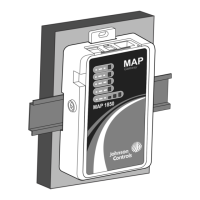
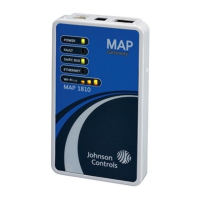
1. Connect the FC/SA port of the MAP Gateway to the sensor bus or field busport of the
equipment controllerusing the supplied RJ-12 cable (portable model) or field bus adapter
(stationary model) (Figure 13). The MAP Gateway's LEDs flash, indicating that the device
is initializing. When the Fault LED turns off and the Wi-Fi LEDs flash in succession, the MAP
Gateway is ready to use.
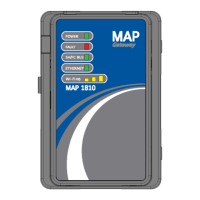
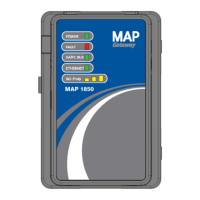
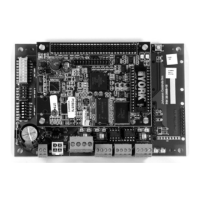
Figure 13: Connecting the MAP Gateway to Your Equipment
2. In the Wi-Fi settings of your device or laptop, connect to the MAP Gateway Wi-Fi network using
your default credentials. These credentials are included on a sticker in the MAP Quick Start
Guide (Part No. 24-10737-16) that came with your device.
3. To access MAP Gateways that are updated to 5.1, use https://mapgwy.com or 192.168.142.1 to
open the MAP Gateway browser interface, instead of https://www.mapgwy.com.
Note: MAP Gateway ships with a private mapgwy.com SSL certificate installed to ensure
secure communication with the MAP Gateway. However, this certificate does not indicate
that it is trusted in a browser. If you wish to install your own certificate, refer to Adding a
Private Key and Certificate to MAP Gateway in the Mobile Access Portal Gateway Network and
IT Guidance Technical Bulletin (LIT-12012015).
4. Read and accept the MAP Gateway license agreement.
5. The first time you log in to the MAP Gateway, the Change Password and Passphrase web page
appears. You must change the Admin password and Wi-Fi passphrase.
Important: After you change the Wi-Fi passphrase or SSID, the webserver restarts and
you must rejoin the MAP Gateway Wi-Fi network using the new passphrase. On some
mobile devices, you must select and forget the original MAP Gateway Wi-Fi network
before rejoining the network with the new passphrase.
Change the default password in the New Admin Password field. Confirm the change by
entering the new password in the Verify New Admin Password field
Change the Wi-Fi Passphrase in the New Wi-Fi Passphrase field and click Save.
Once the MAP Gateway is physically connected to the MS/TP network, all devices on the network
that have an equipment number are available
To interact with a device on the network (to view points or set points), click on that device in the
device list using the mobile device that is connected to the MAP Gateway.
19Mobile Access Portal Gateway Installation Guide



 To Next Page