EasyManua.ls Logo

JVC DD-8 - User Manual

JVC DD-8
64 pages
Print Icon
To Next Page IconTo Next Page
Loading...
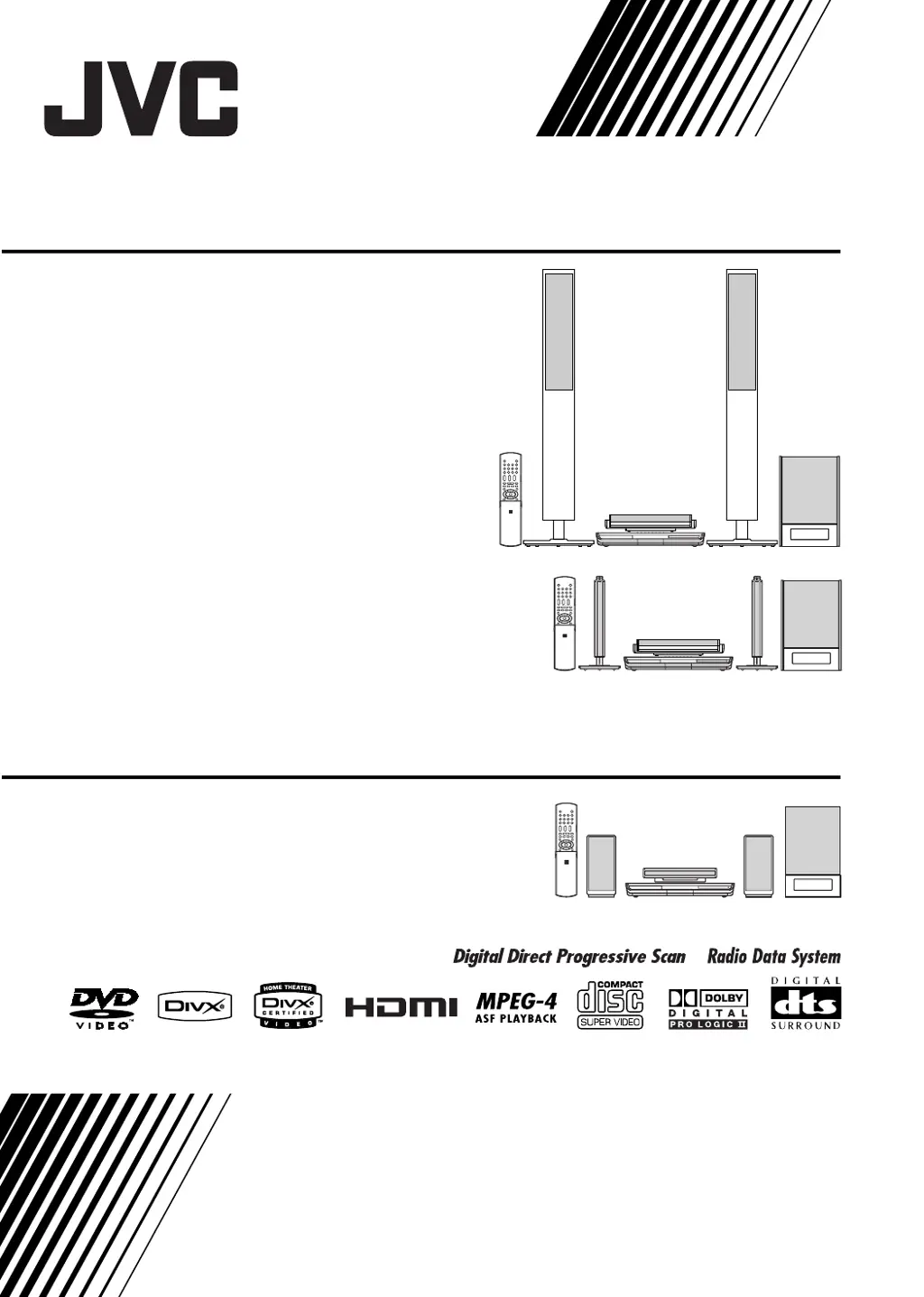
NETWORK MEDIA SYSTEM
INSTRUCTIONS
LVT1546-002A
[B]
DD-8
Consists of CA-DD8, SP-PWDD8,
SP-DD8F and SP-DD8S
DD-3
Consists of CA-DD3, SP-PWDD3,
SP-DD3F and SP-DD8S
DD-1
Consists of CA-DD1, SP-PWDD1,
SP-DD1F and SP-DD1S
DIGITAL MEDIA SYSTEM
(Only for DD-8 and DD-3)
DD-831[B].book Page 1 Tuesday, August 1, 2006 12:09 PM

Table of Contents

Other manuals for JVC DD-8

Questions and Answers

  • N
    Nathan FisherAug 16, 2025
    What to do if my JVC Home Theater System has no sound or video?
    • L
      Lindsey PerryAug 16, 2025
      If your JVC Home Theater System isn't producing any sound or video, first ensure all cables are properly connected. Also, make sure headphones aren't plugged in, as this will mute the main output. Disconnect the headphone plug to restore sound to the speakers.
  • R
    Robert OrtegaAug 19, 2025
    Why my JVC Home Theater System remote control is not working?
    • M
      Michael MejiaSep 12, 2025
      If you cannot operate the remote control of your JVC Home Theater System, try replacing the batteries with new ones.
  • B
    Brooke EspinozaAug 22, 2025
    What to do if the disc tray on my JVC Home Theater System won't open?
    • C
      Cheryl EvansAug 22, 2025
      If your JVC Home Theater System disc tray doesn't eject, it might be locked. Check the display window for 'LOCKED'. If it appears, cancel the disc ejection lock to release the tray.
  • J
    Johnny JonesAug 25, 2025
    Why is there no sound or video from my JVC Home Theater System via HDMI?
    • J
      Jacob MillerAug 25, 2025
      If your JVC Home Theater System isn't producing sound or video via the HDMI terminal, it could be due to several reasons. First, ensure the disc or file format is compatible with your unit and TV. If the TV isn't HDCP compatible, connect one that is. Try disconnecting and reconnecting the HDMI cable. Finally, if you're using an HDMI cable longer than 5 m (15 feet), switch to a shorter one for stable operation.
  • D
    Diana MccarthyAug 27, 2025
    How to fix JVC Home Theater System remote when it doesn't control the unit?
    • E
      ehallAug 27, 2025
      If you can't operate the main unit of your JVC Home Theater System with the remote control, check the remote control mode selector. If it's set to [TV] or [VCR/DBS], slide it to [AUDIO].
  • J
    John HurstAug 30, 2025
    What to do if my JVC Home Theater System won't play discs?
    • J
      Joseph RamosAug 30, 2025
      If disc playback doesn't start on your JVC Home Theater System, make sure the disc is placed correctly, with the printed surface facing up. If that's not the issue, moisture might have condensed on the lens. Leave the unit turned on for 1 to 2 hours to allow the moisture to evaporate, then try again.
  • L
    lisalongSep 2, 2025
    Why does my JVC Home Theater System skip or get stuck at certain points on a disc?
    • J
      Justin GomezSep 2, 2025
      If a certain point on a disc cannot be played back properly on your JVC Home Theater System, the disc might be scratched or dirty. Try cleaning or replacing the disc.
  • F
    ffloresSep 4, 2025
    Why can't my JVC Home Theater System receive radio broadcasts?
    • K
      Karen OsborneSep 4, 2025
      If you cannot receive a radio broadcast on your JVC Home Theater System, ensure that an antenna is connected.
  • M
    Mrs. Ashley BenitezSep 7, 2025
    Why is my JVC Home Theater System making a whirring noise?
    • M
      Matthew FlowersSep 7, 2025
      If your JVC Home Theater System is producing a whirring noise, it may be located too close to other electronic devices such as a TV or computer. Try moving the unit away from other appliances.
  • L
    lisa73Sep 10, 2025
    How to fix JVC Home Theater System when it won't play certain media files?
    • M
      mroseSep 10, 2025
      If MP3, WMA, WAV, JPEG, ASF, DivX, MPEG1, or MPEG2 files cannot be played back on your JVC Home Theater System, it may be due to the disc including files of different types. Select “FILE TYPE” and choose the desired file type. If the unit has already read the file, reload the disc or disconnect and reconnect the USB mass storage device after setting the file type.

Summary

Safety and Precautions

Laser Product Safety

Essential safety precautions for laser product components.

Ventilation and Handling Guidelines

Ensuring proper airflow and safe physical handling of the unit.

General Usage Safety Rules

Comprehensive 'Do's and Don'ts' for safe equipment usage.

Preparation and Connections

Speaker and Subwoofer Setup

Guide to assembling and connecting speaker units to the subwoofer.

System Operations

Media Playback and Radio

Disc and File Playback Basics

Steps for playing back various disc and file formats.

JVC DD-8 Specifications

General IconGeneral
I/O portsUSB 2.0 SCART (with RGB) Component Video Out Headphone Out HDMI Digital Out LAN
CD-R playbackYes
Dimensions (WxDxH)445 x 55 x 286.4 mm
Media types supportedJPEG, MP3, WMA, WAV (PCM), AC3, DTS, MPEG-1/2, MPEG-4 (ASF), MS MP4 v3, DivX(R)
Subwoofer dimensions (WxHxD)242 x 364 x 363 mm
Audio formats supportedAC3, MP3, WMA
TypeHome audio mini system
RMS rated power220 W
Number of speakers2
Signal-to-Noise Ratio (SNR)72 dB
Tuner typeDigital
Supported radio bandsAM, FM
Power consumption (typical)120 W
Weight and Dimensions IconWeight and Dimensions
Weight3500 g
Subwoofer weight12600 g
Center speaker weight10000 g
Center speaker dimensions (WxDxH)289 x 289 x 1101 mm

Related product manuals