EasyManua.ls Logo

JVC DT-E17L4G - User Manual

JVC DT-E17L4G
32 pages
Print Icon
To Next Page IconTo Next Page
Loading...
LCT2673-001A
For Customer Use:
Enter below the Serial No. which is located
on the rear of the cabinet. Retain this
information for future reference.
Model No.
Serial No.
: DT-E21L4 / DT-E17L4G
:
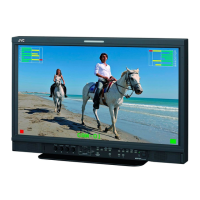
MULTI FORMAT LCD MONITOR
INSTRUCTIONS
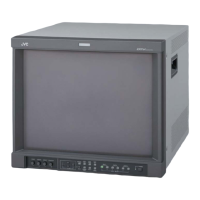
The illustration of the monitor is of DT-E21L4.
DT-E21L4
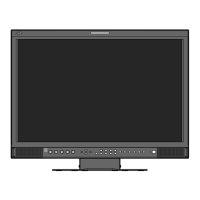
DT-E17L4G
®
DTE21L417L4GEN1.indb1 12.2.244:00:57PM

Other manuals for JVC DT-E17L4G

Questions and Answers

  • R
    roger74Aug 18, 2025
    What to do if my JVC Monitor has no power?
    • J
      Jennifer BeltranAug 18, 2025
      If your JVC Monitor isn't powering on, try these steps: First, press the power button. Next, ensure the AC power plug is firmly inserted. Finally, check that the POWER switch on the rear panel is turned on.
  • P
    perrywilliamAug 20, 2025
    How do I fix wrong color on my JVC Monitor?
    • E
      Edward JohnsonAug 20, 2025
      To correct color issues on your JVC Monitor, try these steps: 1. Adjust the picture adjustment knobs on the front panel or the “Picture Sub Adjust” settings in the Set-Up Menu. 2. Perform a “reset” in “Picture Sub Adjust.” 3. Check the COLOR Off or SCREENS CHECK button settings. 4. Select the proper color system (“Color System”) in “Signal Setting.” 5. Adjust the items of “White Balance Setting” in the Set-Up Menu. 6. Perform “reset” in “White Balance Setting.”
  • J
    Jamie LopezAug 23, 2025
    What to do if the picture is blurred on my JVC DT-E17L4G Monitor?
    • B
      Brenda JohnsonAug 23, 2025
      If the picture on your JVC Monitor is blurred, try adjusting the picture contrast or brightness using the adjustment knobs on the front panel. Alternatively, adjust the “Contrast” or “Bright” settings within the “Picture Sub Adjust” menu in the Set-Up Menu.
  • T
    Timothy StevensonAug 26, 2025
    How to troubleshoot JVC DT-E17L4G Monitor with no power?
    • D
      David LambAug 27, 2025
      If your JVC Monitor isn't powering on, try these steps: First, press the power button. Next, ensure the AC power plug is firmly inserted. Finally, check that the POWER switch on the rear panel is turned on.
  • C
    christine44Aug 28, 2025
    What to do if my JVC DT-E17L4G has power but no picture?
    • A
      abarberAug 28, 2025
      If your JVC Monitor powers on but displays no picture, try the following: * Select the correct input using the INPUT SELECT buttons. * Ensure the signal cable is firmly connected. * Verify that the connected component is powered on and its output is correctly set. * Confirm that the input signal format is acceptable for the monitor.
  • D
    Danny ChambersAug 30, 2025
    How to fix wrong or missing colors on my JVC Monitor?
    • D
      David HarrisAug 30, 2025
      To correct color issues on your JVC Monitor, try these steps: First, adjust the picture settings using the knobs on the front panel or the “Picture Sub Adjust” settings in the Set-Up Menu; you can also reset these settings. Next, check that the COLOR Off or SCREENS CHECK buttons are appropriately set. Then, select the proper color system (“Color System”) in “Signal Setting.” Finally, adjust the “White Balance Setting” in the Set-Up Menu, or reset it.
  • J
    Jamie AlexanderSep 2, 2025
    How to fix no sound on JVC Monitor?
    • R
      rstevensSep 2, 2025
      If you're experiencing a lack of sound on your JVC Monitor, here are a few things to check: 1. Adjust the volume level to ensure it's not set too low. 2. Deactivate the muting function if it's enabled. 3. Make sure the signal cable is firmly connected. 4. Confirm that the connected component is powered on and its output is correctly configured.
  • M
    Mark ShawSep 4, 2025
    Why does my JVC Monitor say “Out of Range”?
    • E
      Eric SuarezSep 4, 2025
      If your JVC Monitor is displaying “Out of Range”, it means the input signal format may not be supported. Check whether the input signal format is acceptable on the monitor.
  • P
    Paul MolinaSep 7, 2025
    How to adjust picture position on JVC DT-E17L4G Monitor?
    • C
      crystal26Sep 7, 2025
      To correct the picture position or size on your JVC Monitor: * Check if the 1:1 setting is appropriate. * Review the “Manual Aspect” and “SD4:3 Size” settings in the Aspect menu. * Verify that the input signal format is acceptable for the monitor. * Adjust the picture size (H Size/V Size) or position (H Position/V Position) in the “Size/ Position Adjust” menu.
  • R
    Rebecca WardSep 9, 2025
    Why don't the buttons on my JVC DT-E17L4G work?
    • R
      Robert BowenSep 9, 2025
      If the buttons on your JVC Monitor aren't working, try setting “Control Lock” in the Set-Up Menu to “Off.” Also, note that you cannot use the buttons for items controlled by an external system; disable the external control in this case.

JVC DT-E17L4G Specifications

General IconGeneral
Screen Size17 inch
Resolution1280 x 1024
Aspect Ratio5:4
Brightness250 cd/m²
Contrast Ratio1000:1
Response Time5 ms
Panel TypeLCD
Input ConnectorsDVI-D
Power Consumption35 W

Related product manuals