EasyManua.ls Logo

JVC DT-R17L4DU - User Manual

JVC DT-R17L4DU
28 pages
Print Icon
To Next Page IconTo Next Page
Loading...
EN
DT-R24L4D
DT-R17L4D
MULTI FORMAT LCD MONITOR INSTRUCTIONS
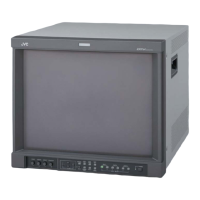
The illustration of the monitor is of DT-R24L4D.
CAUTION:
To reduce the risk of electric shock. Do
not remove cover (or back). No user
serviceable parts inside. Refer servicing
to qualified service personnel.
RISK OF ELECTRICAL SHOCK
DO NOT OPEN
The lightning flash with arrowhead
symbol, within an equilateral triangle is
intended to alert the user to the presence
of uninsulated “dangerous voltage”
within the product’s enclosure that may
be of sufficient magnitude to constitute a
risk of electric shock to persons.
The exclamation point within an
equilateral triangle is intended to alert
the user to the presence of important
operating and maintenance (servicing)
instructions in the literature
accompanying the appliance.
CAUTION


Questions and Answers

  • K
    kimberly82Aug 16, 2025
    How to fix JVC DT-R17L4DU Monitor with no power supply?
    • K
      Kelly ReyesAug 16, 2025
      If your JVC Monitor has no power, try the following: First, press the power button. If that doesn't work, firmly insert the AC power plug. Finally, ensure the POWER switch on the rear panel is turned on.
  • J
    Johnny McclainAug 22, 2025
    Why does my JVC DT-R17L4DU Monitor have wrong or no color and how to fix it?
    • T
      Terry AyalaAug 22, 2025
      If your JVC Monitor displays the wrong color or no color, try the following steps: * Adjust each picture adjustment knob on the front panel or adjust the items of “PICTURE SUB ADJ.” in the SET-UP MENU. * Perform “reset” in “PICTURE SUB ADJ.” * Check whether the setting of COLOR OFF or SCREENS CHECK buttons are appropriate. * Select the proper color system (“COLOR SYSTEM”) in “FUNCTION SETTING” of the SET-UP MENU. * Adjust the items of “WHITE BALANCE SET.” in the SET-UP MENU. * Perform “reset” in “WHITE BALANCE SET.”
  • M
    Melissa RobertsAug 26, 2025
    Why is the picture blurred on my JVC DT-R17L4DU, and how can I fix it?
    • C
      Cynthia WrightAug 26, 2025
      If the picture on your JVC Monitor appears blurred, try adjusting the picture contrast or brightness by using the adjustment knobs on the front panel. You can also adjust “CONTRAST” or “BRIGHT” of “PICTURE SUB ADJ.” in the SET-UP MENU.
  • L
    lori38Aug 28, 2025
    How to troubleshoot no sound on JVC Monitor?
    • J
      Julia TaylorAug 28, 2025
      If you're not getting any sound from your JVC Monitor, here's what to check: 1. Adjust the volume level. 2. Deactivate the muting function. 3. Ensure the signal cable is firmly connected. 4. Turn on the power of the connected component and set the output correctly.
  • C
    Catherine JohnsonAug 31, 2025
    What does “NO SYNC” mean on my JVC DT-R17L4DU Monitor and how to fix it?
    • R
      Rachael TurnerAug 31, 2025
      If “NO SYNC” appears on your JVC Monitor, try these solutions: * Select the correct input using the INPUT SELECT buttons. * Connect the signal cable firmly. * Turn on the power of the connected component and output video signals. * Check whether the video output of the component (video output setting of the VCR or graphic board of the computer) is set correctly.
  • J
    Jennifer MurphySep 3, 2025
    How do I correct wrong picture position or size on my JVC DT-R17L4DU Monitor?
    • K
      Kelly HoltSep 3, 2025
      To correct the picture position or size on your JVC Monitor, consider the following: * Check whether the setting of 1:1 is appropriate. * Check “AUTO ASPECT” “MANUAL ASPECT” and “SD4:3 SIZE” settings in MAIN MENU. * Check whether the input signal format is acceptable on the monitor. * Adjust the picture size (H SIZE/V SIZE) or position (H POSITION/V POSITION) of “SIZE/POSI. ADJ.” in the SET-UP MENU. * For some signals, the picture cannot be displayed fully in the effective screen area. There is no sure method to solve this problem.
  • A
    Aaron MendezSep 6, 2025
    What to do if “OTHERS” or “Out of range” appears on JVC DT-R17L4DU Monitor?
    • L
      lauren19Sep 6, 2025
      If your JVC Monitor displays “OTHERS” or “Out of range,” check whether the input signal format is acceptable on the monitor.
  • M
    Michelle SimonSep 8, 2025
    Why don't the buttons on my JVC DT-R17L4DU Monitor work?
    • J
      Jeffrey GallagherSep 9, 2025
      If the buttons on your JVC Monitor are not working, it might be due to the following reasons: * Set “CONTROL LOCK” in the SET-UP MENU to “OFF.” * You cannot use the buttons for the items controlled by the MAKE system. Disable the external control.
  • T
    Tracy KeySep 10, 2025
    What to do if my JVC DT-R17L4DU Monitor has no picture with the power on?
    • L
      Leslie GalvanSep 12, 2025
      If your JVC Monitor powers on but shows no picture, try these steps: * Select the correct input using the INPUT SELECT buttons. * Ensure the signal cable is firmly connected. * Turn on the connected component and set the output correctly. * Check if the input signal format is acceptable on the monitor.
  • D
    douglas73Sep 12, 2025
    Why some items do not appear on the menu of my JVC Monitor?
    • A
      Alicia CampbellSep 12, 2025
      If some items do not appear on the menu of your JVC Monitor, it could be because the items which are not available for the current input or the current input signal are not displayed on the menu. Try changing the input or the input signal. Also, the items controlled by the MAKE system do not appear on the menu.

JVC DT-R17L4DU Specifications

General IconGeneral
BrandJVC
ModelDT-R17L4DU
CategoryMonitor
LanguageEnglish

Related product manuals