ENGLISH
HOW TO USE “SETUP MENU”
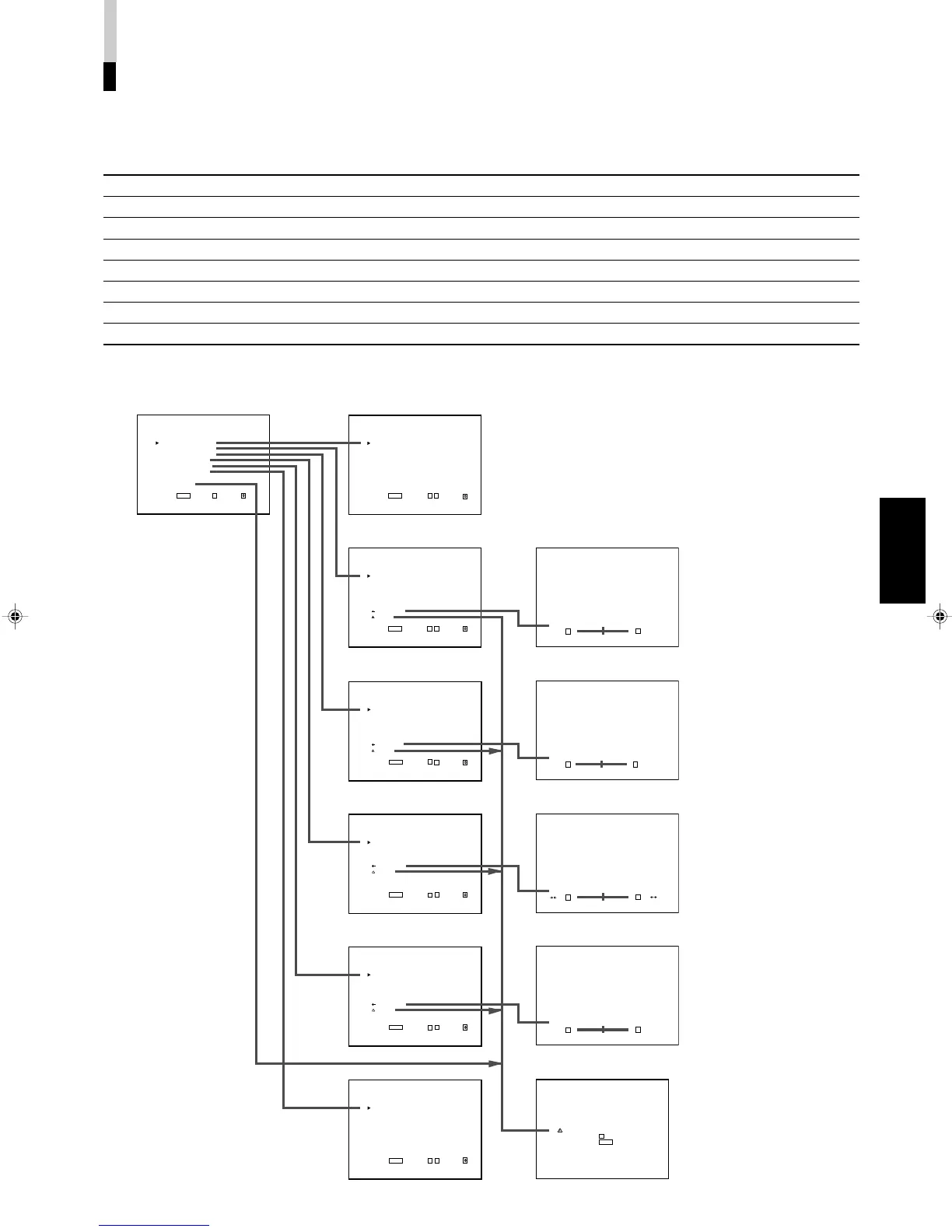
䡵 “SETUP MENU” ITEMS
Items Functions
1 FUNCTION SETTING Displays the monitor’s power-up time or the total usage time.
2 PICTURE SUB ADJ. Performs approximate adjustments using the control knobs on the front panel.
3 COLOR TEMP./BAL. Sets or adjusts the colour temperature or white balance.
4 SIZE/POSI. ADJ. Adjusts the size or position of the picture.
5 DISTORTION ADJ. Compensates the picture distortion.
6 STATUS DISPLAY Makes the status of the input signal appear or disappear on the screen.
7 CONTROL LOCK Sets the control lock preventing the monitor from misuse.
8 all reset Sets all items in SETUP MENU to factory-preset values.
䡵 “SETUP MENU” SCREENS
<SETUP MENU>
FUNCTION SETTING
PICTURE SUB ADJ.
COLOR TEMP./BAL.
SIZE/POSI.ADJ.
DISTORTION ADJ.
STATUS DISPLAY
CONTROL LOCK :ON
all reset
EXIT:
MENU
ENTER:+ SELECT:
<FUNCTION SETTING>
COLOR SYSTEM :AUTO
SYNC SELECT :AUTO
RUSH DELAY TIME :STD.
TALLY SELECT :GREEN
REMOTE SYSTEM :MAKE
EMBEDDED :1G
HOUR METER X100h :000
EXIT:
MENU
ADJUST:- + SELECT:
<PICTURE SUB ADJ.>
CONTRAST : 00
BRIGHT : 00
CHROMA : 00
PHASE : 00
NTSC SETUP : 00
COMPO.LEVEL :SMPTE
sub menu
reset
EXIT:
MENU
ADJUST:- + SELECT:
<COLOR TEMP./BAL.>
COLOR TEMP. :LOW
BLUE DRIVE : 000
RED DRIVE : 000
GREEN CUTOFF : 000
BLUE CUTOFF : 000
RED CUTOFF : 000
sub menu
reset
EXIT:
MENU
ADJUST:- + SELECT:
<SIZE/POSI. ADJ.>
H.SIZE : 00
H.POSITION : 00
V.SIZE : 00
V.POSITION : 00
sub menu
reset
EXIT:
MENU
ADJUST:- + SELECT:
<DISTORTION ADJ.>
PINCUSHION : 00
PIN.BALANCE : 00
PARALLELOGRAM : 00
TRAPEZOID : 00
ROTATION : 00
sub menu
reset
EXIT:
MENU
ADJUST:- + SELECT:
<STATUS DISPLAY>
STATUS DISPLAY :ON
1080/1035 :1080
EXIT:
MENU
ADJUST:- + SELECT:
CONTRAST : 00
- - + +
BLUE DRIVE :000
- - + +
H.SIZE : 00
- - + +
PINCUSHION : 00
- - + +
Aer you sure ?
"Yes" then + Key.
"No" then
MENU
Key.
15
LCT1116-001A(EN) 02.1.29, 2:53 PM17


 To Next Page
 Loading...