EasyManua.ls Logo

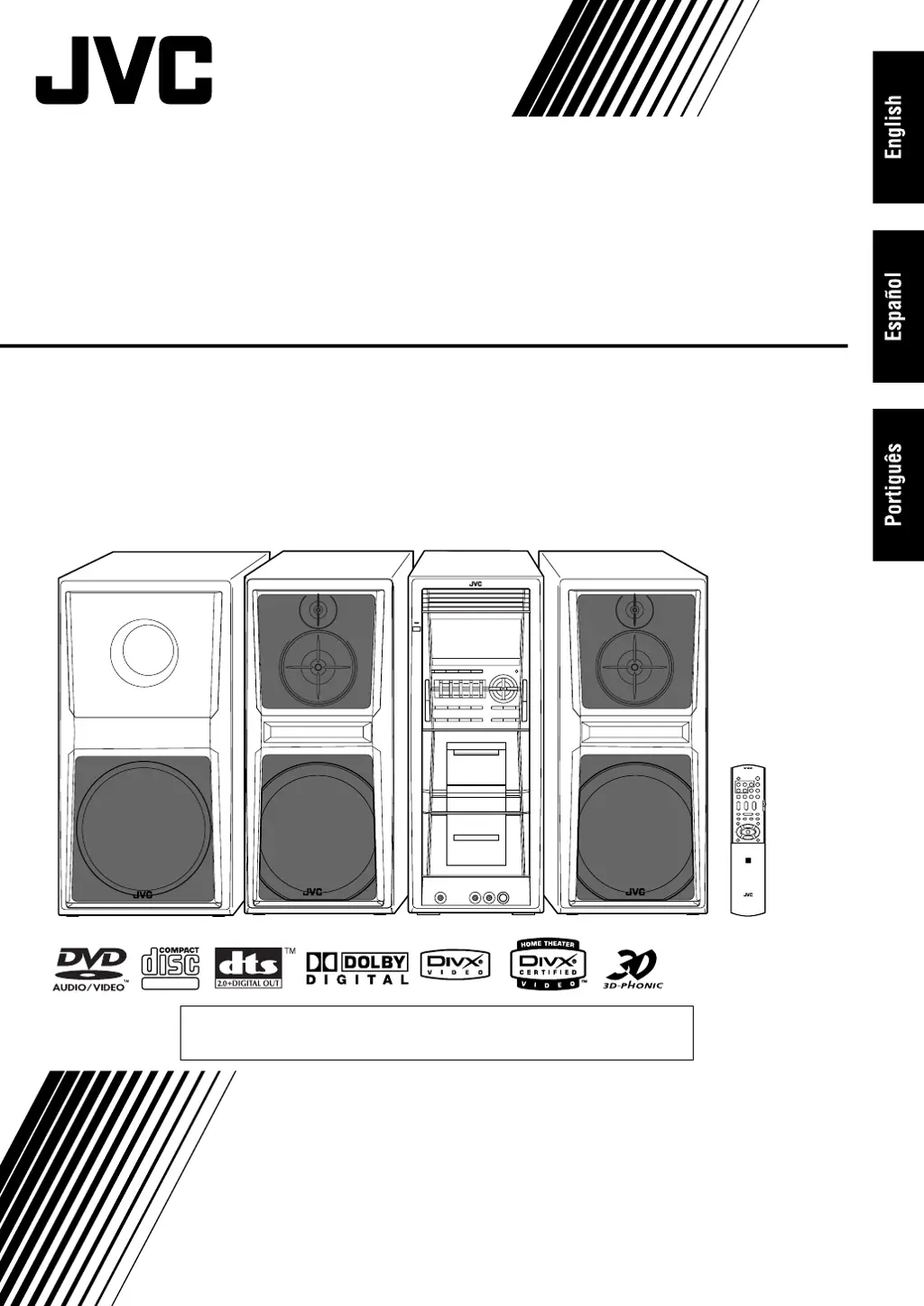
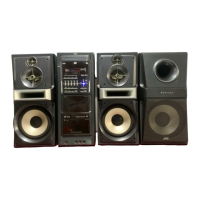
JVC DX-T66 - User Manual

JVC DX-T66
142 pages
Print Icon
To Next Page IconTo Next Page
Loading...
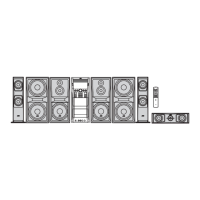
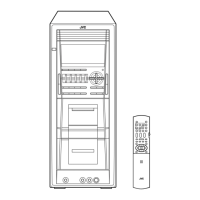
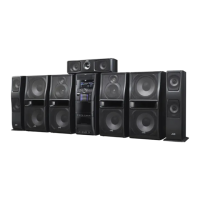
COMPACT COMPONENT SYSTEM
SISTEMAS DE COMPONENTES COMPACTOS
SISTEMA DE COMPONENTE COMPACTO
DX-T66
—Consists of CA-DXT66, SP-DXT66F, and SP-DXT99W
—Se compone de CA-DXT66, SP-DXT66F y SP-DXT99W
—Composto por CA-DXT66, SP-DXT66F e SP-DXT99W
INSTRUCTIONS
MANUAL DE INSTRUCCIONES
INSTRUÇÕES
GVT0165-003A
[UW]
SUPER VIDEO
¡ATENCION!
Antes de operar su equipo, lea cuidadosamente este instructivo.
DXT66_Cover[UW].fm Page 1 Wednesday, March 15, 2006 3:56 PM

Table of Contents

Questions and Answers

  • R
    Robert TurnerSep 9, 2025
    Why can't I open the cassette holder on my JVC Speaker System?
    • Y
      yfordSep 9, 2025
      If the cassette holder on your JVC Speaker System cannot be opened, it might be because the power supply from the AC power cord was cut off while the tape was running. Try turning on the system.
  • Z
    zmooreAug 23, 2025
    Why is there no sound coming from my JVC DX-T66 Speaker System?
    • K
      Kathleen MedinaAug 23, 2025
      If no sound is coming from your JVC Speaker System, there might be a problem with the speaker connections (they could be incorrect or loose) or headphones might be connected.
  • J
    Jeffrey ChavezAug 25, 2025
    Why won't my JVC Speaker System play the disc?
    • J
      Jessica WolfeAug 25, 2025
      If your JVC Speaker System isn't playing a disc, it could be because the disc's Region Code isn't “4” (in which case “REGION ERR” will appear on the display). Another possibility is that the disc is upside down; make sure to place the disc with the label side up.
  • H
    Henry FloresAug 26, 2025
    Why is there no picture on the screen from my JVC DX-T66?
    • J
      jamie76Aug 26, 2025
      If no picture is appearing on the screen when using your JVC Speaker System, the video cord connections may be incorrect or loose.
  • J
    Joseph HooperAug 27, 2025
    What to do if operations are disabled on my JVC DX-T66?
    • W
      William GonzalezAug 27, 2025
      If operations are disabled on your JVC Speaker System, the built-in microprocessor may have malfunctioned due to external electrical interference. To resolve this, unplug the AC power cord and then plug it back in.
  • T
    Tanner SmithAug 29, 2025
    Why won't the disc tray open on my JVC Speaker System?
    • M
      Mary CookAug 29, 2025
      If the disc tray on your JVC Speaker System won't open or close, it could be due to several reasons: the AC power cord isn't plugged in, Child Lock is activated (“LOCKED” appears in the display window), or Program Play is in use. To solve this, cancel the Program Play.
  • J
    Joseph KennedySep 17, 2025
    Why is the audio language wrong on my JVC DX-T66 Speaker System?
    • L
      Lisa MaxwellSep 17, 2025
      If the audio language is different from the one you selected as the initial audio language on your JVC Speaker System, it's because some DVDs are programmed to always use the original language initially. If this happens, press AUDIO after starting play.
  • M
    mdiazSep 19, 2025
    Why are there no subtitles on my JVC Speaker System?
    • G
      guzmanrhondaSep 22, 2025
      If no subtitle appears on the display of your JVC Speaker System even though you've selected the initial subtitle language, it's because some DVDs are programmed to always display no subtitle initially. If this happens, press SUB TITLE after starting play.
  • M
    Monica MurraySep 7, 2025
    Why are my JVC Speaker System settings being canceled?
    • B
      Brian ChangSep 7, 2025
      If adjustments or settings on your JVC Speaker System are suddenly canceled before you finish, it's likely due to a time limit. Simply repeat the procedure again.
  • M
    Mr. Corey Kennedy DDSSep 4, 2025
    Why is it impossible to record on my JVC DX-T66?
    • J
      Jacqueline OwensSep 4, 2025
      If it's impossible to record on your JVC Speaker System, check if the small tabs on the back of the cassette are removed; if they are, cover the holes with adhesive tape. Also, make sure the Karaoke scoring function is not in use; if it is, cancel the scoring function.

Summary

Safety and Precautions

Power Button and Standby Mode

Details on system power states, standby indicator, and remote control operation.

Laser Product Safety

Important safety information for Class 1 laser products, including handling precautions.

General Electrical and Fire Safety

Warning to reduce risks of electric shock, fire, and unauthorized access to internal parts.

Ventilation and Placement Guidelines

Instructions for proper ventilation and placement to prevent overheating and damage.

Safe Handling and Installation

Guidance on safely unpacking, carrying, and installing the unit with two people.

System Precautions

Installation and Placement Precautions

Guidelines for installing the system in suitable locations, considering temperature and ventilation.

Power Source and Handling Precautions

Important notes on unplugging the unit and handling the AC power cord safely.

Environmental and Internal Heat Precautions

Advice on preventing moisture condensation and managing internal heat build-up.

System Connections

Speaker and Power Connections

Details on connecting main speakers, subwoofer, surround speakers, and AC power.

Connecting External Devices

TV;Monitor Connection Details

Specifics on connecting video outputs (Composite, S-Video, Component) to a TV.

Antenna Connection Details

Instructions for connecting FM and AM antennas for optimal reception.

Speaker and Power Setup

Speaker and Subwoofer Connection Details

Proper connection of speakers and subwoofer, including polarity and impedance matching.

Surround Speaker Connection

Instructions for connecting surround speakers for enhanced audio.

Voltage Selector Adjustment

Procedure for setting the correct voltage for the unit based on regional power supply.

Daily Operations: Playback

Powering On and Source Selection

Steps to turn on the system, select playback sources (Disc, AUX, FM/AM), and start playback.

Volume Adjustment and Private Listening

How to adjust volume levels and use headphones for private listening.

Listening to the Radio

Presetting and Tuning Radio Stations

How to store favorite radio stations and tune into them using preset numbers.

Playing Back Discs

Playback Control: Start, Pause, Stop

Basic playback controls including starting, pausing, stopping, and resuming playback.

Sound and Adjustment Operations

Speaker Balance and Bass Enhancement

Adjusting speaker output balance and reinforcing bass sound with Subwoofer/Rhythm AX.

Selecting Sound Modes

Creating Custom User Sound Modes

Personalizing and storing preferred sound settings as User Modes.

3 D Phonic Sound Field Adjustment

Activating and adjusting the 3D Phonic feature for a more immersive sound.

Picture and Sound Customization

Playback Picture Adjustment and Saving

Customizing picture settings like gamma, contrast, brightness, and saving preferences.

Unique DVD;VCD Operations

Selecting Audio Tracks

Choosing different audio languages or channels available on DVD Video/DivX discs.

Selecting Subtitle Languages

Selecting subtitle languages for display on the TV screen for DVD Video/DivX.

Advanced Disc Operations

Programming Playback Order (Program Play)

Arranging the order of tracks for playback before starting the disc.

Disc Playback Modes

Random Playback of Discs

Playing tracks or chapters from loaded discs in a random order.

Repeat Playback and Disc Security

Repeat Playback Modes

Selecting various repeat options: chapter, title, disc, or all discs.

On-Screen Disc Operations

Using On-screen Bar for Subtitle Selection

Selecting subtitle languages using the on-screen bar interface.

On-Screen Bar Operations

Recording Operations

Advanced Recording Features

Enjoying Karaoke

Karaoke Functionality

Karaoke Program Play and Scoring Settings

Timer Operations

Setting Recording and Daily Timers

Configuring timers for automatic recording of radio broadcasts or waking up to music.

Setup Menu Operations

Operating the TV with the Remote

Troubleshooting Guide

General Troubleshooting Steps

Initial steps to resolve common system issues, including power and connection problems.

Troubleshooting Specific Operations

System Specifications

Amplifier, Speaker, and Tuner Specifications

Technical details for the amplifier, main speakers, subwoofer, and tuner sections.

Detailed System Specifications

Main Speaker and Subwoofer Details

In-depth specifications for the main speakers and subwoofer, including dimensions and frequency response.

JVC DX-T66 Specifications

General IconGeneral
BrandJVC
ModelDX-T66
CategorySpeaker System
LanguageEnglish

Related product manuals