EasyManua.ls Logo

JVC GY-HM200U - User Manual

JVC GY-HM200U
184 pages
Print Icon
To Next Page IconTo Next Page
Loading...
.
4K MEMORY CARD CAMERA RECORDER
GY-HM200U/GY-HM200E
GY-HM170U/GY-HM170E
INSTRUCTIONS
.
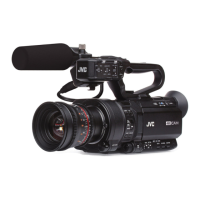
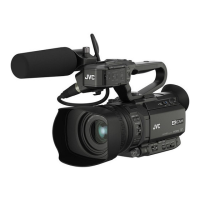
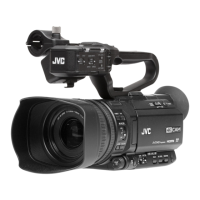
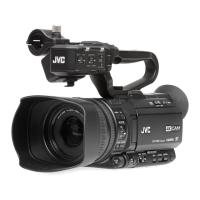
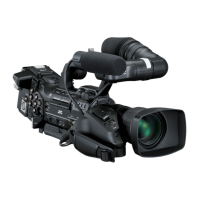
The illustration here shows how the handle unit is attached using the unit supplied with
GY-HM200U/GY-HM200E.
GY-HM170U/GY-HM170E do not come with a handle unit.
The specifications and appearance of this product are subject to changes for further improvement
without prior notice.
Please check the latest version of the INSTRUCTIONS from the following Mobile User Guide. You can
also download the PDF from the Mobile User Guide.
Mobile User Guide
When you are outside, you can refer to the instructions from your Android phone or iPhone.
http://manual3.jvckenwood.com/pro/mobile/global/
You can view the Mobile User Guide using the browser on your Android phone or iPhone.
Thank you for purchasing this JVC product.
Before operating this unit, please read the
instructions carefully to ensure the best
possible performance.
In this manual, each model number is
described without the last letter (U/E) which
means the shipping destination.
(U: for USA and Canada, E: for Europe)
Only “U” models (GY-HM200U/GY-HM170U)
have been evaluated by UL.
Please read the following before getting started:
For Customer Use:
Model No.
Serial No.
Enter below the Serial No. which is located
on the body.
Retain this information for future reference.
GY-HM200U/GY-HM170U
IM 1.00
B5A-0573-00

Table of Contents

Other manuals for JVC GY-HM200U

Questions and Answers

  • D
    Danielle ColemanSep 18, 2025
    What to do if playback does not start on my JVC GY-HM200U Camcorder after selecting a clip thumbnail?
    • A
      Angel PotterSep 18, 2025
      If playback does not start on your JVC Camcorder after selecting a clip thumbnail, ensure the selected clip is a playable clip. Playback is not possible if the clip has a different video format setting.
  • A
    Alexis WilliamsonAug 25, 2025
    What to do if my JVC GY-HM200U Camcorder is unable to start recording?
    • S
      stephanie37Aug 25, 2025
      If your JVC Camcorder is unable to start recording, check the following: Ensure the record trigger button/lock switch on the handle is turned on. Verify the write-protect switch of the SD card is turned off. Confirm the camera recorder is set to the Camera mode using the [MODE] selection button. Ensure the SD card inserted is compatible with the recording format.
  • A
    Aaron WagnerAug 25, 2025
    How to fix a JVC GY-HM200U Camcorder when the power does not turn on?
    • N
      Nicole SmithAug 26, 2025
      If your JVC Camcorder's power does not turn on, check if the AC adapter is properly connected and the battery is charged. If you've just turned it off, wait at least 5 seconds before turning it on again.
  • C
    Chelsea BeckAug 27, 2025
    What to do if images on the LCD monitor and viewfinder screen appear dark or blurred on my JVC Camcorder?
    • C
      Caitlin GrayAug 27, 2025
      Readjust the brightness of the LCD monitor and viewfinder. Check if the [ND FILTER] switch is set to “1/16”, or if the iris is closed. Also, verify if the shutter speed setting is too high or if the amount of peaking is too little. To adjust the contour for the LCD monitor image and viewfinder image, use the [LCD/VF Peaking] menu by adjusting the contour of the viewfinder image. (The contour of the LCD monitor will also be adjusted at the same time.) This can be found under [Main Menu] B [LCD/VF] B [LCD/VF Peaking].
  • D
    devonmurilloSep 19, 2025
    Why are the images and audio during live streaming choppy on my JVC GY-HM200U?
    • M
      Matthew HermanSep 22, 2025
      If the images and audio sound during live streaming are choppy on your JVC Camcorder, it might be due to the network adapter and connection not supporting the specified encoding bit rate. Try reducing the encoding bit rate.
  • T
    Tracy SmithSep 23, 2025
    Why are the date and time not displayed on my JVC Camcorder?
    • J
      Jeffrey MillerSep 23, 2025
      The date and time are only displayed on the Display 1 and Display 2 screens in the Camera mode (during shooting). Check if [System] B [Record Set] B [Time Stamp] is set to “On”? To display the date and time, set it to “Off.”
  • D
    Dean FergusonSep 9, 2025
    Why does playback not start after selecting a clip thumbnail and pressing the Set button (R) on my JVC Camcorder?
    • D
      Diana VaughnSep 9, 2025
      The selected clip may not be a playable clip. Playback is not possible if the clip has a different video format setting.
  • G
    Gabrielle GonzalezSep 12, 2025
    Why is the time code and user’s bit not displayed on my JVC GY-HM200U?
    • J
      Jason LevySep 12, 2025
      Even in Camera mode or Media mode, the time code and user’s bit may not be displayed depending on the type of display. Check if [LCD/VF] B [Display Settings] B [TC/UB] is set to “Off”. To display the time code or user’s bit, set it to “TC” or “UB.”
  • T
    Tonya NunezSep 3, 2025
    Why does battery alarm appear on my JVC Camcorder even after loading a charged battery?
    • M
      Mr. Michael Lynch DVMSep 3, 2025
      The battery alarm may appear on your JVC Camcorder even after loading a charged battery if the battery is too old.
  • A
    Ashley MoralesSep 1, 2025
    What to do if clips cannot be uploaded to the FTP server from my JVC GY-HM200U Camcorder?
    • A
      Andrea MillerSep 1, 2025
      If clips cannot be uploaded to the FTP server from your JVC Camcorder, adjust the [Clip Server] settings. Note that the maximum size of the recorded clip is 64 GB. If a file size limit is set in the FTP server settings, set the size limit to more than 64 GB.

Summary

IMPORTANT SAFEGUARDS

FOR USA

General safety guidelines specific to appliances in the USA.

Safety Precautions

FOR USA AND CANADA

Cautions regarding electrical shock and FCC compliance for USA and Canada.

Main Features

Supports 4 K high-definition recording

Details on 4K recording quality and codec support for advanced HD recording.

F1.2, 29.6 mm wide-angle, 12 x optical zoom lens

Description of the camera's lens specifications, brightness, and zoom capabilities.

Precautions for Proper Use

Storage and Usage Locations

Guidelines for environmental conditions, temperature, humidity, and avoiding specific locations.

SDHC;SDXC Cards

Information on SD card compatibility, usage, and potential issues.

Operation Modes

Camera Mode

Description of the camera's shooting mode, startup state, and recording initiation.

Media Mode

Functionality for playing back or deleting recorded clips on the SD card.

Names of Parts

Built-in Microphone

Description of the integrated microphone and its audio recording capabilities.

Side Control Panel

Overview of the buttons and controls located on the side of the camera.

Basic System Diagram

Settings and Adjustments Before Use

Attaching the Handle Unit K

Step-by-step instructions for attaching the handle unit to the camera recorder.

Power Supply

Information on powering the camera recorder using a battery pack or AC adapter.

Initial Settings

Displays on the LCD Monitor and Viewfinder

Display Screen (VF;LCD) in Camera Mode

Details on the information displayed on the viewfinder and LCD in camera mode.

Status Screen

Explanation of how to check current camera settings and operational status.

Adjusting the LCD Monitor and Viewfinder

Adjusting the LCD Monitor

Steps for adjusting the angle, brightness, contour, and contrast of the LCD monitor.

Adjusting the Viewfinder

Guidance on adjusting the brightness, peaking, and color display of the viewfinder.

SD Card

Usable Cards

Information on compatible SD card formats and their specifications.

Formatting (Initializing) SD Cards

Procedures for formatting SD cards to ensure proper camera compatibility.

Basic Shooting Procedures

Selecting System Definition, File Format and Video Format

Guide to choosing the recording system, file format, and video format for shooting.

Zoom Operation

Explanation of how to operate the camera's zoom function using various controls.

Focus Operation

Details on how to perform automatic and manual focusing operations on the camera.

Adjusting the Brightness

Methods for adjusting image brightness using Iris, Gain, and Shutter settings.

Adjusting the White Balance

How to adjust white balance based on lighting color temperature.

Adjusting the Camera Image

Using the Image Stabilizer

How to activate and adjust the image stabilizer to reduce camera shake blur.

Audio Recording

Selecting Audio to Be Recorded in Each Channel

How to choose audio sources for CH1 and CH2 inputs.

Adjusting the Audio Recording Level

Methods for manually or automatically adjusting audio recording levels.

Time Code and User’s Bit

Displaying Time Code and User’s Bit

How to display time code and user's bit data on the screen during playback or recording.

Setting Time Code Generator

How to configure the time code generation mode (Free Run, Rec Run, Regen).

Special Recording

Recording Simultaneously at Two Different Definitions

How to record HD and Web files simultaneously using the HD+Web system definition.

Backup Rec

How to set up backup recording to slot B for continuous recording or safety.

Pre Rec

How to record video and audio before the actual recording starts to capture initial scenes.

Playing Recorded Clips

Thumbnail Screen

Display of recorded clips as thumbnails for selection and playback.

Playing back

Instructions on how to play back recorded clips using the camera's controls.

Deleting Clips

Procedures for deleting individual clips or all clips from the SD card.

Trimming Recorded Clips

How to extract specific segments from recorded clips.

Menu Display and Detailed Settings

Basic Operations in Menu Screen

Guide to navigating and operating the camera's menu system.

Camera Function Menu

Settings related to camera functions like Bars, OIS, Flicker Correction, and Shutter.

Camera Process Menu

Settings for adjusting camera image quality, including detail, master black, and black toe.

System Menu

System-level settings including recording formats, media management, and setup files.

Connecting External Devices

Connecting External Monitor

How to connect the camera to an external monitor for video output.

Loading Clips to the PC

How to transfer recorded clips to a PC using a USB cable.

Connecting to the Network

Functions of Network Connection

Overview of network capabilities including metadata import, clip upload, and editing.

Connecting from a Web Browser

How to access camera functions via a web browser on external devices.

View Remote Feature

How to remotely view live images and control camera functions via a web browser.

Performing Live Streaming

How to set up and start live streaming of audio and video over the network.

Error Messages and Actions

Troubleshooting

Common issues with power, recording, display, and playback, with corresponding solutions.

Specifications

General

General specifications including power, mass, temperature, humidity, and dimensions.

Video;Audio

Technical details on supported video and audio formats, bit rates, and codecs.

Software License Agreement

Article 1 General Provision

Grant of license, terms, and conditions for using the embedded software.

Article 9 Destruction of the Licensed Software

Requirements for destroying licensed software and related materials upon agreement termination.

JVC GY-HM200U Specifications

General IconGeneral
BrandJVC
ModelGY-HM200U
CategoryCamcorder
LanguageEnglish

Related product manuals