DIRECT MONITORING
o
Setting (Once setting is done, start from the “Regular
Operation” below)
Create a QR code.
o
Enter values in the required items for direct monitoring.
0
Password: set a password to connect this camera to the device by direct
monitoring. (8 to 63 characters (64 characters in case of hexadecimal))
0
Enforced Group Owner: setting used to enable a connection with a device
that does not support Wi-Fi Direct. Normally set to “ON”.
0
HTTP Port: Normally set to “80”.
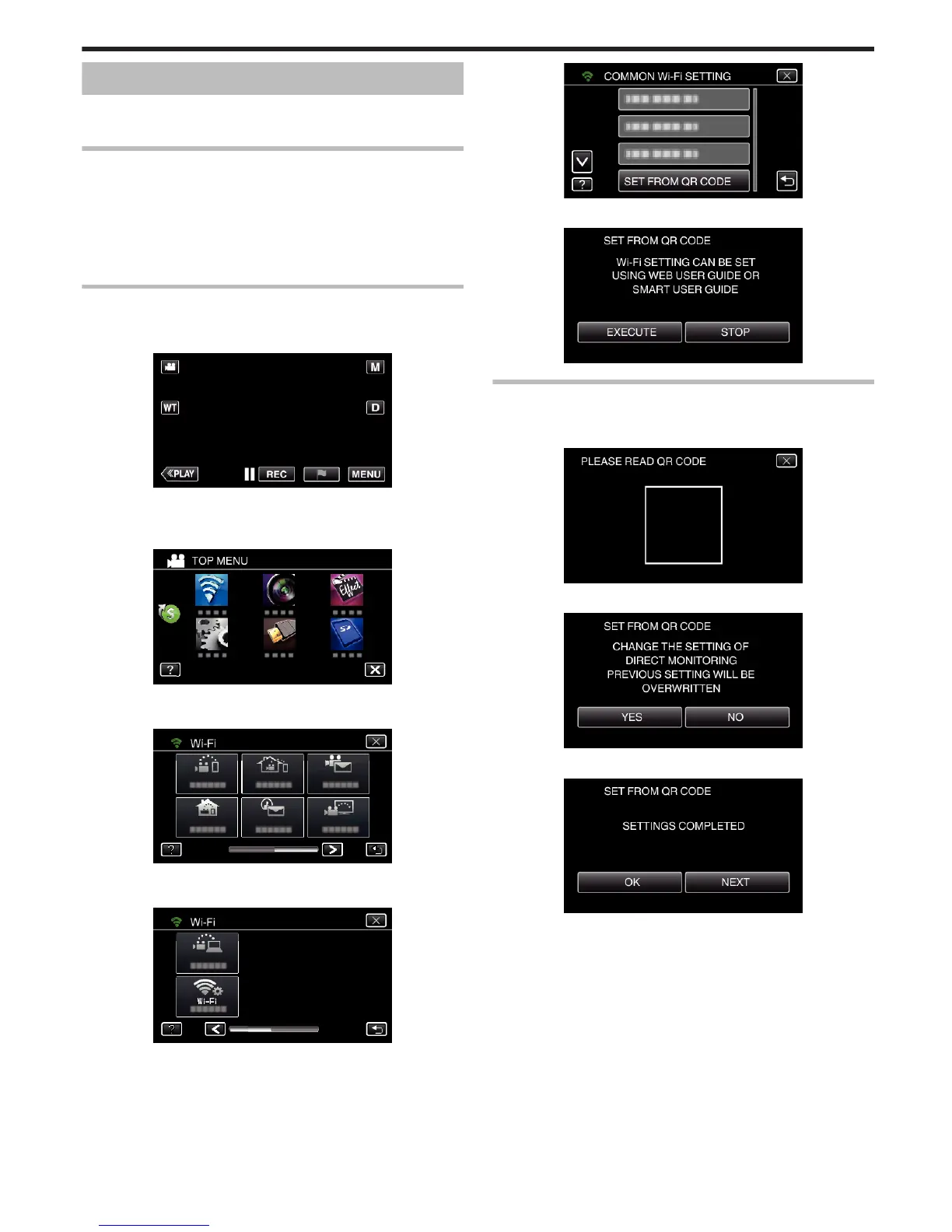
Display the screen for reading the QR code.
1
Tap “MENU”.
(Operation on this camera)
.
0
The top menu appears.
2
Tap the “Wi-Fi” (
Q
) icon.
(Operation on this camera)
.
3
Tap 1 on the lower right of the screen.
(Operation on this camera)
.
4
Tap “COMMON Wi-Fi SETTING”.
(Operation on this camera)
.
5
Tap “SET FROM QR CODE”.
.
6
Tap “EXECUTE”.
.
Read a QR code.
1
Read a QR code.
(Operation on this camera)
.
2
Tap “YES”.
.
3
Tap “OK”.
.
0
Tap “NEXT” to return to the screen to read the QR code.
0
Set contents are saved.
Using Wi-Fi by Creating a QR Code (GZ-EX355/GZ-EX310)
181



 To Next Page