Recording Stop-Motion Videos (STOP-
MOTION REC)
By pressing the SNAPSHOT button, 2 frames of still images are recorded,
and stop-motion videos are created by piecing these images together.
(Video files in AVCHD only)
*The following is a screen of the model with Wi-Fi functions.
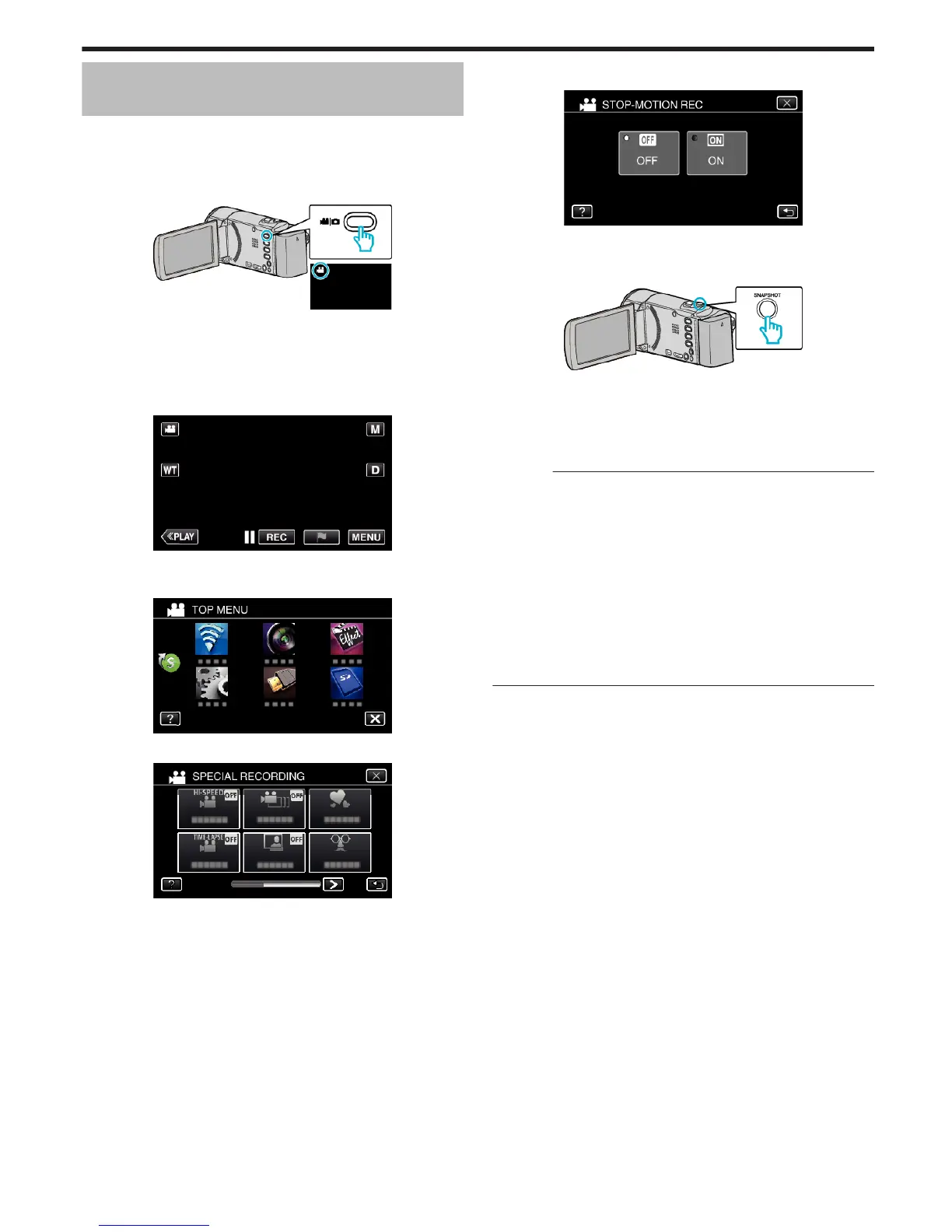
1
Open the LCD monitor.
.
0
Check if the recording mode is A.
0
If the mode is B still image, tap B on the recording screen to display
the mode switching screen.
Tap A to switch the mode to video. (You can also use the A/B button
on this unit.)
2
Tap “MENU”.
.
0
The top menu appears.
3
Tap “SPECIAL RECORDING”.
.
4
Tap “STOP-MOTION REC”.
.
5
Tap “ON”.
.
0
The “STOP-MOTION RECORDING MODE. PRESS SNAPSHOT TO
CAPTURE FRAME” appears.
6
Press the SNAPSHOT button to start recording.
.
0
Tap still image recording (Q) to start recording.
0
Press the START/STOP button or tap
f
to stop recording.
0
“CAPTURE” lights up when a scene is recorded.
0
Settings of the Stop-Motion video are not saved when the power is
turned off.
Caution :
0
Audio cannot be recorded during “STOP-MOTION REC”.
0
This function does not support the iFrame recording format. (GZ-
EX355/GZ-EX310)
0
When recording is stopped with the recorded time less than “0:00:00:17”
(or less than 8 snapshots), the video will not be saved.
0
Simultaneous still image recording and image stabilizer are not available
during “STOP-MOTION REC”.
0
“SEAMLESS RECORDING” is not available during “STOP-MOTION
REC”.
0
When “STOP-MOTION REC” is set, the power-saving mode is
deactivated.
0
“TOUCH PRIORITY AE/AF”, “SMILE SHOT”, “PET SHOT” and “AUTO
REC” are not available.
Recording
57



 To Next Page