EasyManua.ls Logo

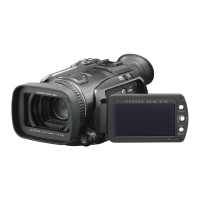
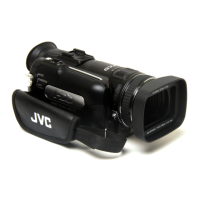
JVC GZ-HD7U - User Manual

JVC GZ-HD7U
84 pages
Print Icon
To Next Page IconTo Next Page
Loading...
EN
HD HARD DISK CAMCORDER
GZ-HD7U
Dear Customer
Thank you for purchasing
this hard disk camera. Before
use, please read the safety
information and precautions
contained in pages 4 and 5 to
ensure safe use of this product.
For Future Reference:
Enter the Model No. (located on
the bottom of the camera) and
Serial No. (located on the battery
pack mount of the camera)
below.
Model No.
Serial No.
INSTRUCTIONS
ENGLISH

Table of Contents

Questions and Answers

  • M
    Melissa MarshallAug 15, 2025
    How to fix JVC GZ-HD7U Camcorder when no power is supplied?
    • K
      Kenneth HarperAug 16, 2025
      If your JVC Camcorder isn't getting power, try these steps: First, ensure the AC adapter is securely connected. If that doesn't work, detach the battery pack and re-attach it firmly. As a last resort, replace the dead battery with a fully charged one.
  • B
    Brenda ThomasAug 18, 2025
    What to do if my JVC GZ-HD7U Camcorder battery drains too fast?
    • E
      Elizabeth CherryAug 18, 2025
      If your JVC Camcorder's battery drains quickly or the power doesn't turn on even after a full charge, ensure you are using the camera within appropriate operating temperatures. If the issue continues, the battery is likely worn out and needs replacement.
  • S
    Sherry NelsonAug 21, 2025
    Why does my JVC GZ-HD7U turn off by itself?
    • N
      Norma ConradAug 21, 2025
      If your JVC Camcorder turns off unexpectedly, it might be due to vibration or excessive sound. Try moving to a more stable location. It's also possible the drop detection function activated; set the power/mode switch to OFF, then to STANDBY/ON again. To disable this function, set [DROP DETECTION] to [OFF].
  • S
    Sierra HernandezAug 25, 2025
    What to do if my JVC Camcorder display is not showing anything?
    • R
      robert46Aug 25, 2025
      If your JVC Camcorder display is blank, the camera might have turned off automatically to save power. When using the battery pack, set the power/mode switch to OFF, then to STANDBY/ON. If using the AC adapter, perform any operation such as zooming. Also, adjust the brightness of the LCD monitor or viewfinder. Finally, when using the viewfinder, either close the LCD monitor, or set the [PRIORITY SETTING] to [FINDER].
  • K
    Kenneth McneilAug 27, 2025
    What to do if my JVC GZ-HD7U Camcorder won't record?
    • C
      Charles RobinsonAug 27, 2025
      If your JVC Camcorder won't record, first check if the recording medium is full. If it is, delete unnecessary files or replace the SD card. Also, ensure that you have selected the correct recording medium.
  • B
    Brian FullerAug 30, 2025
    Why is the remaining battery power on my JVC GZ-HD7U Camcorder inaccurate?
    • M
      Maria WilliamsAug 30, 2025
      If the remaining battery power displayed on your JVC Camcorder doesn't match the actual operating time, fully charge the battery and then let it run down completely. If the problem continues, the battery is likely worn out and needs to be replaced.
  • M
    Marc MillerSep 2, 2025
    Why are the images on my JVC Camcorder LCD dark or whitish?
    • D
      dhowellSep 3, 2025
      If the images on your JVC Camcorder's LCD monitor appear dark or whitish, try adjusting the brightness and angle of the LCD monitor. If that doesn't help, the LED light may be at the end of its service life.
  • R
    rodriguezedwardSep 5, 2025
    Why is my JVC GZ-HD7U Camcorder data processing so slow?
    • S
      Shelly HoldenSep 5, 2025
      If your JVC Camcorder is processing data slowly after powering on or changing modes, it could be due to a large number of still images stored on the recording medium (approximately 1,000 or more). Try copying these files to other devices and then deleting them from the recording medium.
  • D
    donaldbaileySep 8, 2025
    Why is the continuous shooting speed slow on my JVC GZ-HD7U Camcorder?
    • R
      ryan54Sep 8, 2025
      The continuous shooting speed on your JVC Camcorder may decrease when taking continuous shots repeatedly, when using certain recording media, or under specific recording conditions.
  • D
    Daniel WatsonSep 12, 2025
    What to do if SD card is stuck in JVC GZ-HD7U?
    • S
      stephenprinceSep 12, 2025
      If the SD card is stuck in your JVC Camcorder, try pushing the SD card in a few more times.

Summary

GETTING STARTED

Accessories

Lists all included accessories and their references.

Attaching the Shoulder Strap

Instructions for attaching the shoulder strap to the camera.

Preparing the Remote Control

Guide on how to prepare and use the remote control.

Indications on LCD Monitor

Explains various indicators displayed on the camera's LCD screen.

Necessary Settings before Use

Details essential settings required before operating the camera.

RECORDING

Video Recording

Steps for recording video footage with the camera.

Still Image Recording

Steps for capturing still photographs with the camera.

Record Using the Viewfinder

Instructions for recording using the camera's viewfinder.

Registering Files to Events

How to organize recorded files into events for easier management.

Checking Recording Media Space

How to check available storage space on the HDD or SD card.

Manual Recording

Guide to manual recording settings like focus and brightness.

PLAYBACK

Video Playback

Steps for playing back recorded video files.

Still Image Playback

Steps for viewing captured still images.

File Search Function

How to search for files using date or event criteria.

Playback with Special Effects

How to apply visual effects during playback.

Watching Images on TV

Instructions for connecting the camera to a TV for playback.

EDITING;PRINTING

Managing Files

Overview of file management operations like delete and protect.

Deleting;Protecting Files

Detailed steps for deleting or protecting individual files.

Viewing File Information

How to view details such as file name, date, and quality.

Extracting Still Images from Video

Method for extracting still images from video clips.

DPOF Print Setting

How to set print options for still images on an SD card.

COPYING

Copying Files

General options for copying files from the camera.

DVD Burner File Backup

Detailed guide for backing up files to DVD discs.

Dubbing Files via VCR;DVD Recorder

How to dub video files to VCR or DVD recorders.

Copying;Moving Still Images

Steps to copy or move still images between HDD and SD card.

PC OPERATION

Windows PC File Backup

Guide for backing up files to a PC using Windows.

Software Installation

Instructions for installing the provided camera software on a PC.

Connecting Camera to PC

Steps to connect the camera to a computer via USB.

PC File Backup

Procedures for backing up files using the PC software.

PC File Backup Without Software

Alternative method for backing up files without software.

Other PC Operations (Windows)

Other operations possible when connecting to a PC.

FURTHER INFORMATION

Changing Menu Settings

Guide on how to navigate and change camera menu settings.

Folder Structure and Extensions

Details the file organization and extensions used by the camera.

Troubleshooting

Solutions for common problems encountered with the camera.

Warning Indications

Explains various warning indicators and their meanings.

Specifications

Technical details and specifications of the camera.

JVC GZ-HD7U Specifications

General IconGeneral
BrandJVC
ModelGZ-HD7U
CategoryCamcorder
LanguageEnglish

Related product manuals