EasyManua.ls Logo

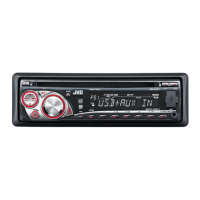
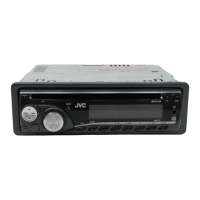
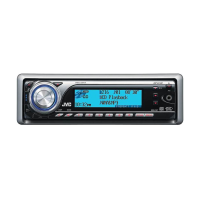
JVC KD-G730 - User Manual

JVC KD-G730
141 pages
Print Icon
To Next Page IconTo Next Page
Loading...
ENGLISHESPAÑOL
FRANÇAIS
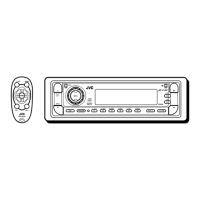
CD RECEIVER KD-AR780/KD-G730
RECEPTOR CON CD KD-AR780/KD-G730
RÉCEPTEUR CD KD-AR780/KD-G730
For canceling the display demonstration, see page 6.
Para cancelar la demostración en pantalla, consulte la página 6.
Pour annuler la démonstration des affichages, référez-vous à la page 6.
For installation and connections, refer to the separate manual.
Para la instalación y las conexiones, refiérase al manual separado.
Pour l’installation et les raccordements, se référer au manuel séparé.
INSTRUCTIONS
MANUAL DE INSTRUCCIONES
MANUEL D’INSTRUCTIONS
GET0433-001A
[J]
For customer Use:
Enter below the Model
No. and Serial No. which
are located on the top or
bottom of the cabinet. Retain
this information for future
reference.
Model No.
Serial No.
Cover_KD-AR780_G730[J]2.indd 1Cover_KD-AR780_G730[J]2.indd 1 1/24/07 11:44:43 AM1/24/07 11:44:43 AM

Questions and Answers

  • I
    inguyenAug 31, 2025
    How to improve phone sound quality on JVC KD-G730?
    • F
      fjohnsonAug 31, 2025
      If the phone sound quality is poor on your JVC Car Stereo System, try reducing the distance between the unit and the Bluetooth audio device. Alternatively, move the car to a location with better signal reception.
  • J
    Joel LewisSep 9, 2025
    Why does playback stop when using JVC Car Stereo System?
    • T
      Travis MurraySep 10, 2025
      If playback stops on your JVC Car Stereo System and the headphones are disconnected during playback, restart the playback operation.
  • D
    Dr. Lisa Gonzalez DDSAug 30, 2025
    How to play CD-R/CD-RW on JVC KD-G730?
    • D
      Daniel CalhounAug 30, 2025
      To play a CD-R/CD-RW on your JVC Car Stereo System, make sure you insert a finalized CD-R/CD-RW.
  • J
    John TylerSep 23, 2025
    Why does “No Magazine” appear on JVC Car Stereo System display?
    • R
      Ryan ClineSep 23, 2025
      If “No Magazine” appears on the display of your JVC Car Stereo System, insert the magazine.
  • M
    Melissa GarciaSep 12, 2025
    Why does “NO FILE” or “NO TRACK” appear on JVC KD-G730 Car Stereo System?
    • C
      Christopher SchwartzSep 12, 2025
      If “NO FILE” or “NO TRACK” appears on the display of your JVC Car Stereo System, import tracks to the iPod or D. player.
  • L
    laurafrostSep 15, 2025
    Why is elapsed playing time incorrect on my JVC Car Stereo System?
    • E
      Erica AndersonSep 15, 2025
      The incorrect elapsed playing time on your JVC Car Stereo System is caused by how the tracks are recorded on the disc.
  • D
    davidbrownSep 23, 2025
    What does “OFF AIR” mean on JVC KD-G730 Car Stereo System?
    • J
      jordan63Sep 23, 2025
      If “OFF AIR” appears on the display while listening to XM Satellite radio on your JVC Car Stereo System, the selected channel is not broadcasting at this time.
  • P
    Phillip JohnsonAug 27, 2025
    What to do if JVC KD-G730 Car Stereo System doesn't pair with Bluetooth device?
    • O
      obrownAug 27, 2025
      If the JVC Car Stereo System does not pair with the target Bluetooth device, enter the same PIN code for both the unit and the device. Alternatively, select the device name from “Special Device,” then try to connect again.
  • Z
    zkennedyAug 26, 2025
    What to do if JVC KD-G730 does not detect Bluetooth device?
    • E
      emily30Aug 26, 2025
      If the JVC Car Stereo System does not detect your Bluetooth device, check the Bluetooth settings of the device. You can also search for the unit from the Bluetooth device and, after the device detects the unit, select “Open...” on the unit to connect the device.
  • T
    Tara VegaAug 25, 2025
    Why my Bluetooth device doesn't detect JVC KD-G730 Car Stereo System?
    • M
      Melissa AguilarAug 26, 2025
      If your Bluetooth device does not detect the JVC Car Stereo System, it might be because the unit can only connect with one Bluetooth cellular phone and one Bluetooth audio device at a time. If another device is connected, disconnect it and search again with your device.

Summary

CD Receiver

How to reset your unit

How to use the M MODE and SEL buttons

How to forcibly eject a disc

Preparation

Cancel the display demonstration and set the clock

Instructions to disable the display demo and configure the unit's clock time.

Basic operations

Using the control panel

Detailed explanation of each button and function on the main control panel.

Using the remote controller (RM-RK50)

Instructions for operating the unit using the included RM-RK50 remote control.

Listening to the radio

Disc operations

Using the Bluetooth devices

Registering a Bluetooth device

Process for pairing and establishing a Bluetooth connection with a device.

Registration (Pairing) methods

Details on different methods for registering Bluetooth devices, such as 'Open' and 'Search'.

Using the Bluetooth cellular phone

Making a call

Using the Bluetooth audio player

Listening to the CD changer

Listening to the satellite radio

Listening to the iPod; D. player

Selecting a track from the menu

Listening to the other external components

Selecting a preset sound mode

Adjusting the sound

Fader;Balance and Subwoofer Adjustments

Adjusting speaker output balance and setting subwoofer parameters.

Volume and Loudness Settings

Modifying input volume levels and enabling loudness for enhanced sound.

General settings-PSM

Bluetooth settings

Connection Settings (Auto Connect, Auto Answer, Message Info)

Configuring automatic connection, call answering, and message notifications.

MIC Setting and Version Information

Adjusting microphone volume and checking Bluetooth software/hardware versions.

Assigning titles

Maintenance

Cleaning Connectors and Discs

Instructions for cleaning the unit's connectors and maintaining disc cleanliness.

Handling New Discs and Discs

Advice on handling new and used discs, including what types to avoid.

More about this unit

Playing a CD-R or CD-RW

Guidelines for playing recordable and rewritable CD formats.

Bluetooth operations

General notes and icons related to Bluetooth device connectivity.

Playing an MP3;WMA disc

iPod or D. player

General Settings-PSM

Notes on PSM settings, especially regarding dimmer and amplifier gain adjustments.

Troubleshooting

Specifications

JVC KD-G730 Specifications

General IconGeneral
Power Output50W x 4
CD PlaybackYes
MP3 PlaybackYes
Radio TunerAM/FM
Aux InputYes
USB PortNo
BluetoothNo
DIN SizeSingle DIN
Detachable FaceYes
Preamp Voltage2.5V
RMS Power Output22W x 4
Peak Output50W x 4
RMS Power Bandwidth20Hz - 20kHz
Sub Preamp OutputYes
iPod CompatibilityNo
Memory Card SlotNo
Satellite Radio ReadyNo
HD RadioNo
CEA-2006 CompliantYes
Display ColorBlue
CD Frequency Response20Hz - 20kHz
Bass/TrebleYes
Equalizer3-band
WMA PlaybackYes
Display TypeLCD
Preamp Outputs2 pairs
Presets18

Related product manuals