EasyManua.ls Logo

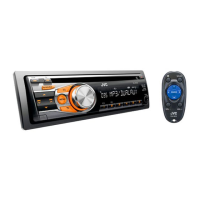
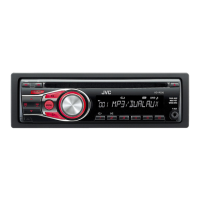
JVC KD-R330 - User Manual

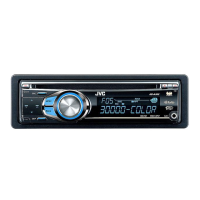
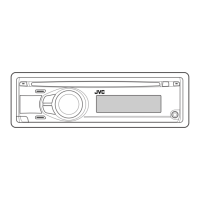
JVC KD-R330
26 pages
Print Icon
To Next Page IconTo Next Page
Loading...
ENGLISH
ESPAÑOL
FRANÇAIS
GET0760-001A
[J]
KD-R338/KD-R330
CD RECEIVER / RECEPTOR CON CD /
RÉCEPTEUR CD
For canceling the display demonstration, see page 4. / Para cancelar la demostración en pantalla,
consulte la página 4. / Pour annuler la démonstration des affichages, référez-vous à la page 4.
For customer Use:
Enter below the Model
No. and Serial No. which
are located on the top or
bottom of the cabinet.
Retain this information
for future reference.
Model No.
Serial No.
INSTRUCTIONS
MANUAL DE INSTRUCCIONES
MANUEL D’INSTRUCTIONS
For installation and connections, refer to the separate manual.
Para la instalación y las conexiones, refiérase al manual separado.
Pour l’installation et les raccordements, se référer au manuel séparé.
CoverRear_KD-R338[J]_2.indd 1-2 8/5/11 3:09:12 PM

Other manuals for JVC KD-R330

Questions and Answers

  • K
    Kathleen ReyesSep 10, 2025
    Why is JVC KD-R330 showing 'READING' keeps flashing on the display?
    • S
      Shawn LoweSep 10, 2025
      If “READING” keeps flashing on the display, a longer readout time is required. Do not use too many hierarchical levels and folders.
  • S
    Sherri ChristensenAug 25, 2025
    Why no sound from JVC KD-R330 Car Receiver speakers?
    • L
      lindsay12Aug 25, 2025
      If you cannot hear sound from the speakers, make sure that the volume is at an appropriate level, the unit isn't muted or paused, and all cords and connections are properly secured.
  • C
    charles12Aug 25, 2025
    How to fix no sound from my JVC KD-R330 Car Receiver speakers?
    • C
      Cynthia DoughertyAug 26, 2025
      If you cannot hear sound from the speakers of your JVC Car Receiver, first, ensure that the volume is at an audible level. Also, verify that the unit is not muted or paused. Finally, check all cords and connections to confirm they are properly connected.
  • A
    alexander37Sep 23, 2025
    Why don't tracks play in the order I intended on my JVC Car Receiver?
    • S
      Suzanne PonceSep 23, 2025
      If tracks do not play back in the order you intended on your JVC Car Receiver, the playback order is determined when the files are recorded.
  • D
    David DeckerSep 12, 2025
    Why do tracks not play in order on my JVC KD-R330?
    • S
      Shannon LeonardSep 12, 2025
      The playback order is determined when the files are recorded.
  • C
    Catherine MccallSep 15, 2025
    What does it mean when “PLEASE” and “EJECT“ appear alternately on my JVC KD-R330 Car Receiver?
    • J
      Jacob LeachSep 15, 2025
      If “PLEASE” and “EJECT“ appear alternately on the display of your JVC Car Receiver, press 0, then insert a disc correctly.
  • H
    Hayley BarajasSep 4, 2025
    Why are the correct characters not displayed on my JVC Car Receiver (e.g. album name)?
    • C
      Chloe WilliamsSep 4, 2025
      If the correct characters are not displayed (e.g., album name), the unit can only display letters (upper case), numbers, and a limited number of symbols.
  • M
    Michael HoffmanSep 5, 2025
    Why is sound sometimes interrupted while listening to an external component connected to the auxiliary input jack on my JVC Car Receiver?
    • K
      Kendra DrakeSep 5, 2025
      If the sound is sometimes interrupted while listening to an external component connected to the auxiliary input jack, ensure that you are using the recommended stereo mini plug for connection.
  • C
    Courtney BarkerSep 23, 2025
    Why are the correct characters not displayed on my JVC Car Receiver?
    • N
      nelsonjasonSep 23, 2025
      If the correct characters are not displayed (e.g., album name) on your JVC Car Receiver, the unit can only display letters (uppercase), numbers, and a limited number of symbols.
  • W
    Wanda PerezAug 30, 2025
    What does “NO DISC” mean on my JVC KD-R330 display?
    • K
      Kelly NunezAug 30, 2025
      If “NO DISC” appears on the display, insert a playable disc into the loading slot.

Summary

Important Laser Product Safety

Control Panel and Unit Operations

Resetting the Unit

Procedure to reset the unit to its default factory settings.

Display Demonstration and Clock Settings

Canceling the Display Demonstration

How to disable the automatic display demonstration feature.

Setting the Clock

Step-by-step guide for setting the unit's current time.

Basic Operations Overview

Source Selection and Power Control

Learn how to select audio sources and turn the unit on/off using the main buttons.

Volume and Muting Control

Details how to adjust the volume level and mute the sound using the control dial.

Listening to the Radio

Listening to a Disc

Connecting External Components

Listening to External Components

Instructions for connecting and playing audio from external devices via auxiliary input jacks.

Menu Operations and Settings

Troubleshooting Guide

General Troubleshooting

Provides solutions for common general issues such as no sound, unit malfunction, or wiring errors.

Disc Playback Troubleshooting

Solutions for problems like discs not playing, errors, or playback interruptions during disc use.

MP3;WMA Playback Troubleshooting

Troubleshooting steps for MP3/WMA files, including playback order and character display issues.

Using Bluetooth Devices

Bluetooth Preparation

Steps required to connect and prepare a Bluetooth device with the KS-BTA100 adapter.

Bluetooth Mobile Phone Operations

Guide for making/receiving calls, switching handsfree, and using voice dialing via Bluetooth.

Bluetooth Audio Device Operations

Instructions on how to play audio content from a Bluetooth-enabled audio player.

Product Specifications

Audio Amplifier Specifications

Detailed technical specifications for the unit's audio amplifier section.

CD Player Specifications

Technical specifications related to the CD player functionality and performance.

Tuner Specifications

Technical specifications for the FM and AM radio tuner performance.

General Specifications

Overall technical specifications including power, dimensions, weight, and operating conditions.

JVC KD-R330 Specifications

General IconGeneral
MP3 playbackYes
Playback disc formatsCD audio
Audio formats supportedAAC, MP3, WAV, WMA
Tuner typeHS-IVi
AM band range530 - 1700 kHz
FM band range87.9 - 107.9 MHz
Supported radio bandsAM, FM
Preset stations quantity24
Impedance4 Ω
Product colorBlack
Ready for iPod-
Volume controlRotary
Frequency range5 - 20000 Hz
CD changer capacity1 discs
Disc types supportedCD
Equalizer bands quantity3
Signal-to-Noise Ratio (SNR)98 dB
FilterHigh-Pass Filter/Low-Pass Filter
Disc playback modesRandom, Repeat track
Maximum output power200 W
Amplifier output power80 W
Weight and Dimensions IconWeight and Dimensions
Weight1230 g

Related product manuals