EasyManua.ls Logo

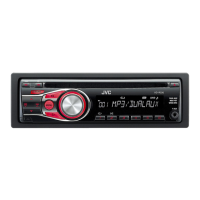
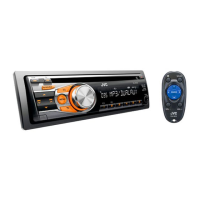
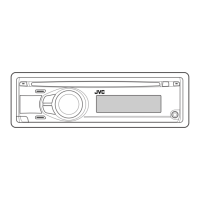
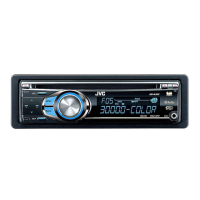
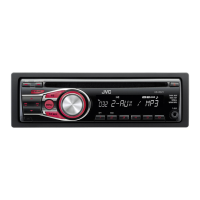
JVC KD-R335 - User Manual

JVC KD-R335
71 pages
Print Icon
To Next Page IconTo Next Page
Loading...
РУCCKИЙ
ENGLISH
EN, RU, TH, AR, PE
0811DTSMDTJEIN© 2011 JVC KENWOOD Corporation
KD-R335/KD-R336
/
/
GET0761-001A
[U]
KD-R336/KD-R335
CD RECEIVER / РЕСИВЕР С
ПРОИГРЫВАТЕЛЕМ КОМПАКТ-ДИСКОВ /
For canceling the display demonstration, see page 4. / Информацию об отмене демонстрации
функций дисплея см. на стр. 4. /
INSTRUCTIONS
ИНСТРУКЦИИ ПО ЭКСПЛУАТАЦИИ
For installation and connections, refer to the separate manual.
Указания по установке и выполнению соединений приводятся в отдельной инструкции.
CoverRear_KD-R336_5_001A_1.indd 1-2CoverRear_KD-R336_5_001A_1.indd 1-2 8/5/11 11:16:52 AM8/5/11 11:16:52 AM

Other manuals for JVC KD-R335

Questions and Answers

  • K
    Kimberly MossAug 20, 2025
    How to fix JVC KD-R335 when no sound is coming from the speakers?
    • C
      Cheryl DiazAug 20, 2025
      If you cannot hear sound from the speakers of your JVC Car Receiver, first, adjust the volume to the appropriate level. Also, ensure that the unit is not muted or paused. Finally, check the cords and connections to make sure they are properly connected.
  • C
    caitlin54Aug 22, 2025
    What to do if JVC Car Receiver displays 'MISWIRING CHK WIRING THEN RESET UNIT' error?
    • D
      David MaynardAug 22, 2025
      If the message “MISWIRING CHK WIRING THEN RESET UNIT” or “WARNING CHK WIRING THEN RESET UNIT” appears on the display of your JVC Car Receiver, ensure the terminals of the speaker leads are properly covered with insulating tape. After checking the wiring, reset the unit.
  • M
    Michael BondAug 25, 2025
    Why is my JVC KD-R335 Car Receiver radio making static noise?
    • G
      Greg QuinnAug 25, 2025
      If you are experiencing static noise while listening to the radio on your JVC Car Receiver, make sure the antenna is firmly connected.
  • J
    Joseph WaltonAug 27, 2025
    What to do if JVC KD-R335 Car Receiver says 'NO DISC'?
    • B
      Becky MooreAug 27, 2025
      If your JVC Car Receiver displays “NO DISC”, insert a playable disc into the loading slot.
  • K
    Katie MercadoAug 28, 2025
    Why does JVC KD-R335 Car Receiver disc sound keep cutting out?
    • R
      Robert StephensAug 28, 2025
      If the sound from your JVC Car Receiver disc is sometimes interrupted, stop playback while driving on rough roads. You can also try changing the disc or checking the cords and connections.
  • G
    Gary MillerAug 30, 2025
    Why can't I select 'F-AUX' or 'R-AUX' on my JVC KD-R335?
    • C
      Courtney RiceAug 30, 2025
      If “F-AUX” or “R-AUX” cannot be selected on your JVC Car Receiver, check the = setting.
  • D
    Darren HarveyAug 31, 2025
    What does 'IN DISC' mean on JVC KD-R335?
    • C
      Catherine JohnsonAug 31, 2025
      If your JVC Car Receiver displays “IN DISC”, it means the disc cannot be ejected properly. Ensure nothing is blocking the loading slot.
  • E
    Elizabeth BrownSep 3, 2025
    Why is the sound interrupted when using the AUX input on my JVC KD-R335?
    • B
      Brian BookerSep 3, 2025
      If you are experiencing interruptions while listening to an external component connected to the auxiliary input jack on your JVC Car Receiver, ensure that you are using the recommended stereo mini plug for the connection.
  • X
    xraySep 4, 2025
    Why can't I select 'AM' on my JVC KD-R335 Car Receiver?
    • T
      Thomas GrimesSep 4, 2025
      If “AM” cannot be selected on your JVC Car Receiver, check the = setting.
  • O
    owensraySep 6, 2025
    Why can't my JVC KD-R335 Car Receiver play CD-R/CD-RW?
    • S
      Samantha GarciaSep 6, 2025
      If your JVC Car Receiver cannot play back a CD-R/CD-RW or track cannot be skipped, insert a finalized CD-R/CD-RW (finalize it with the component you used for recording).

Summary

INSTRUCTIONS

IMPORTANT FOR LASER PRODUCTS

Class 1 Laser Product

Identifies the unit as a Class 1 Laser Product for safety classification.

Laser Safety Precautions

Lists crucial safety measures related to laser radiation, including not opening the unit and avoiding direct viewing.

Operational Warnings and Cautions

Highlights important warnings and cautions for safe operation, such as stopping the car, adjusting volume, and disc playback.

Control Panel Operations

How to Attach;Detach the Control Panel

Step-by-step guide on how to remove and attach the detachable control panel.

How to Reset Your Unit

Procedure to reset the unit, noting that preset adjustments will be erased.

How to Forcibly Eject a Disc

Instructions for ejecting a disc when normal ejection fails, with a caution note.

Maintenance

Cleaning the Unit

Instructions for cleaning the unit's panel using a dry silicon or soft cloth.

Cleaning the Connector

Guide for cleaning the unit and panel connectors with a cotton swab or cloth.

Canceling the Display Demonstration

Setting the Clock

Preparing the Remote Controller

Initial Use

Guide on pulling out the insulation sheet for first-time use of the remote controller.

Battery Replacement

Instructions on replacing the lithium coin battery when remote effectiveness decreases.

About Discs

Discs That Cannot Be Used

Lists types of discs that are incompatible or may cause malfunction when used.

Handling Discs

Provides guidelines for handling discs to ensure proper playback and prevent damage.

Basic Operations

Control Panel and Remote Functions

Overview of buttons on the main unit and remote control and their general operations.

Listening to the Radio

Improving FM Reception

Steps to improve FM reception by setting TUNER to MONO mode.

Automatic Preset Tuning (SSM)

How to automatically preset up to 18 FM stations based on signal strength.

Manual Preset Tuning (FM;AM)

Guide to manually preset up to 18 FM and 6 AM stations.

Selecting a Preset Station

How to select a previously preset radio station.

Using the Remote Controller for Radio

Functions of remote control buttons for station selection and tuning.

Changing Display Information

How to switch the display between frequency and clock.

Listening to a Disc

Stopping Playback and Ejecting Disc

How to stop playback and eject a disc, including auto-insertion if not removed.

Selecting Tracks and Folders

Guide to select tracks or folders on WMA/MP3 discs, including fast search.

Remote Controller for Disc Operations

How to use the remote control for track selection and fast-forward/reverse.

Selecting Playback Modes

How to choose between REPEAT and RANDOM playback modes.

Changing Display Information

How to cycle through displayed information like disc title, track title, or time.

Connecting External Components

Auxiliary Input Jack Summary

Overview table detailing preparation and connection for external audio sources via auxiliary inputs.

Connecting to the Front Auxiliary Input (F-AUX)

Diagram showing how to connect an audio device to the front F-AUX jack.

Connecting to the Rear Auxiliary Input (R-AUX)

Diagram showing how to connect an audio device to the rear R-AUX jack.

Listening to External Components

Selecting a Preset Sound Mode

Choosing Sound Modes

How to select preset sound modes like FLAT, NATURAL, DYNAMIC, etc.

Adjusting Sound Elements

How to adjust subwoofer, bass, middle, and treble levels for the selected sound mode.

Storing Custom Sound Mode

Guide to store personalized sound adjustments as a "USER" mode.

Menu Operations

Navigating Menus

Instructions on how to move between menu items and exit menus using buttons.

Menu Item: DEMO

Setting for the display demonstration mode (ON/OFF).

Menu Item: CLOCK

Reference to page 4 for clock setting instructions.

Menu Settings

Dimmer Settings

Controls for display and button illumination (AUTO, ON, OFF) and brightness level (DAY/NIGHT).

Display Settings

Options for display scrolling (ONCE, AUTO, OFF) and tag information display (ON/OFF).

Audio Settings

Adjustments for speaker balance, loudness, volume, subwoofer, and filters (Fader, Balance, Loud, Vol Adjust, L/O Mode, HPF, etc.).

Menu Settings (Continued)

Audio, Tuner, and Source Settings

Configuration options for amplifier gain, tuner behavior, and source selection.

Additional Information

Disc and File Playback Details

Information on disc compatibility, file formats, name limits, and playback specifics.

Troubleshooting

General Troubleshooting

Solutions for common issues like no sound, unit not working, or inability to select AUX sources.

FM;AM Radio Troubleshooting

Fixes for radio reception issues like static, SSM not working, or AM not selecting.

Disc Playback Troubleshooting

Solutions for problems related to disc playback, such as "NO DISC" or interrupted sound.

MP3;WMA Playback Troubleshooting

Remedies for issues specific to MP3/WMA playback, like noise, incorrect order, or character display errors.

Using Bluetooth Devices

Preparation for Bluetooth

Steps to register (pair) a Bluetooth device and set the unit's SRC SELECT to BT ADAPTER.

Using a Bluetooth Mobile Phone

How to handle calls (receiving, making, ending) and voice dialing with a Bluetooth phone.

Using a Bluetooth Audio Device

Instructions for playing audio from a Bluetooth-enabled device, including track selection.

Specifications

Audio Amplifier Specifications

Technical details of the audio amplifier output, impedance, frequency response, and terminals.

CD Player Specifications

Technical details of the CD player, including type, signal detection, channels, frequency response, and decoding formats.

General Specifications

General technical information about power requirements, operating temperature, dimensions, and mass.

JVC KD-R335 Specifications

General IconGeneral
RMS Power22W x 4
CD PlaybackYes
MP3 PlaybackYes
WMA PlaybackYes
USB InputYes
BluetoothNo
Display TypeLCD
Subwoofer OutputYes
AUX InputYes
Detachable FaceYes
Channels4
AAC PlaybackYes
Remote ControlOptional
Steering Wheel Control CompatibleYes
Power Output50 watts x 4
TunerAM/FM

Related product manuals