EasyManua.ls Logo

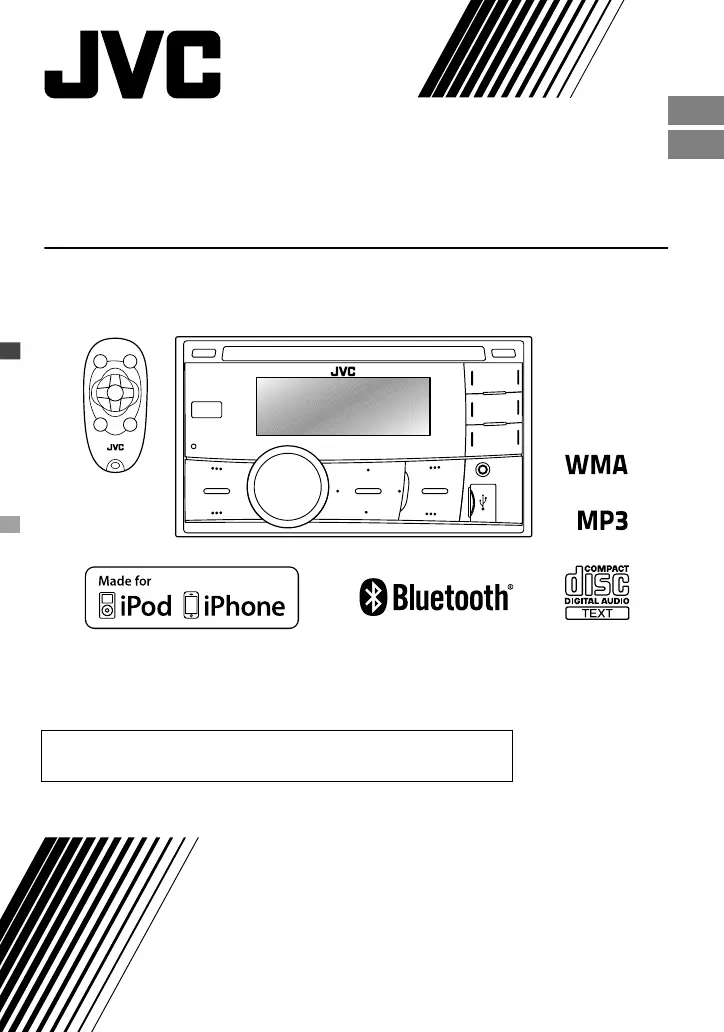
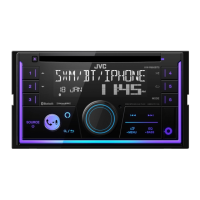
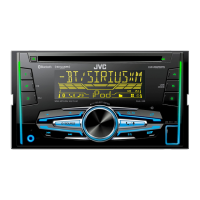
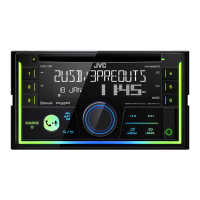
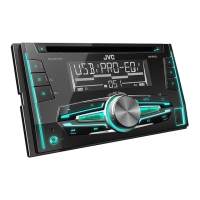
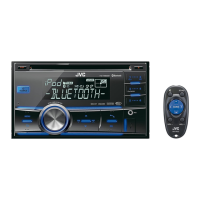
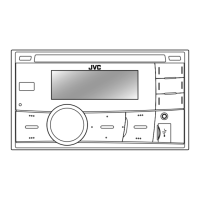
JVC KW-R900BT - User Manual

JVC KW-R900BT
66 pages
Print Icon
To Next Page IconTo Next Page
Loading...
CD RECEIVER / CD 收音組合機
For canceling the display demonstration, see page 4. /
⍗㴉⯐ⷖ㺕䢻∠偾澔⍄攲䪭 5!枂ɝ
ENGLISH
ϜН
INSTRUCTIONS
ἀ䒩娫㖏㙹
GET0809-001A
[U]
KW-R900BT
For installation and connections, refer to the separate manual.
㚊敝⬊塞␍徤㌦㔺㱖澔ↇ↦⍄攲㑎ờ㇌ℋɝ

Other manuals for JVC KW-R900BT

Questions and Answers

  • C
    Cynthia TuckerSep 2, 2025
    Why does “Not Support” appear on the display of my JVC KW-R900BT Car Receiver, and the track skips?
    • J
      Julie GalvanSep 2, 2025
      If “Not Support” appears on the display of your JVC Car Receiver and the track skips, check whether the track is a playable file format.
  • N
    Nancy ChenAug 25, 2025
    Why does “Pairing Full” appear on the display of my JVC KW-R900BT Car Receiver?
    • N
      Natalie Nelson MDAug 25, 2025
      If “Pairing Full” appears on the display of your JVC Car Receiver when trying to pair a device, it means you have already registered the maximum of five Bluetooth devices in the unit. To pair another device, delete an existing paired device from the unit first.
  • D
    deniseleeSep 23, 2025
    Why can’t I control my Bluetooth audio player with my JVC KW-R900BT Car Receiver?
    • M
      Mrs. Erika PotterSep 23, 2025
      If the connected Bluetooth audio player cannot be controlled with your JVC Car Receiver, check whether the connected Bluetooth audio player supports Audio/Video Remote Control Profile (AVRCP). You can also disconnect and connect the Bluetooth player again.
  • C
    Christine HartSep 8, 2025
    Why does “Connection Error” appear on the display of my JVC KW-R900BT?
    • L
      Lisa LeblancSep 8, 2025
      If “Connection Error” appears on the display of your JVC Car Receiver, the device is registered but the connection has failed. Try connecting the device manually.
  • B
    Barbara BrownSep 14, 2025
    What does “No File” mean on my JVC Car Receiver?
    • W
      wilsonjudySep 14, 2025
      If “No File” appears on the display of your JVC Car Receiver, check whether the selected folder, the connected USB device, or the iPod/iPhone contains a playable file.
  • J
    Jennifer OconnorSep 5, 2025
    Why does “LOADING” appear on the display of my JVC Car Receiver?
    • G
      Greg BennettSep 5, 2025
      If “LOADING” appears on the display of your JVC Car Receiver while listening to the XM Satellite Radio, the unit is loading the channel information and audio. Text information may be temporarily unavailable.
  • M
    Mrs. Sara DavisAug 30, 2025
    What does it mean when “ANTENNA ERROR” or “CHECK ANTENNA” appears on the display of my JVC KW-R900BT Car Receiver?
    • M
      megan13Aug 30, 2025
      If your JVC Car Receiver shows “ANTENNA ERROR” or “CHECK ANTENNA”, check your Satellite Radio antenna connection and ensure it is firmly attached.
  • J
    John WilliamsSep 18, 2025
    What does “Please Eject” mean on my JVC KW-R900BT?
    • S
      Sean ChapmanSep 18, 2025
      If “Please Eject” appears on the display of your JVC Car Receiver, press [?], then insert the disc correctly.
  • M
    max48Sep 12, 2025
    Why is the phone sound quality poor on my JVC KW-R900BT?
    • M
      Melanie BaileySep 12, 2025
      If the phone sound quality is poor on your JVC Car Receiver, try reducing the distance between the unit and the Bluetooth device, or move the car to a place where you can get a better signal reception.
  • B
    Becky TaylorAug 27, 2025
    Why does “UPDATING” appear on the display, and no sound can be heard on my JVC KW-R900BT?
    • K
      karen92Aug 27, 2025
      If “UPDATING” appears on the display of your JVC Car Receiver and no sound can be heard, the unit is updating the channel information, and it takes a few minutes to complete.

Summary

IMPORTANT FOR LASER PRODUCTS

CLASS 1 LASER PRODUCT

Identifies the unit as a Class 1 Laser Product.

REPRODUCTION OF LABEL: CAUTION LABEL, PLACED OUTSIDE THE UNIT.

Shows the location and content of the caution label.

Safety and Operation Precautions

Caution on Volume Setting

Advises adjusting volume for safe listening and avoiding accidents.

Temperature Inside the Car

Explains behavior at low temperatures and condensation effects.

Condensation

Details how condensation may affect disc playback and how to resolve it.

Unit Maintenance and Reset

How to Reset Your Unit

Steps to reset the unit to factory defaults, erasing preset adjustments.

How to Forcibly Eject a Disc

Procedure to eject a disc if it does not eject normally.

Cleaning the Unit

Instructions for cleaning the unit's panel using a soft cloth.

Preparation

Canceling the Display Demonstration

How to turn off the unit's automatic display demonstration.

Setting the Clock

Step-by-step guide to set the unit's clock display.

Basic Operations

Display Information

Explains how to change and scroll displayed information like track titles or station names.

Control Panel and Remote Controller

Button Operations

Details functions triggered by pressing or holding control panel and remote buttons.

Radio Operations

Searching for a Station

How to manually or automatically search for radio stations.

Storing Stations in Memory

Methods for manually or automatically saving favorite radio stations.

Selecting a Preset Station

How to recall saved radio stations using preset buttons or navigation.

Radio Operations

Setting the Radio Timer

How to set the unit to tune into a preset station at a specific time.

Naming the Stations

Process for assigning custom names to saved radio frequencies.

CD;USB Playback

Playing a CD;USB Device

How to connect and start playback from CD or USB storage.

Selecting a Folder;Track

Navigating and selecting audio files within folders on CD or USB.

Selecting Playback Modes

Options for repeat and random playback for CD/USB sources.

iPod;iPhone Connectivity

Playing an iPod;iPhone

How to connect and play music from an iPod or iPhone.

Selecting the Control Mode

Switching between Headunit, iPod, or Application modes for iPod/iPhone control.

Selecting Tracks

Methods for selecting tracks or chapters for playback.

Selecting Playback Modes

Repeat and random playback options for iPod/iPhone.

Quick Search and External Components

Quick Search Functionality

Efficiently searching through large music libraries by first character.

Playing External Components via AUX

Connecting and playing audio from external devices using the AUX input.

Bluetooth Connection Setup

Bluetooth Device Pairing

Step-by-step guide to pair a Bluetooth device with the unit for the first time.

Bluetooth Connection Setup

Manual Connection;Disconnection

How to manually connect or disconnect previously paired Bluetooth devices.

JVC Application and Mobile Phone

Connecting to JVC Original Application

Instructions for connecting and using the JVC smartphone application.

Bluetooth Mobile Phone Operations

Handling Incoming and Ongoing Calls

How to receive, end, and manage hands-free calls via Bluetooth.

Bluetooth Mobile Phone Operations

Call Adjustments and Notifications

Adjusting volume, mic level during calls, and handling text message alerts.

Managing Multiple Phones

Switching between two connected mobile phones for hands-free use.

Making Calls from Hands-Free Menu

Dialing numbers, accessing call history, and using the phonebook via the hands-free menu.

Bluetooth Mobile Phone Operations

Memory Dialing and Contact Management

Storing speed dial contacts and deleting them from the unit's memory.

Using Voice Recognition

Utilizing the connected phone's voice recognition features through the unit.

Bluetooth Mobile Phone Operations

Configuring Bluetooth Settings

Customizing phonebook access, auto-answer, ringtones, and other Bluetooth settings.

Bluetooth Audio Player

Playing Audio via Bluetooth

How to select and play audio from a Bluetooth-enabled device.

Selecting Playback Modes

Repeat and random playback options for Bluetooth audio streaming.

Illumination Customization

Selecting Preset Colors

Choosing from predefined illumination colors for different zones.

Storing Custom Colors

Saving user-defined day and night illumination color schemes.

Brightness and Sound Adjustments

Adjusting Display Brightness

Setting brightness levels for the button zone and display zone.

Audio Sound Customization

Selecting Preset Sound Modes

Choosing from various EQ presets like NATURAL, VOCAL, BASS for different music genres.

Storing Custom Sound Settings

Creating and saving personalized sound equalizer settings under the USER mode.

Audio Sound Customization

Setting Up My Sound EQ

Customizing sound levels across five frequency steps for a personalized audio profile.

Speaker Output Timing (Time Alignment)

High Frequency Compensation (D.T. Expander)

Crossover Frequency Settings (Xover HPF;LPF)

Menu Operations and Settings

Display and Illumination Settings

Managing demo mode, clock, color, dimmer, brightness, scrolling, tag display, LCD type, and contrast.

Audio and DSP Settings

Accessing and configuring EQ/DSP related menu options.

Menu Operations and Settings

Audio Settings

Adjusting fader, balance, loudness, subwoofer, and amplifier gain.

Tuner Settings

Configuring SSM, IF Band, Stereo/Mono reception, and Radio Timer.

Menu Operations and Settings

USB and iPod;iPhone Settings

Managing USB drive changes, iPod/iPhone control modes, and audiobook playback speed.

Bluetooth and Source Selection Settings

Handling Bluetooth pairings, PIN codes, auto-connect, and selecting available audio sources.

Remote Controller Usage

Remote Controller Preparation

Initial setup, battery replacement, and safety warnings for the remote controller.

Disc Information and Handling

About Playable and Unplayable Discs

Lists compatible and incompatible disc types and potential issues.

Disc Handling Precautions

Guidelines for handling discs to prevent damage and ensure proper playback.

DualDisc Playback Note

Information regarding the playback compatibility of DualDiscs.

File Format and USB Device Information

Supported Audio File Formats

Details on playable file extensions, bit rates, and sampling frequencies for audio files.

USB Device Usage Guidelines

Important information and cautions regarding USB device compatibility, connection, and usage.

Device Compatibility and Notices

About iPod;iPhone Compatibility

List of compatible iPod/iPhone models and usage notes.

About Bluetooth Connectivity

Notes on Bluetooth device compatibility, signal conditions, and connection issues.

Trademark and License Information

Legal notices regarding trademarks and software licenses.

Troubleshooting Common Issues

General and Tuner Troubleshooting

Solutions for common problems like no sound, wiring errors, unit malfunction, and tuner issues.

CD;USB;iPod;iPhone Troubleshooting

Specific troubleshooting steps for CD, USB, iPod, and iPhone playback problems.

Troubleshooting Common Issues

Bluetooth Troubleshooting

Solutions for various Bluetooth connection, pairing, and audio quality problems.

Technical Specifications

Audio Amplifier Specifications

Power output, impedance, frequency response, and signal-to-noise ratio details.

Tuner Specifications

FM/AM frequency range, sensitivity, and separation characteristics.

CD Player Specifications

Details on signal detection, channels, frequency response, and wow/flutter.

USB Specifications

Information on USB standard, data transfer rate, file system, and audio formats.

Bluetooth Specifications

Bluetooth version, power class, service area, and supported profiles.

Technical Specifications

General Specifications

Power requirements, operating temperature, dimensions, and mass of the unit.

JVC KW-R900BT Specifications

General IconGeneral
BrandJVC
ModelKW-R900BT
CategoryCar Receiver
LanguageEnglish

Related product manuals