EasyManua.ls Logo

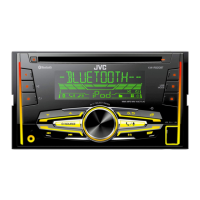
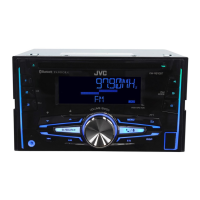
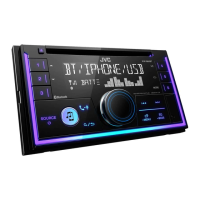
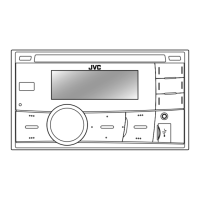
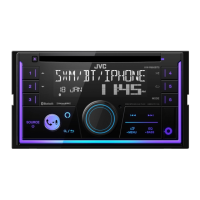
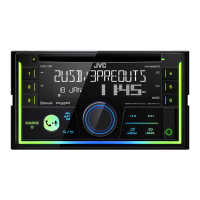
JVC KW-R925BTS - User Manual

JVC KW-R925BTS
41 pages
Print Icon
To Next Page IconTo Next Page
Loading...
ENGLISH
FRANÇAIS
ESPAÑOL
B5A-0831-00 [K]
KW-R925BTS / KW-R920BTS
CD RECEIVER
INSTRUCTION MANUAL
RÉCEPTEUR CD
MANUEL D’INSTRUCTIONS
RECEPTOR CON CD
MANUAL DE INSTRUCCIONES
For customer Use:
Enter below the Model No. and Serial No. which are
located on the top or bottom of the cabinet. Retain this
information for future reference.
Model No.
Serial No.
JS_JVC_KW_R925BTS_K_C.indd 1 28/10/2015 10:11:51 AM

Questions and Answers

  • B
    Bryan MasonSep 23, 2025
    Why does JVC KW-R925BTS show 'LOADING' when searching?
    • O
      ojimenezSep 23, 2025
      If your JVC Car Receiver displays 'LOADING' when you enter search mode, the unit is still preparing the iPod/iPhone music list. Allow some time for loading, and try again later.
  • D
    danielcooperAug 25, 2025
    Why is there no sound during playback on my JVC KW-R925BTS?
    • A
      Alvin JenkinsAug 25, 2025
      If there's no sound during playback on your JVC Car Receiver, try these steps: 1. Reconnect the Android device. 2. If in [AUDIO MODE], launch any media player application on the Android device and start playback. 3. If in [AUDIO MODE], relaunch the current media player application or use another media player application. 4. Restart the Android device. 5. If the problem persists, the connected Android device may be unable to route the audio signal to the unit.
  • L
    Laura PhillipsAug 25, 2025
    How to eject a disc from JVC Car Receiver when it's stuck?
    • M
      Michael NorrisAug 26, 2025
      If your JVC Car Receiver is not ejecting the disc, press and hold to forcibly eject it. Take care not to drop the disc once it's ejected.
  • M
    martinvaldezAug 26, 2025
    What does 'CHK ANTENNA' mean on JVC Car Receiver?
    • D
      donnarodriguezAug 27, 2025
      Check that the antenna and its connection are in good condition.
  • J
    joseph44Sep 23, 2025
    Why are the correct characters not displayed on my JVC Car Receiver?
    • C
      Christopher FloresSep 23, 2025
      If correct characters are not displayed on your JVC Car Receiver, note that this unit can only display uppercase letters, numbers, and a limited number of symbols. Also, depending on the display language selected, some characters may not be displayed correctly.
  • J
    jordansaraSep 13, 2025
    Why is the elapsed playing time incorrect on my JVC KW-R925BTS?
    • T
      Tyler WadeSep 13, 2025
      If the elapsed playing time is not correct on your JVC Car Receiver, this depends on the recording process.
  • B
    Brandon BowenSep 12, 2025
    Why is the playback order wrong on my JVC Car Receiver?
    • S
      Steven WilliamsonSep 12, 2025
      If the playback order on your JVC Car Receiver is not as expected, note that the playback order is determined by the file name (if using USB) or the order in which files were recorded (if using a disc).
  • B
    Brian AnthonySep 12, 2025
    Why is sound interrupted during Bluetooth playback on JVC KW-R925BTS Car Receiver?
    • C
      Carol ChanSep 12, 2025
      To resolve interrupted or skipped audio during Bluetooth playback on your JVC Car Receiver: * Reduce the distance between the unit and the Bluetooth audio player. * Turn off, then turn on the unit and try to connect again. * Be aware that other Bluetooth devices might be trying to connect to the unit.
  • J
    Jesse AlexanderSep 4, 2025
    What does 'CHK DEVICE' mean on JVC KW-R925BTS Car Receiver?
    • V
      victoriamatthewsSep 4, 2025
      Check the Pandora application on your device.
  • R
    Ricky PetersSep 2, 2025
    What to do if 'PLEASE' and 'EJECT' appear alternately on JVC KW-R925BTS?
    • A
      Ashley FoxSep 2, 2025
      If your JVC Car Receiver shows 'PLEASE' and 'EJECT' alternately, press, then insert the disc correctly.

Summary

GETTING STARTED

Set the clock

Instructions to set the current time on the unit.

Set the basic settings

Configuration of essential system settings like beep and source selection.

RADIO

Search for a station

Instructions on how to find radio stations using automatic or manual tuning.

CD; USB; iPod; ANDROID

Start playback

Describes automatic source switching and playback initiation.

iHeartRadio

Start listening

Guide to begin listening to iHeartRadio through the unit.

SiriusXM Radio

Preparation

Connecting the SiriusXM Vehicle Tuner and checking Radio ID.

Start listening

Steps to select and tune into SiriusXM channels.

BLUETOOTH - Connection

Pair and connect a Bluetooth device for the first time

Step-by-step guide to pair a new Bluetooth device with the unit.

BLUETOOTH - Mobile phone

Auto Pairing

Automatic pairing process when connecting iPhone/iPod touch/Android via USB.

Receive a call

How to handle incoming calls, including answering and rejecting.

Answer a call

Instructions for answering an incoming call.

Reject a call

Instructions for rejecting an incoming call.

End a call

How to end an active call.

BLUETOOTH

Make a call

Instructions on making calls via call history, phonebook, or dialing.

Bluetooth mode settings

Configuring Bluetooth modes like phone connection, audio, and application.

Make a call using voice recognition

Using voice commands to make calls or control phone functions.

Store a contact in memory

Saving contacts to preset memory buttons for quick dialing.

Make the settings for receiving a call

Configuring settings for incoming calls like auto-answer and ring color.

Make a call from memory

How to make calls using stored contacts in memory.

Improve the voice quality

Adjusting settings to improve call quality.

Bluetooth compatibility check mode

Checking the compatibility of Bluetooth profiles between the device and unit.

BLUETOOTH - Audio

Audio player via Bluetooth

Operating the Bluetooth audio player for playback control.

AUDIO SETTINGS

Select a preset equalizer

Choosing from various EQ presets like FLAT, ROCK, POP, etc.

TROUBLESHOOTING

INSTALLATION; CONNECTION

Installing the unit (in-dash mounting)

Step-by-step guide for installing the unit into the car dashboard.

Wiring connection

Recommended connection

Visual guide and wiring diagram for connecting the unit.

JVC KW-R925BTS Specifications

General IconGeneral
BrandJVC
ModelKW-R925BTS
CategoryCar Receiver
LanguageEnglish

Related product manuals