EasyManua.ls Logo

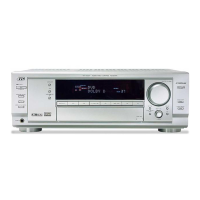
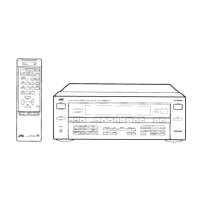
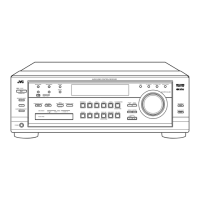
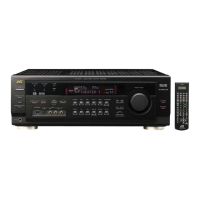
JVC RX-8030VBK - User Manual

JVC RX-8030VBK
109 pages
Print Icon
To Next Page IconTo Next Page
Loading...
For Customer Use:
Enter below the Model No. and Serial
No. which are located either on the rear,
bottom or side of the cabinet. Retain this
information for future reference.
Model No.
Serial No.
LVT1007-002A[C]
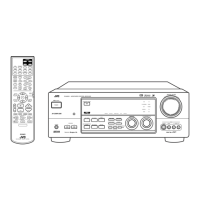
RX-8030VBK
RX-7030VBK
231
564
89
7/P
0
+10
MENU
ENTER
CONTROL
A/V CONTROL RECEIVER
10/0
(For RX-8030VBK)
(For RX-8030VBK)
INSTRUCTIONS
MANUEL D’INSTRUCTIONS
AUDIO/VIDEO CONTROL RECEIVER
AMPLI/TUNER DE COMMANDE AUDIO/VIDEO
English
Français
COVER_8030&7030[C]7.pm6 03.2.13, 2:53 PM1

Table of Contents

Other manuals for JVC RX-8030VBK

Questions and Answers

  • F
    Fred DominguezSep 9, 2025
    Why does the “OVERLOAD” light keep flashing on my JVC RX-8030VBK Receiver?
    • S
      Sandra CarrilloSep 9, 2025
      The “OVERLOAD” light flashes on the display of your JVC Receiver when the speakers are overloaded. This can happen due to: * High volume levels: Turn off the receiver by pressing STANDBY/ON, stop the playback source, then turn the receiver back on and adjust the volume. * A short circuit in the speaker terminals: Turn off the receiver, check the speaker wiring. If the issue persists, unplug the AC power cord and plug it back in. If the wiring is not short-circuited, contact your dealer.
  • L
    Lisa ValdezSep 7, 2025
    Why can't EX/ES (7.1-channel) reproduction be done for Dolby Digital EX or DTS ES software on my JVC RX-8030VBK Receiver?
    • E
      Edward LeachSep 7, 2025
      To enable EX/ES (7.1-channel) reproduction for Dolby Digital EX or DTS ES software on your JVC Receiver, ensure you are playing back software bearing the mark or Digital EX or DTS ES software. Also, ensure that you set the 'EX/ES' setting to 'ON.'
  • N
    Nathan McconnellAug 22, 2025
    How to fix JVC RX-8030VBK Receiver remote control that is not working?
    • K
      Kayla PaulAug 22, 2025
      If the remote control for your JVC Receiver is not working, consider these possible causes: * There might be an obstruction between the remote sensor on the receiver and the remote control. Remove any obstacles. * The batteries in the remote might be weak. Try replacing them with fresh ones.
  • K
    Keith MorrisonSep 5, 2025
    What causes howling during record playing on my JVC RX-8030VBK Receiver?
    • R
      rhondacombsSep 5, 2025
      Howling during record playing with your JVC Receiver can occur if the ground cable from the turntable is not connected to the screw marked (H) on the rear. Connect the cable to the screw marked (H) on the rear. Also, your turntable might be too close to the speakers, so move the speakers away from the turntable.
  • A
    andrew38Sep 4, 2025
    Why is my JVC RX-8030VBK Receiver remote control not working as intended?
    • K
      Kenneth YoungSep 4, 2025
      If your JVC Receiver remote control isn't working as you intend, it's possible that an incorrect remote control operation mode is selected. Try selecting the correct remote control operation mode.
  • A
    Arthur SmallSep 2, 2025
    How to fix continuous hiss or buzzing during FM reception on my JVC RX-8030VBK Receiver?
    • W
      William LiuSep 3, 2025
      If you're experiencing a continuous hiss or buzzing during FM reception on your JVC Receiver, it could be due to a weak incoming signal. Try connecting an outdoor FM antenna or contact your dealer. It may also be that the station is too far away, in which case you should select a new station. Finally, ensure you are using the correct antenna by checking with your dealer.
  • B
    bakermichaelSep 1, 2025
    Why is there noise during FM/AM reception on my JVC RX-8030VBK Receiver?
    • K
      Katherine HoffmanSep 1, 2025
      If you're experiencing noise during FM/AM reception on your JVC Receiver, it's likely that the antennas are not connected properly. Check the connections to ensure they are secure.
  • M
    Morgan HardyAug 31, 2025
    Why is there sound coming from only one speaker on my JVC RX-8030VBK?
    • O
      oyoungAug 31, 2025
      If you're only getting sound from one speaker with your JVC Receiver, the speaker signal cables may not be connected properly. Check the speaker wiring and reconnect if necessary.
  • D
    David ReynoldsAug 30, 2025
    Why does my JVC Receiver turn off immediately after turning it on?
    • R
      Robert DuncanAug 30, 2025
      If your JVC Receiver turns off immediately after being turned on, and the STANDBY lamp lights up, it indicates the receiver is overloaded due to a high voltage. Turn off the receiver using the STANDBY/ON button on the front panel. Unplug the AC power cord and then contact your dealer for assistance.
  • C
    Christine NicholsonAug 28, 2025
    Why does my JVC RX-8030VBK Receiver keep flashing 'OVERLOAD' on the display?
    • G
      goodjenniferAug 29, 2025
      If the “OVERLOAD” message is flashing on your JVC Receiver's display, it means the speakers are overloaded. This could be due to high volume or a short circuit in the speaker terminals. First, turn off the receiver using the STANDBY/ON button on the front panel and stop the playback source. Turn the receiver back on and adjust the volume. If the problem persists, turn off the receiver and check the speaker wiring for any short circuits. If 'OVERLOAD' still appears after checking the wiring, unplug the AC power cord and plug it back in. If the speaker wiring is not short-circuited, contact your dealer.

Summary

Warnings, Cautions, and Safety Precautions

Electrical Shock and Moisture Warnings

Safety instructions and warnings regarding electrical shock, moisture exposure, and proper handling of the unit.

Proper Ventilation Guidelines

Specifies required clearance for airflow to prevent overheating and ensure proper operation of the receiver.

Introduction and Features

Important Precautions for Operation

Crucial safety guidelines covering power sources, ventilation, and handling to prevent damage or injury.

Parts Identification

Front Panel Controls and Indicators

Identifies and explains the function of buttons, displays, and indicators on the receiver's front panel.

Getting Started

Before Installation and Setup

Covers general precautions, suitable locations, and proper handling of the receiver before initial setup.

Speaker Connection Guide

Explains how to connect various speaker configurations, including front, surround, and subwoofer, with caution notes.

Speaker Placement Guidelines

Provides recommendations for optimal placement of front, surround, and subwoofer speakers for the best audio effect.

Digital Connections

Power Cord Connection

Instructions for safely connecting the receiver's power cord to an AC outlet.

Basic Operations

Daily Operational Procedure Overview

Outlines the standard sequence for turning on the unit, selecting sources, adjusting volume, and modes.

Powering the Receiver On and Off

Step-by-step guide on how to power the receiver on and off, including standby mode.

Selecting the Source to Play

Explains how to choose different audio and video sources for playback using front panel or remote buttons.

Adjusting Volume Levels

Instructions for increasing or decreasing the audio volume using front panel or remote controls, with a caution.

Digital Input Mode Selection

Details how to set the input mode for digital components to ensure correct signal reception.

Basic Settings

Speaker Configuration Setup

Guides users through configuring speaker size, distance, and type for optimal surround sound.

Room Size and Speaker Distance Adjustment

Explains how speaker distance settings are adjusted based on selected room size for accurate sound staging.

Basic Procedure for Settings

General steps for navigating and applying various settings using the MULTI JOG control.

Setting the Speakers Manually

Details manual configuration of subwoofer presence, speaker sizes, and surround back speaker quantity.

Speaker Distance and Bass Sound Settings

Fine-tunes speaker distance for accurate sound delay and adjusts subwoofer output and crossover frequency.

Adjusting Sound

Basic Procedure for Sound Adjustment

General steps for accessing and modifying sound settings using the ADJUST button and MULTI JOG.

Speaker Output Level Adjustment

Guides on adjusting the output level for each speaker (except subwoofer) using test tones for balance.

Sound Parameters for Surround and DSP Modes

Details adjustments for center tone, effect, room size, liveness, panorama, dimension, and center gain for surround and DSP modes.

Using the Surround Modes

Reproducing Theater Ambience

Explains how the receiver recreates multi-surround sound fields using its speaker system.

Using the DSP Modes

Troubleshooting

Display and Sound Issues

Addresses common problems like no display, no sound, or sound from only one speaker, providing solutions.

Operation and Remote Control Issues

Troubleshooting steps for problems related to surround/DSP effects, overload indicators, standby mode, and remote control malfunctions.

Specifications

JVC RX-8030VBK Specifications

General IconGeneral
Channels5.1
TypeAV Receiver
Supported Audio FormatsDolby Digital, DTS
Remote ControlYes
Power Output100W per channel
InputsDigital coaxial, optical
Outputssubwoofer
Tuning rangeFM
Input sensitivity200 mV (line)
Signal to noise ratio80dB
Speaker load impedance8 ohms
Total Power Output500W
Signal-to-Noise Ratio80dB
Digital Inputs2x optical, 1x coaxial
Dimensions (W x H x D)17 3/16" x 6 7/16" x 15 15/16"

Related product manuals