Dividing (Continued)
Memo:
v
To cancel the dividing operation, select “CANCEL” and
press the [OK] button.
v
Alternatively, you can press the [RETURN] button to cancel
the divide operation and return to the initial screen.
v
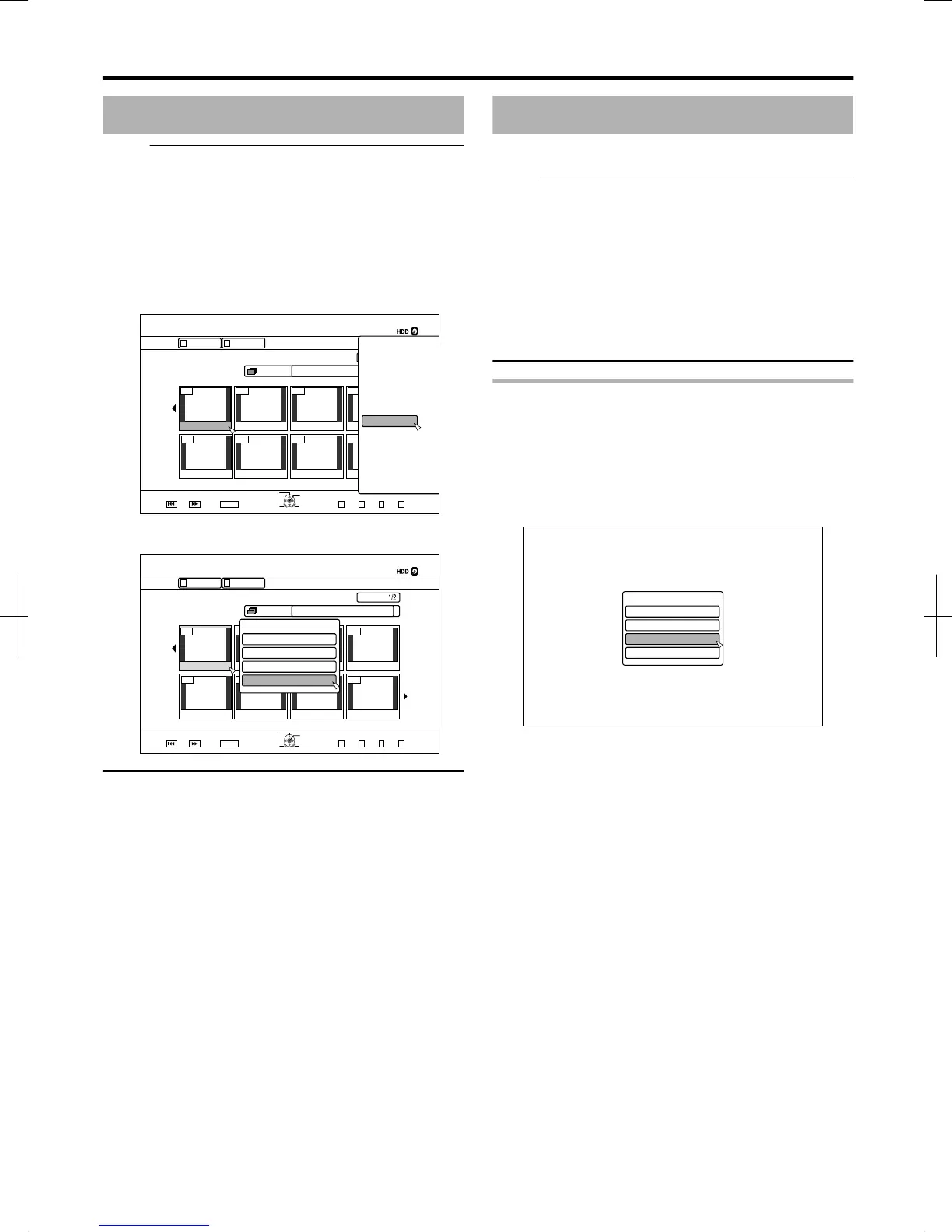
The dividing edit screen can also be called up from the
Playback Navigation screen.
① Select the titles to divide, and press the [OPTION]
button
② Select “EDIT”, and press the [OK] button
.
Delete Scenes
Unwanted scenes of a saved title can be deleted.
Doing so helps to increase the free space on the disc.
Memo:
v
Deleting scenes can only be applied to titles stored on the
HDD.
v
Titles that are protected cannot be deleted. To enable
scene delete of a title, turn off the protection.
For details on turning off the title protection, refer to “Turning
Off Title/Group Protection” (A page 67) .
v
HD content for which the delete scene operation has been
applied cannot be dubbed to BDMV. Perform seamless
conversion before starting a dubbing operation.
For details, refer to “Mode conversion” (A page 76) .
Delete Scenes
1
Press the [EDIT] button on the remote control
unit
v
The Edit menu screen appears.
2
Select “DELETE SCENE”, and press the [OK]
button
v
Displays the Title Display screen.
.
3
Select a title, and press the [OK] button
4
Edit the delete scene section
Follow the steps below to edit the section for which delete
scene is to be applied.
Editing
73
2012/3/8 13:53:0


 To Next Page