17
To adjust the picture tone
1 Select “USER1” or “USER2.”
• Follow steps 1 and 2 explained in “To select a preset
picture tone.”
2 Select a parameter you want to adjust.
GAMMA
Adjust if the neutral color is bright or
dark (–3 to +3).
BRIGHTNESS
Adjust if the entire picture is bright
or dark (–8 to +8).
CONTRAST
Adjust if the brightness ratio is
unnatural (–7 to +7).
SATURATION
Adjust if the picture is whitish or
blackish (–7 to +7).
TINT
Adjust if the human skin color is
unnatural (–7 to +7).
SHARPNESS
Adjust if the picture is indistinct
(–8 to +8).
3 Adjust the parameter.
4 Repeat steps 2 and 3 to adjust other parameters.
To clear the screen, press VFP again while holding SHIFT.
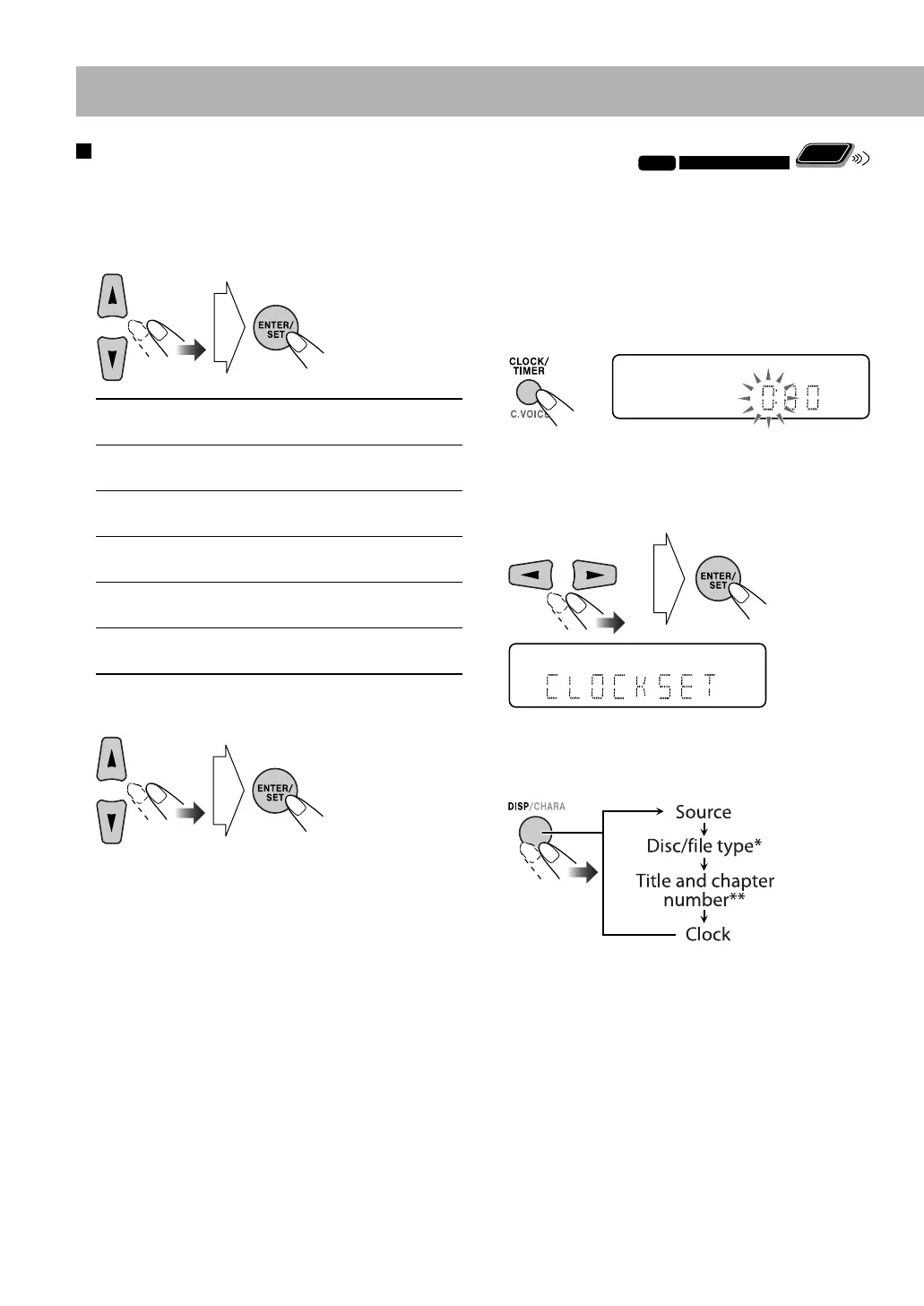
Setting the Clock
INFO
Remote
ONLY
Without setting the built-in clock, you cannot use Daily
Timers (see page 34).
• To exit the clock settings, press CLOCK/TIMER as
required.
• To correct a mis-entry during the process, press
CANCEL (while holding SHIFT). You can return to the
previous step.
1 Activate the clock setting mode.
• If you have already adjusted the clock before, press
the button repeatedly until the clock setting mode is
selected.
2 Adjust the hour, then the minute.
Now the built-in clock starts working.
To check the current clock time during playback
Ex.: While playing a disc...
* Only while playing back a disc or USB mass storage class
device.
** Only while playing back the following discs/files:
DVD-VR: Program number/Play List number and
chapter number.
MP3/WMA/WAV/JPEG/MPEG-1/MPEG-2/DivX
files: Group and file number.
DVD Video: Title and chapter number.
EN09-18_UX-G500V[U]1.indd 17EN09-18_UX-G500V[U]1.indd 17 3/11/08 12:57:47 PM3/11/08 12:57:47 PM


 To Next Page
 Loading...