WWW.KAARTA.COM 46
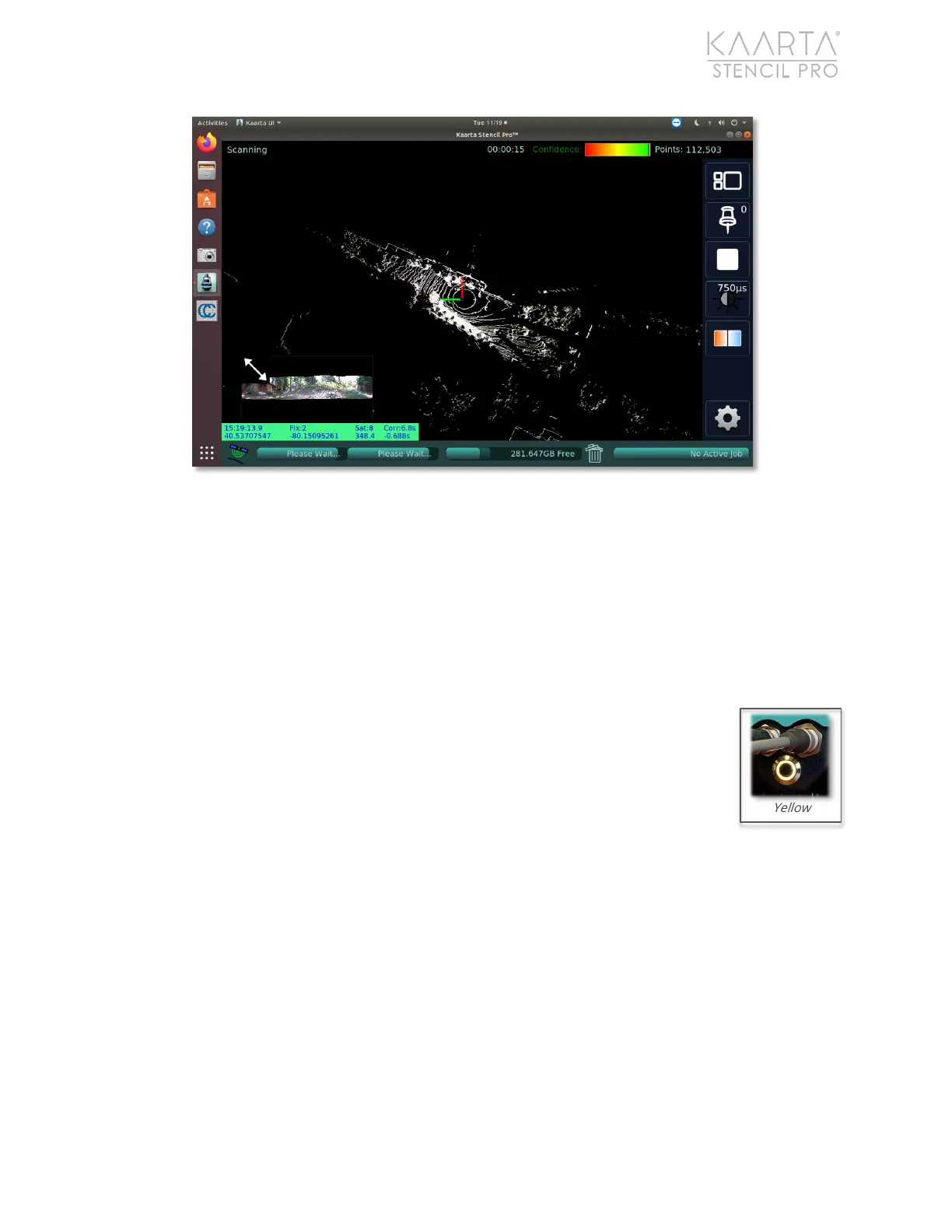
Figure 30: Default Map Data view.
Panoramic Camera View
The live Panoramic Camera view can help you collect better imagery for classification of
the scanned environment (see Figure 29). The Panoramic Camera view shows a live
stream from Stencil Pro’s four color cameras. While the Panoramic Camera view is
enlarged, the Map Data view is displayed in the lower left-hand corner of the UI.
STOP MAPPING
To stop mapping, press the scanner’s Scan button once or push the Stop
Scanning button in the Stencil Pro UI (Figure 31). The LED status indicator
will turn yellow while the point cloud is saving. This can take from a few
seconds to a few minutes depending on the data file size.


 To Next Page