WWW.KAARTA.COM 55
Additional scans and linked assets can be associated with your job directly in the Kaarta
Cloud web interface. Once your scan has been successfully uploaded, it is available on
Kaarta Cloud immediately.
For more information about Kaarta Cloud and how to process, store, and share your 3D
spaces, visit the Kaarta Cloud webpage at kaarta.com/kaarta-cloud.
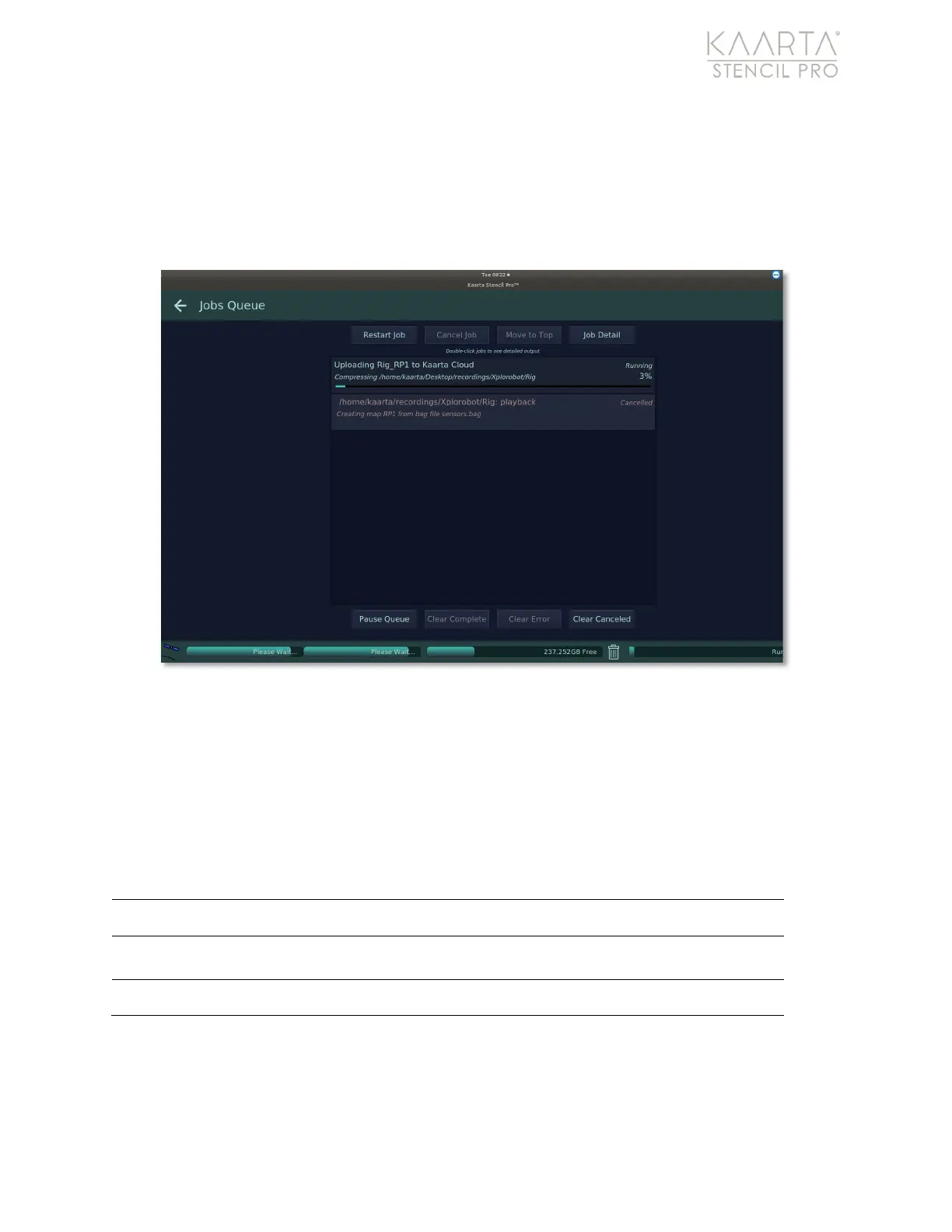
Figure 38: Kaarta Cloud tasks in Jobs Queue.
In addition to uploading to Kaarta Cloud, you can also compress and/or copy your scan to
another location by selecting the Compress Copy tab at the top right side of the screen
(Figure 39). Select the folder location to copy the files. Check box to include images in the
copy and compress. Click Copy button to start the process.
KAARTA CLOUD COMPRESS COPY OPTIONS
Select location to copy scans in the dropdown menu.
Checkbox to include images when compressing and copying.
Deselect to exclude imagery.
Initiates the copy process.


 To Next Page