81
EN
• Due to different network situation, control process may return time-out sometimes. If this
situation occurs, the display between board and App may not be the same, please do not feel
confused.
NOTE: Company will not be liable for any issues and problems caused by Internet, Wi-Fi Router
and Smart Devices. Please contact the original provider to get further help.
3. DOWNLOAD AND INSTALL APP
Caution: QR Code A and QR Code B is only available for downloading APP.
QR Code A QR Code B
• Android Phone users: scan QR Code A or go to google play, search ‚Nethome Plus’ app and
download it.
• Iphone Users: scan QR Code B or go to App Store, search ‚Nethome Plus’ app and download it.
4. INSTALL THE SMART KIT
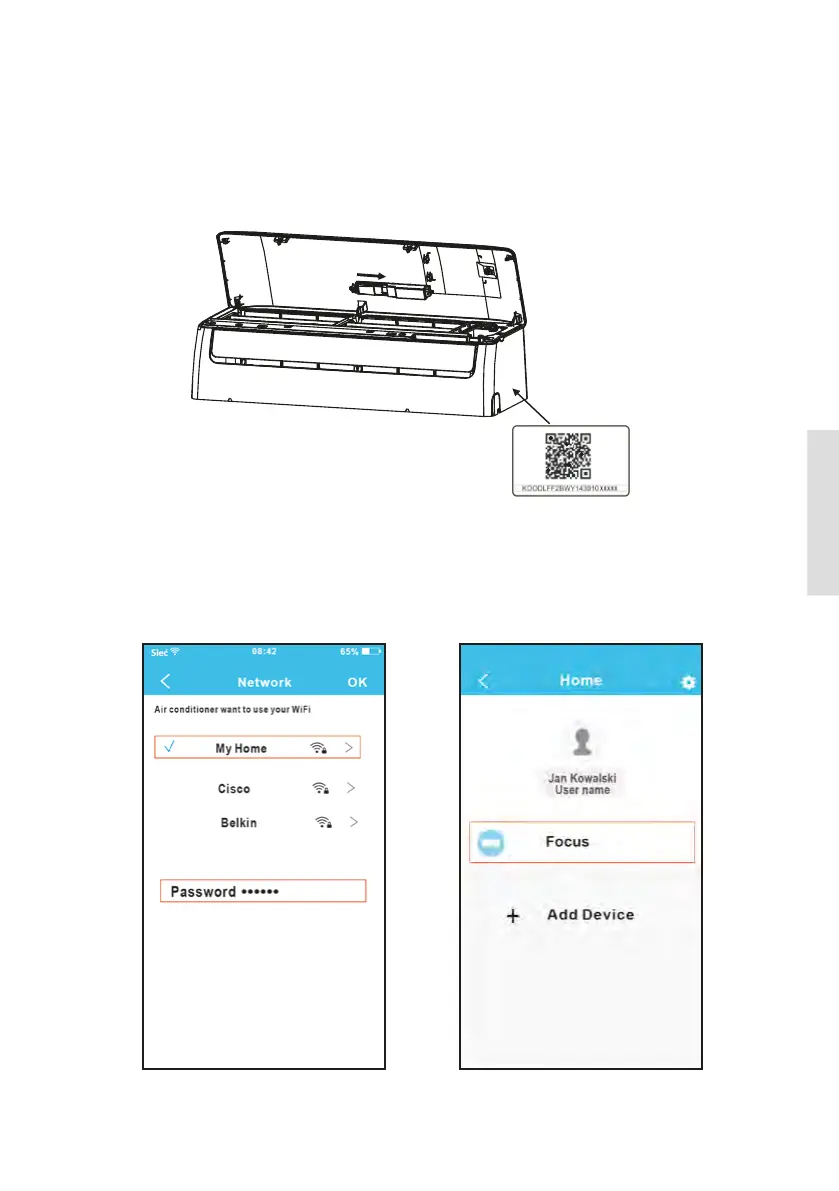
1. Remove the protective cap of the smart kit.
2. Open the front panel and insert the smart kit into the reserved interface.
3. Attach the QR code packed with SMART KIT to the side panel of the machine, ensure it is con-
venience to be scanned by the mobile phone. Alternatively, user can take picture of the QR Code
and save in into their own phone.
WARNING: This interface is only compatible with SMART KIT provided by the manufacturer
5. USER REGISTRATION
• PleaseensureyourmobiledeviceisconnectedtoWirouter.Also,theWirouterhasalrea-
dyconnectedtoInternetbeforedoinguserregistrationandnetworkconguration.
• It is better to log in your email box and active your registration account by clicking link in case
you forget the password.
2. Enter your email address and password, and
then click “Registration”.
1. Click “Create Account”.
Inser t



 To Next Page