English 11
Installation, Care, and Maintenance
Be sure to check compatibility and supported hardware when
installing devices that are not from DEXIS or KaVo. Compatibility can
be found at www.dexis.com or simply call our IT Support Team at
1-888-883-3943 option 1.
Always back-up your data and store it off site. Before assuming that
your back-up efforts have been successful, make sure that you
understand the backup process and practice the restore process at
least once on a test system. Verify that both the operating system
and data have been preserved. Consult with our IT Support Team for
questions.
2.5 Installing the DEXIS Titanium sensor
Please note: The Titanium Sensor does NOT require calibration.
Installation includes
• Connecting the sensor to your computer
• Installing the device driver if installing a sensor to an older version of
DEXIS Imaging software.
2.5.1 Connect the DEXIS Titanium sensor
1. Make sure the computer to which you are connecting the sensor has a
compatible imaging software installed.
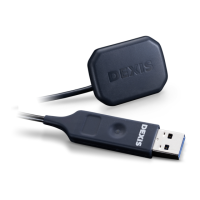
2. Carefully plug the USB end of the sensor cable into the PC USB port. Do
not use force; ensure that the plug is properly oriented with the PC port.
Try rotating the USB plug if it does not easily insert into port. The USB
connector’s Power Indicator LED will turn green when device is receiving
power from the USB port.
3. Follow the installation instructions appearing on the screen.
Titanium Manual.book Page 11 Monday, August 6, 2018 4:40 PM


 To Next Page