EasyManua.ls Logo

Kawai FS690 - (Operation Panel)

Kawai FS690
68 pages
Print Icon
To Next Page IconTo Next Page
To Previous Page IconTo Previous Page
Loading...
GQ)
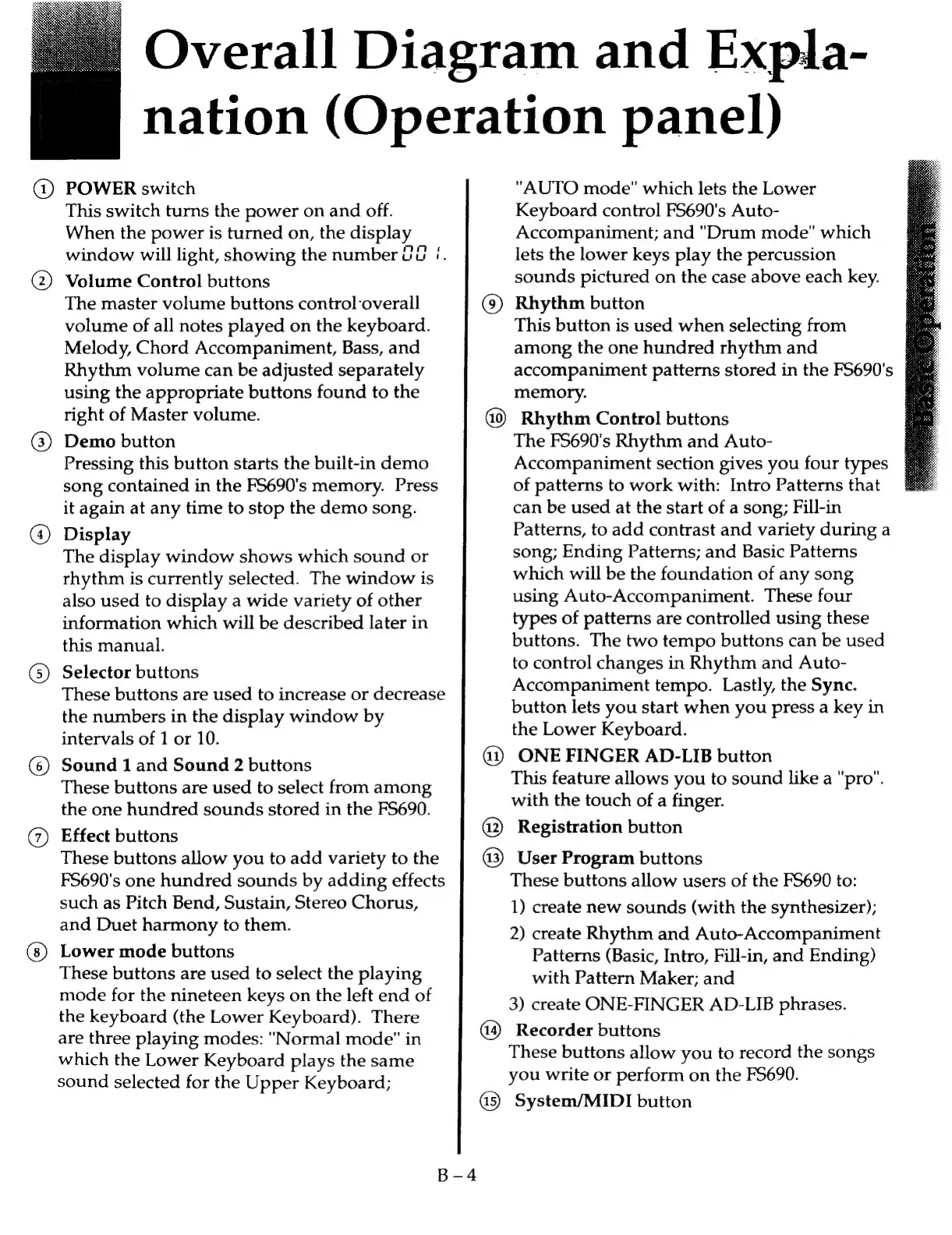
POWER
switch
This
switch
turns
the
power
on
and
off.
When
the
power
is
turned
on,
the
display
window
will
light,
showing
the
number
Ud
/.
(2)
Volume
Control
buttons
The
master
volume
buttons
control-overall
volume
of
all
notes
played
on
the
keyboard.
Melody,
Chord
Accompaniment,
Bass,
and
Rhythm
volume
can
be
adjusted
separately
using
the
appropriate
buttons
found
to
the
right
of
Master
volume.
(3)
Demo
button
Pressing
this
button
starts
the
built-in
demo
song
contained
in
the
FS5690's
memory.
Press
it
again
at
any
time
to
stop
the
demo
song.
(4)
Display
The
display
window
shows
which
sound
or
rhythm
is
currently
selected.
The
window
is
also
used
to
display
a
wide
variety
of
other
information
which
will
be
described
later
in
this
manual.
(5)
Selector
buttons
These
buttons
are
used
to
increase
or
decrease
the
numbers
in
the
display
window
by
intervals
of
1
or
10.
(6)
Sound
1
and
Sound
2
buttons
These
buttons
are
used
to
select
from
among
the
one
hundred
sounds
stored
in
the
FS690.
(7)
Effect
buttons
These
buttons
allow
you
to
add
variety
to
the
FS690's
one
hundred
sounds
by
adding
effects
such
as
Pitch
Bend,
Sustain,
Stereo
Chorus,
and
Duet
harmony
to
them.
Lower
mode
buttons
These
buttons
are
used
to
select
the
playing
mode
for
the
nineteen
keys
on
the
left
end
of
the
keyboard
(the
Lower
Keyboard).
There
are
three
playing
modes:
"Normal
mode"
in
which
the
Lower
Keyboard
plays
the
same
sound
selected
for
the
Upper
Keyboard;
Rhythm
Control
buttons
Overall
Diagram
and
Expla-
nation
(Operation
panel)
"AUTO
mode"
which
lets
the
Lower
Keyboard
control
F5690's
Auto-
Accompaniment;
and
"Drum
mode"
which
lets
the
lower
keys
play
the
percussion
sounds
pictured
on
the
case
above
each
key.
Rhythm
button
This
button
is
used
when
selecting
from
among
the
one
hundred
rhythm
and
accompaniment
patterns
stored
in
the
FS5690's
memory.
The
F5690's
Rhythm
and
Auto-
Accompaniment
section
gives
you
four
types
of
patterns
to
work
with:
Intro
Patterns
that
can
be
used
at
the
start
of
a
song;
Fill-in
Patterns,
to
add
contrast
and
variety
during
a
song;
Ending
Patterns;
and
Basic
Patterns
which
will
be
the
foundation
of
any
song
using
Auto-Accompaniment.
These
four
types
of
patterns
are
controlled
using
these
buttons.
The
two
tempo
buttons
can
be
used
to
control
changes
in
Rhythm
and
Auto-
Accompaniment
tempo.
Lastly,
the
Sync.
button
lets
you
start
when
you
press
a
key
in
the
Lower
Keyboard.
@i)
ONE
FINGER
AD-LIB
button
This
feature
allows
you
to
sound
like
a
"pro".
with
the
touch
of
a
finger.
@2)
Registration
button
@3)
User
Program
buttons
These
buttons
allow
users
of
the
FS690
to:
1)
create
new
sounds
(with
the
synthesizer);
2)
create
Rhythm
and
Auto-Accompaniment
Patterns
(Basic,
Intro,
Fill-in,
and
Ending)
with
Pattern
Maker;
and
3)
create
ONE-FINGER
AD-LIB
phrases.
Recorder
buttons
These
buttons
allow
you
to
record
the
songs
you
write
or
perform
on
the
FS690.
G5)
System/MIDI
button

Related product manuals