EasyManua.ls Logo

Kawai FS690 - Creating Basic Patterns; Intro;Ending Patterns

Kawai FS690
68 pages
Print Icon
To Next Page IconTo Next Page
To Previous Page IconTo Previous Page
Loading...
Pattern
Maker:
‘Creating
Basic
Patterns
@
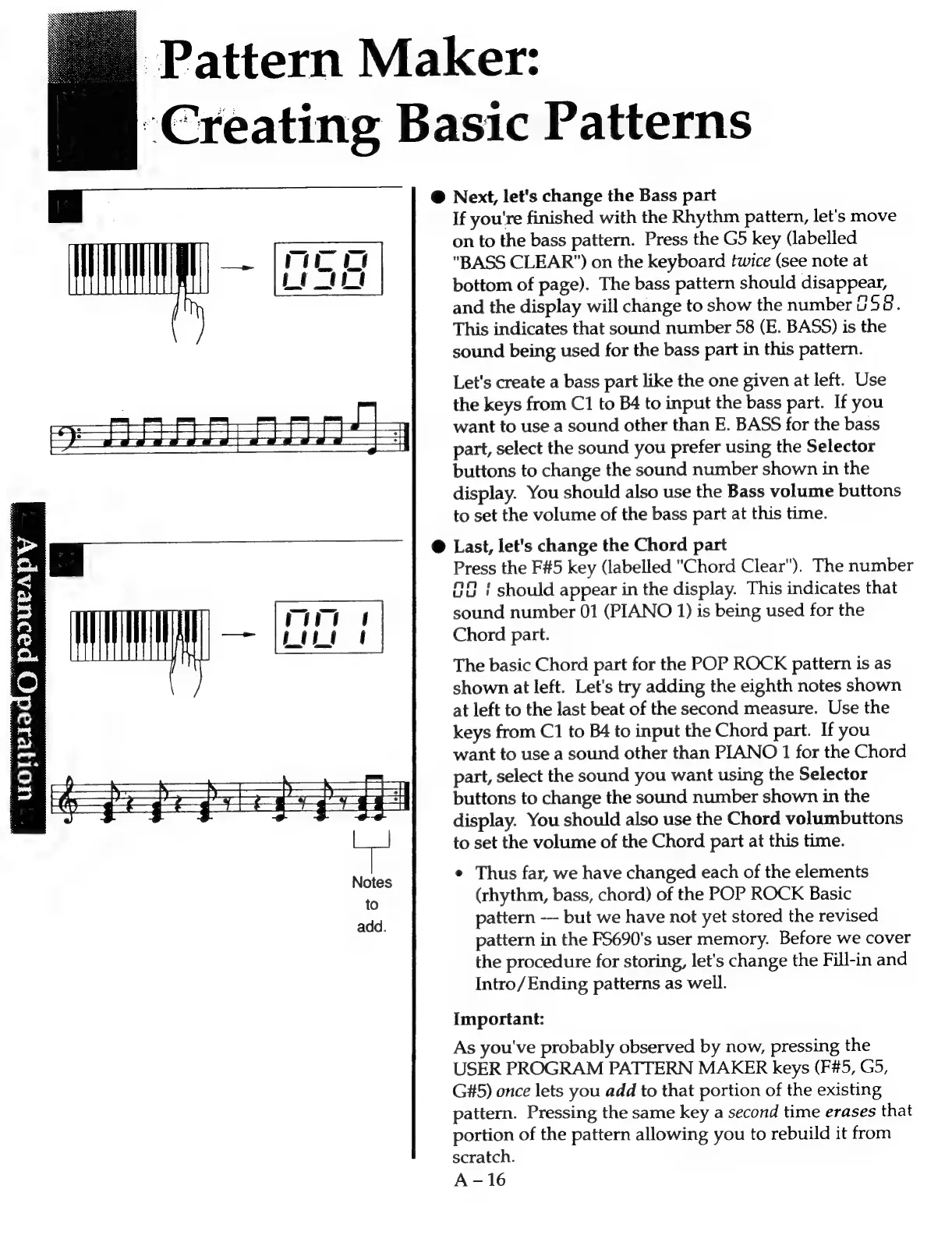
Next,
let's
change
the
Bass
part
If
you're
finished
with
the
Rhythm
pattern,
let's
move
on
to
the
bass
pattern.
Press
the
G5
key
(labelled
—~
"BASS
CLEAR")
on
the
keyboard
twice
(see
note
at
bottom
of
page).
The
bass
pattern
should
disappear,
and
the
display
will
change
to
show
the
number
058.
This
indicates
that
sound
number
58
(E.
BASS)
is
the
sound
being
used
for
the
bass
part
in
this
pattern.
Let's
create
a
bass
part
like
the
one
given
at
left.
Use
the
keys
from
C1
to
B4
to
input
the
bass
part.
If
you
SAAS
want
to
use
a
sound
other
than
E.
BASS
for
the
bass
part,
select
the
sound
you
prefer
using
the
Selector
buttons
to
change
the
sound
number
shown
in
the
display.
You
should
also
use
the
Bass
volume
buttons
to
set
the
volume
of
the
bass
part
at
this
time.
|
@
Last,
let's
change
the
Chord
part
Press
the
F#5
key
(labelled
"Chord
Clear").
The
number
GG
|
should
appear
in
the
display.
This
indicates
that
sound
number
01
(PIANO
1)
is
being
used
for
the
Chord
part.
The
basic
Chord
part
for
the
POP
ROCK
pattern
is
as
shown
at
left.
Let's
try
adding
the
eighth
notes
shown
at
left
to
the
last
beat
of
the
second
measure.
Use
the
keys
from
C1
to
B4
to
input
the
Chord
part.
If
you
want
to
use
a
sound
other
than
PIANO
1
for
the
Chord
part,
select
the
sound
you
want
using
the
Selector
buttons
to
change
the
sound
number
shown
in
the
display.
You
should
also
use
the
Chord
volumbuttons
to
set
the
volume
of
the
Chord
part
at
this
time.
*
©
;
et
a;
Lag
a)
e
Thus
far,
we
have
changed
each
of
the
elements
(rhythm,
bass,
chord)
of
the
POP
ROCK
Basic
pattern
---
but
we
have
not
yet
stored
the
revised
pattern
in
the
F5690's
user
memory.
Before
we
cover
the
procedure
for
storing,
let's
change
the
Fill-in
and
Intro/Ending
patterns
as
well.
Important:
As
you've
probably
observed
by
now,
pressing
the
USER
PROGRAM
PATTERN
MAKER
keys
(F#5,
G5,
G#5)
once
lets
you
add
to
that
portion
of
the
existing
pattern.
Pressing
the
same
key
a
second
time
erases
that
portion
of
the
pattern
allowing
you
to
rebuild
it
from
scratch.
A-16

Related product manuals