4.
2
LCD touchscreen software update (1/2)
The second stage will update the LCD touchscreen software of the NV5 hybrid piano.
This procedure will require approximately 10 minutes to complete.
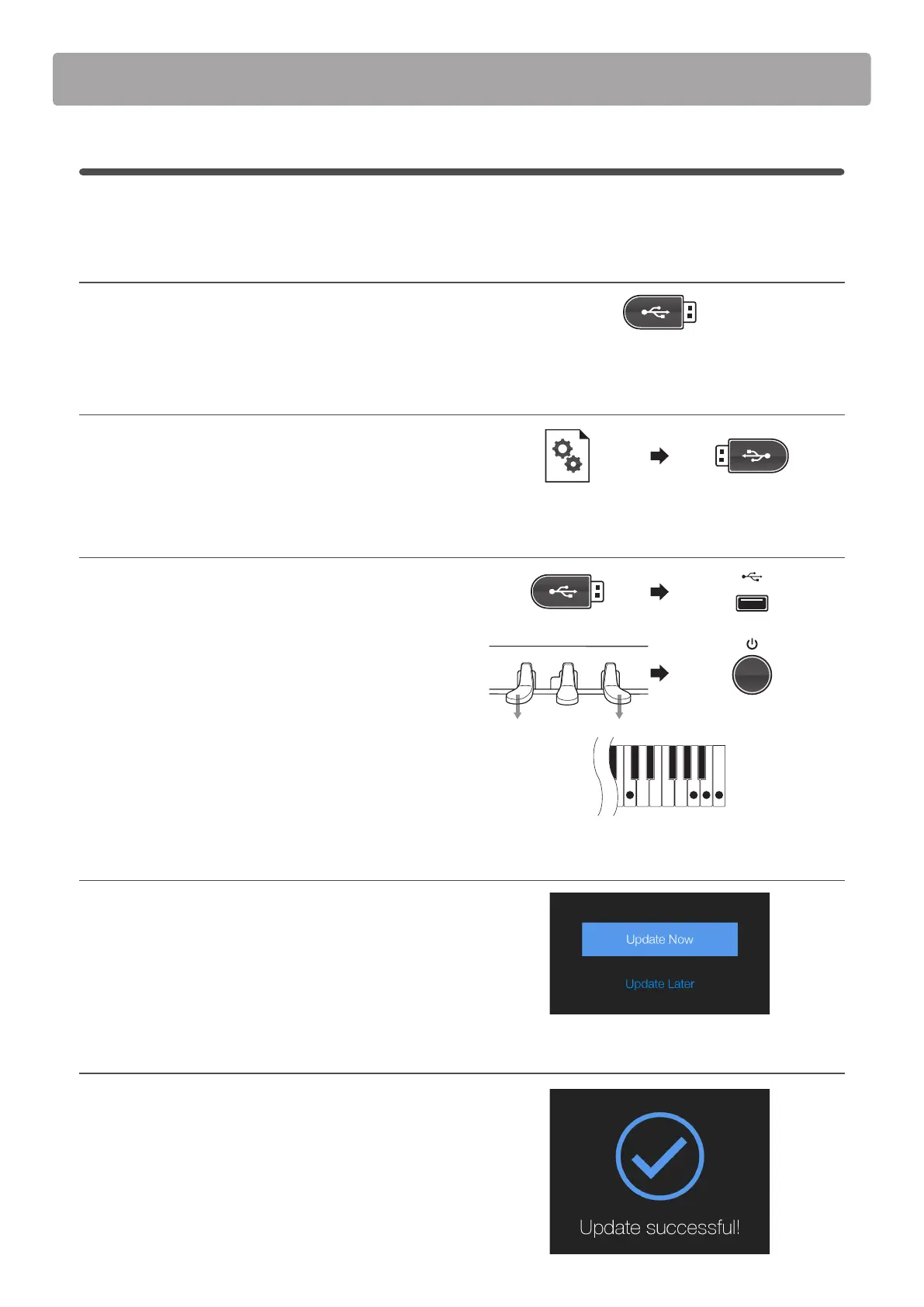
1. Format the USB memory device
Using a computer, format the USB memory device to ensure
that the device is empty.
* The USB device should be formatted to the ‘FAT’ or ‘FAT32’ lesystem.
2. Copy the update le to the USB memory device
Copy the CAx8Sapp.SYS le from the temporary folder to the
root folder of the formatted USB memory device.
3. Connect the USB memory device, turn on the power
While the NV5 hybrid piano is turned o:
Connect the prepared USB memory device to the instrument.
Press and hold the left and right pedals (soft and damper)
simultaneously, then press the POWER button to turn on the
instrument.
While the KAWAI logo is shown in the LCD display, press and
hold the uppermost C, A, B, and C keys (see diagram).
The touchscreen software update screen will be shown.
4. Start the update
Tap the [Update Now] button to start the update process.
The update status and percentage progress will be shown in the
LCD display.
* Do not disconnect the USB memory device or turn o the instrument
while the update is in progress.
5. Finish the update, disconnect the USB memory device
After approximately 10 minutes an [Update successful!] message
will be shown in the LCD display.
Disconnect the USB memory device, then press and hold the
POWER button to turn o the instrument.
Next, continue to stage 3.
* If this stage of the update is unsuccessful, restart from step 1.
Software Update (NV5)
CAx8Sapp.SYS
C A B C


 To Next Page