Need help?
Do you have a question about the KeeNetic SPRINTER and is the answer not in the manual?
Set the physical switch to position A (Router Mode) for internet connection setup.
Position the device, connect to power, and check that Status and Wi-Fi LEDs are illuminated.
Connect a mobile device or computer and access the Initial Setup Wizard or my.keenetic.net.
Set the physical switch to position B (Extender Mode) to extend network coverage.
Connect the extender to power and verify that Status and Wi-Fi LEDs are illuminated.
Use Ethernet or Wi-Fi (WPS) to connect the extender to your main Keenetic router.
Connect a client device to the main router and add the extender via the app or web interface.
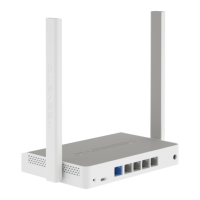
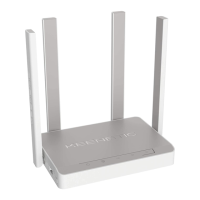
Details on the router's operating mode switch and four fixed Wi-Fi antennas.
Information on the DC power socket and the function of network ports 0, 1, 2, and 3.
Overview of the Reset button, Status LED, Internet LED, FN1/FN2 LEDs, and Wi-Fi Control Button.
Learn about the Keenetic web interface, mobile app, and remote management system.
Solutions for common issues like setup wizard access, internet connectivity, and forgotten passwords.
Includes box contents, operating conditions, warranty, safety instructions, and disposal.
The Keenetic Sprinter is an AX1800 Mesh Wi-Fi 6 Gigabit Router/Extender with a 4-Port Gigabit Smart Switch, designed to provide reliable, continuous, and secure Wi-Fi throughout your home. It can function as a standalone main router or as an extender to an existing network, forming a centrally-managed multi-node Mesh Wi-Fi System.
The device operates in two primary modes: Router Mode (A) and Extender Mode (B), selected via a physical switch on the side panel. In Router Mode, it acts as the main gateway for your home network, connecting to the internet and distributing Wi-Fi. In Extender Mode, it expands the coverage of an existing Wi-Fi network, whether it's a Keenetic Main Router or a non-Keenetic main router.
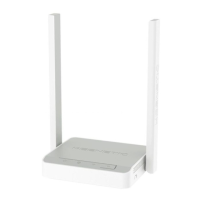
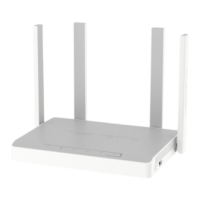
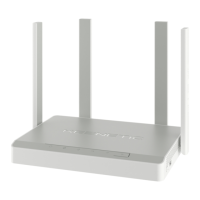
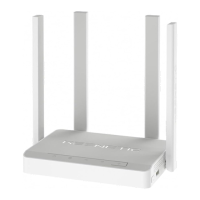
The Keenetic Sprinter features four fixed precision printed dipole Wi-Fi antennas with 5 dBi gain, which are recommended to be kept in a vertical position for optimal wireless coverage. It includes a DC Power Socket for continuous operation with the supplied power adapter. The device is equipped with multiple network ports: three gray ports (1, 2, & 3) intended for home devices, and one blue port (0) preconfigured for Internet connection in Router Mode. In Extender Mode, the blue port also functions for home or office network connection. Each port has an LED that indicates connection status and data transfer.
The device incorporates a Reset Button that restores original factory settings and resets the administrator password. This is useful for troubleshooting or reconfiguring the device.
Several LEDs provide visual feedback on the device's status:
A Wi-Fi Control Button simplifies adding extenders to a Keenetic Mesh Wi-Fi System or other WPS-compliant devices. A single press starts a quick connection session, while pressing and holding for 3 seconds toggles Wi-Fi on/off. Other functions can be assigned to this button.
 General
| WAN Ports | 1 x 10/100/1000 Mbps |
|---|---|
| Antenna Type | External |
| Antenna Gain | 5 dBi |
| Frequency Band | 2.4 GHz, 5 GHz |
| Firewall | Yes |
| VPN | Yes |
| Security | WPA3 |
| Operating Temperature | 0 to +40 °C |
| Storage Temperature | -20°C to 70°C |
| Humidity | non-condensing |
| Model | SPRINTER (KN-3710) |
| CPU | MediaTek MT7621AT, 880 MHz, 2 cores |

 To Next Page