
 To Next Page
E
Erin PetersonAug 16, 2025
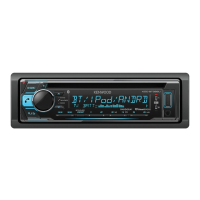
What does 'DEVICE FULL' mean on my Kenwood Car Receiver?
- GGloria RichardsonAug 16, 2025
If the Kenwood Car Receiver displays 'DEVICE FULL', retry after deleting an unnecessary device.

What does 'DEVICE FULL' mean on my Kenwood Car Receiver?
If the Kenwood Car Receiver displays 'DEVICE FULL', retry after deleting an unnecessary device.
How to fix Bluetooth pairing on Kenwood Car Receiver?
If you're unable to pair your Bluetooth device with the Kenwood Car Receiver, ensure you've entered the same PIN code on both devices. If the problem continues, delete the pairing information from both devices and try pairing again.
What to do if my Kenwood Car Receiver says 'NO DEVICE'?
If the Kenwood Car Receiver displays 'NO DEVICE', connect a USB device and change the source to USB again.
Why does my Kenwood Car Receiver say 'READ ERROR'?
If the Kenwood Car Receiver displays 'READ ERROR', copy the files and folders onto the USB device again. If the problem persists, reset the USB device or use another USB device.
What does 'iPod ERROR' mean on my Kenwood Car Receiver?
If the Kenwood Car Receiver displays 'iPod ERROR', try reconnecting the iPod. If that doesn't work, reset the iPod.
Why is Bluetooth audio skipping on my Kenwood Car Receiver?
If you are experiencing interrupted or skipped sound during Bluetooth playback on your Kenwood Car Receiver, try turning the unit off and on again and reconnecting. Also, other Bluetooth devices might be trying to connect to the unit.
Why does my Kenwood Car Receiver say 'NO MUSIC'?
If your Kenwood Car Receiver displays 'NO MUSIC', connect a USB device that contains playable audio files.
How to fix no sound on Kenwood Car Receiver?
If you cannot hear any sound from your Kenwood Car Receiver, adjust the volume to the optimum level and check the cords and connections.
What to do if Kenwood Car Receiver says 'PLEASE EJECT'?
If the Kenwood Car Receiver displays 'PLEASE EJECT', reset the unit.
How to eject a disc from my Kenwood Car Receiver?
Press and hold the M button to forcibly eject the disc from your Kenwood Car Receiver. If this does not solve the problem, reset the unit.
Key instructions, warnings, and cautions for safe and proper product use.
Steps for initial setup, including language, clock, date, and demo mode settings.
How to search for, store, and select radio stations.
Functions for playing, pausing, skipping, and repeating tracks for media playback.
Managing Pandora stations by creating, storing, and searching for them.
Initial setup and starting playback for iHeartRadio streaming service.
Step-by-step guide to pair and connect a Bluetooth device for the first time.
How the unit handles incoming calls and manages call status during use.
Procedures for making calls using call history, phonebook, or direct dialing.
Solutions for general unit issues and problems related to radio reception.
Resolving playback issues with CDs, USB devices, and iPods.
Troubleshooting playback and device errors specific to Android connections.
Solutions for problems connecting to iHeartRadio and Bluetooth devices.
Troubleshooting interrupted audio, poor call quality, and voice command issues.
Important warnings and cautions to follow during the installation process.
A step-by-step guide for installing the unit into the vehicle.
 General
| DIN Size | Single DIN |
|---|---|
| Bluetooth | Yes |
| USB Port | Yes |
| AUX Input | Yes |
| Preamp Outputs | 2-Channel |
| Tuner | AM/FM |
| Display Type | LCD |
| Display Lines | 1 |
| Android Compatibility | Yes |
| iPhone Compatibility | Yes |
| Pandora Control | Yes |
| Spotify Control | Yes |
| CD Player | Yes |
| Remote Control | Yes |
| Detachable Faceplate | Yes |
| Max Power Output | 50 Watts x 4 |
| RMS Power | 22 Watts x 4 |
| Supported Formats | MP3, WMA, AAC |
| Color Illumination | Variable |