EasyManua.ls Logo

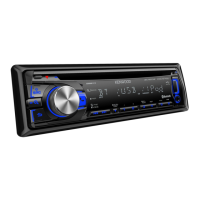
Kenwood kdc-bt420u - User Manual

Kenwood kdc-bt420u
76 pages
Print Icon
To Next Page IconTo Next Page
Loading...
Data Size: B6L (182 mm x 128 mm)
Book Size: B6L (182 mm x 128 mm)
Take the time to read through this instruction manual.
Familiarity with installation and operation procedures will help you obtain the best performance from your new CD-receiver.
For your records
Record the serial number, found on the back of the unit, in the spaces designated on the warranty card, and in the space provided below.
Refer to the model and serial numbers whenever you call upon your Kenwood dealer for information or service on the product.
Model KDC-BT420U Serial number
US Residents Only
Register Online
Register your Kenwood product at www.Kenwoodusa.com
B5A-0227-10 (KN)© 2014 JVC KENWOOD Corporation
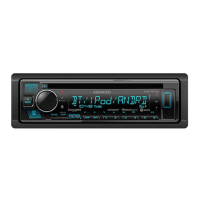
KDC-BT420U
CD-RECEIVER
INSTRUCTION MANUAL
AMPLI-TUNER LECTEUR DE CD
MODE D’EMPLOI
REPRODUCTOR DE DISCOS COMPACTOS RECEPTOR DE FM/AM
MANUAL DE INSTRUCCIONES
JS_KWD_KDC_BT420U_KN_C10.indd 1JS_KWD_KDC_BT420U_KN_C10.indd 1 21/10/2014 10:47:31 AM21/10/2014 10:47:31 AM

Questions and Answers

  • T
    Thomas CollinsJul 30, 2025
    Why is Bluetooth pairing failing on my Kenwood kdc-bt420u?
    • R
      Ronald KelleyJul 31, 2025
      If you are having trouble pairing your Bluetooth device with your Kenwood Car Receiver, first, ensure that you have entered the same PIN code on both devices. If pairing fails, delete the existing pairing information from both the receiver and your Bluetooth device, and then attempt the pairing process again.
  • J
    Jeffrey LoweAug 3, 2025
    How to fix sound not working on my Kenwood kdc-bt420u?
    • J
      Jaime MeyerAug 4, 2025
      If you are not getting any sound from your Kenwood Car Receiver, first, ensure the volume is at an audible level. Then, check all the cords and connections to make sure they are properly connected. If the issue persists, turn off the power and inspect the speaker wires for proper insulation at the terminals. After that, turn the power back on. Also, clean the connectors, and if none of these steps work, try resetting the unit.
  • S
    salazarmarissaAug 8, 2025
    What to do if my Kenwood Car Receiver says “NO DISC”?
    • T
      Tammy GreerAug 8, 2025
      If your Kenwood Car Receiver displays “NO DISC”, insert a playable disc into the loading slot.
  • W
    William GravesAug 12, 2025
    How to resolve “TOC ERROR” on my Kenwood kdc-bt420u?
    • J
      Jeremy TaylorAug 13, 2025
      If your Kenwood Car Receiver displays “TOC ERROR”, make sure that the disc is clean and properly inserted.
  • M
    matthew40Aug 16, 2025
    What to do if my Kenwood kdc-bt420u Car Receiver says “NO DEVICE”?
    • L
      Lisa MurrayAug 16, 2025
      If your Kenwood Car Receiver displays “NO DEVICE”, connect a USB device and change the source to USB again.
  • A
    Amber TaylorAug 21, 2025
    How to fix “ANDROID ERROR” / “NA DEVICE” on my Kenwood kdc-bt420u Car Receiver?
    • K
      karen52Aug 21, 2025
      If your Kenwood Car Receiver displays “ANDROID ERROR” / “NA DEVICE”, try reconnecting the Android device. If the issue persists, restart the Android device.
  • S
    Scott GrantAug 26, 2025
    What to do if disc cannot be ejected from my Kenwood kdc-bt420u Car Receiver?
    • W
      Whitney PerezAug 26, 2025
      If a disc cannot be ejected from your Kenwood Car Receiver, press and hold the M button to forcibly eject the disc. If that doesn't work, reset the unit.

Summary

Basics

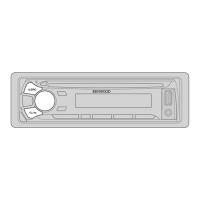
Faceplate

Overview of the unit's front panel controls and display.

Remote Control (RC-406)

Details and operation of the included remote control.

Getting Started

Cancel the Demonstration

Procedure to disable the initial demonstration mode.

Set the Clock

Instructions for setting the unit's clock time and format.

Set the Initial Settings

Guide to configuring essential initial setup options for the unit.

Radio

Search for a Station

Methods for finding and tuning radio stations.

Direct Access Tuning (using RC-406)

Using the remote to directly input frequencies for tuning.

AUX

Preparation

Steps to enable and prepare the AUX source.

Start Listening

How to connect and play audio from an auxiliary device.

Set the AUX Name

Customizing the display name for the AUX input.

CD; USB; iPod; ANDROID

Start Playback

Initiating audio playback from CD, USB, iPod, or Android devices.

Select a File from a Folder;List

Navigating and selecting audio files from storage devices.

Android Setup

Configuration options for Android device connectivity and control.

USB

Connecting and operating the unit with USB storage devices.

Pandora

Start Listening

Connecting and playing music from the Pandora application.

Create and Save a New Station

How to generate and store custom Pandora radio stations.

Search for a Registered Station

Finding existing Pandora stations by date or name.

iHeartRadio

Start Listening

Connecting and playing content from the iHeartRadio application.

Search for a Station

Finding and selecting iHeartRadio stations by category or name.

Delete a Station

Removing unwanted stations from the iHeartRadio list.

Bluetooth

Bluetooth Connection and Pairing

Steps for connecting and pairing Bluetooth-enabled devices.

Mobile Phone Operations

Managing calls, voice quality, and hands-free functions.

Phonebook and Call Management

Accessing call history, phonebook, and making calls.

Bluetooth Settings and Configuration

Adjusting various Bluetooth settings like PIN, reconnect, and initialization.

Bluetooth Audio Features

Bluetooth Audio Streaming and Apps

Playing audio via Bluetooth and using streaming apps like Pandora/iHeartRadio.

Audio Settings

Preset Equalizer Settings

Selecting predefined equalizer profiles for different music genres.

Bass and Subwoofer Controls

Adjusting bass levels, subwoofer output, and phase settings.

Equalizer Pro Settings

Advanced equalization adjustments for fine-tuning sound.

Display Settings

Color Selection and Customization

Choosing and adjusting display and button illumination colors.

Brightness and Dimmer Settings

Controlling the display's brightness and dimming function.

More Information

Playable Media and File Formats

Details on supported CDs, USB devices, and audio file types.

Device and Application Compatibility

Information on compatibility with iPod, iPhone, Android, and Bluetooth devices/apps.

Troubleshooting

General Issues

Common problems and solutions related to the unit's overall operation.

Radio Issues

Troubleshooting problems with radio reception and performance.

Media Playback Issues (CD;USB;iPod)

Resolving errors or playback problems with discs and portable devices.

Android Device Issues

Solutions for connection and playback problems with Android devices.

Pandora and iHeartRadio Issues

Troubleshooting problems specific to Pandora and iHeartRadio services.

Bluetooth Connectivity Problems

Resolving issues related to Bluetooth connection and pairing.

Specifications

Tuner and CD Player Specifications

Technical details for the radio tuner and CD playback components.

USB, Bluetooth, Auxiliary, and Audio Specifications

Technical details for USB, Bluetooth, Aux inputs, and audio output.

Installation; Connection

Installing the Unit (In-Dash Mounting)

Step-by-step guide for installing the unit into a dashboard.

Unit Removal Procedure

Instructions on how to safely detach the unit from its mounting.

Wiring Connection Diagram

Visual guide for connecting the unit's wires to the vehicle's system.

Installation Part List

List of components included with the unit for installation.

Kenwood kdc-bt420u Specifications

General IconGeneral
BluetoothYes
USB PortYes
AUX InputYes
TunerAM/FM
Compatible FormatsMP3, WMA, AAC, WAV, FLAC
Display TypeLCD
Display ColorWhite
Button IlluminationVariable Color
Subwoofer ControlYes
Radio Data System (RDS)Yes
Android Music PlaybackYes
iPhone/iPod Music PlaybackYes
CD PlayerYes
Built-in MicrophoneYes
Steering Wheel Control CompatibleYes
Power Output (RMS)22 Watts x 4
Maximum Output Power50 Watts x 4
Preamp Outputs2-channel
Preset EQYes

Related product manuals