EasyManua.ls Logo

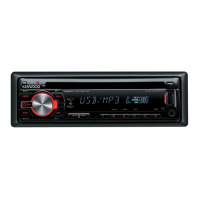
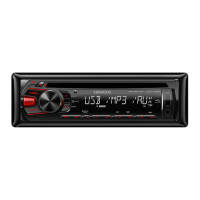
Kenwood KDC-U3056 - User Manual

Kenwood KDC-U3056
28 pages
Print Icon
To Next Page IconTo Next Page
Loading...
GET0851-001A (MW/M0/M20)© 2012 JVC KENWOOD Corporation
KDC-U456
KDC-U356
KDC-U3056
CD-RECEIVER
INSTRUCTION MANUAL
KDC-3257UGM
KDC-3357URM
KDC-3157UAM
“Made for iPod,” and “Made for iPhone” mean that an electronic accessory has been designed to connect specifically to iPod, or
iPhone, respectively, and has been certified by the developer to meet Apple performance standards. Apple is not responsible
for the operation of this device or its compliance with safety and regulatory standards. Please note that the use of this
accessory with iPod or iPhone may affect wireless performance.
iPhone, iPod, iPod classic, iPod nano, and iPod touch are trademarks of Apple Inc., registered in the U.S. and other countries.
The “AAC” logo is a trademark of Dolby Laboratories.
Android is trademark of Google Inc.
EN_KDC-U456[MWM0M20]f.indd 1EN_KDC-U456[MWM0M20]f.indd 1 8/29/12 10:57:42 AM8/29/12 10:57:42 AM


Questions and Answers

  • R
    Richard LawsonAug 20, 2025
    Why does my Kenwood Car Receiver say “PROTECT”?
    • D
      Donna SwansonAug 20, 2025
      If the Kenwood Car Receiver displays “PROTECT”, ensure the speaker wire terminals are properly insulated. Then, reset the unit. If the problem persists, it may require professional attention.
  • K
    Kevin JacksonAug 22, 2025
    What to do if my Kenwood Car Receiver sound cannot be heard?
    • M
      mariohillAug 22, 2025
      If you cannot hear any sound from your Kenwood Car Receiver, try the following: First, adjust the volume to a suitable level. Second, check all cords and connections to ensure they are properly connected. Third, clean the connectors.
  • J
    Jordan AliAug 25, 2025
    What does “NO DISC” mean on my Kenwood KDC-U3056 Car Receiver?
    • K
      Kevin McclainAug 25, 2025
      If your Kenwood Car Receiver displays “NO DISC”, insert a playable disc into the loading slot.
  • W
    William GutierrezAug 26, 2025
    What does “NA FILE” mean on my Kenwood KDC-U3056?
    • M
      marciaparkerAug 26, 2025
      If your Kenwood Car Receiver displays “NA FILE”, ensure the disc contains supported audio files.
  • A
    amanda93Aug 27, 2025
    What does “TOC ERR” mean on my Kenwood KDC-U3056 Car Receiver?
    • L
      Laurie EdwardsAug 28, 2025
      If your Kenwood Car Receiver displays “TOC ERR”, make sure the disc is clean and correctly inserted.
  • M
    Mario BrownAug 29, 2025
    What does “READ ERR” mean on my Kenwood KDC-U3056 Car Receiver?
    • D
      David AndersenAug 29, 2025
      If your Kenwood Car Receiver shows “READ ERR”, copy the files and folders onto the USB device again. If the issue continues, reset the USB device or try using a different USB device.
  • B
    Beth GonzalezAug 31, 2025
    What does “USB ERR” mean on my Kenwood Car Receiver?
    • G
      Gary MartinAug 31, 2025
      If your Kenwood Car Receiver displays “USB ERR”, remove the USB device, turn the unit off, and then turn it back on. If that doesn't work, try connecting a different USB device.
  • J
    Jennifer DouglasSep 2, 2025
    What does “NO DVICE” mean on my Kenwood Car Receiver?
    • J
      Jennifer LeeSep 2, 2025
      If your Kenwood Car Receiver displays “NO DVICE”, connect a USB device and switch the source to USB again.
  • R
    Rodney WatkinsSep 4, 2025
    What does “NA DVICE” mean on my Kenwood KDC-U3056?
    • R
      Ronald FreemanSep 4, 2025
      If your Kenwood Car Receiver displays “NA DVICE”, connect a supported USB device and check the connections.
  • B
    brandonknoxSep 6, 2025
    What does “iPod ERR” mean on my Kenwood KDC-U3056?
    • D
      David GomezSep 6, 2025
      If your Kenwood Car Receiver displays “iPod ERR”, try reconnecting the iPod. If the error persists, reset the iPod.

Summary

BEFORE USE

Safety Warnings

Important safety precautions and warnings for proper usage, including volume and general cautions.

Maintenance Procedures

Guidelines for cleaning the unit, its connectors, and handling discs for optimal performance.

BASICS OF OPERATION

Unit Faceplate

Description of the main control panel, including buttons, display, and loading slot.

Remote Control (RC-406)

Details on using the provided remote control for various unit functions.

Basic Functions

Step-by-step guide for common operations like turning power on/off and adjusting volume.

GETTING STARTED

Demonstration Mode and Clock Setup

Procedures for cancelling the demo display and setting the unit's clock.

Initial Settings Configuration

How to configure initial system preferences like presets and key beep.

RADIO OPERATION

Tuning and Station Search

Methods for manually tuning and automatically searching for radio stations.

Radio Settings and Modes

Options for adjusting reception sensitivity, seek mode, and mono/stereo settings.

Frequency Step Adjustment

How to change the tuning increment for FM and AM radio bands.

MEDIA PLAYBACK FEATURES

Starting Playback

How to begin playing audio from CD, USB, or iPod sources.

Radio Program Features

Utilizing PTY search, Traffic Information (TI), and News Settings.

CD;USB;iPod MUSIC SEARCH

Direct Music Search

Using the remote control to directly access tracks by entering number.

Song Search by Name

Finding music files by searching for song titles or artist names.

Music Playback Management

Controls for playback, skip, repeat, and random modes for various media.

AUX INPUT AND DISPLAY

AUX Source Setup

Connecting and configuring external audio players via the AUX input.

Display Settings

Adjusting screen illumination brightness and text scrolling behavior.

Phone Call Muting Function

Automatic audio pause when a phone call is detected via mute wire.

AUDIO SETTINGS AND CUSTOMIZATION

Sound Control and EQ

Adjusting bass, treble, mid levels, and selecting equalizer presets.

Subwoofer and Speaker Configuration

Setting up subwoofer output, phase, and speaker size preferences.

MORE INFORMATION AND TROUBLESHOOTING

Media File Compatibility

Supported audio formats, file types, and disc media for playback.

iPod;iPhone and USB Device Usage

Guidelines for connecting and operating iPod/iPhone and USB drives.

Troubleshooting Common Issues

Diagnosing and resolving common problems encountered with the unit.

TECHNICAL SPECIFICATIONS

Tuner and CD Player Specs

Detailed technical data for radio reception and CD playback performance.

USB and Audio Output Specs

USB interface standards and audio output performance metrics.

General Unit Specifications

Overall unit characteristics including power, dimensions, and weight.

INSTALLATION AND UNIT REMOVAL

In-Dash Mounting Procedure

Step-by-step guide for securely installing the unit in a vehicle dashboard.

Unit Removal Process

Instructions for safely detaching the unit from the dashboard assembly.

WIRING CONNECTIONS (MODEL SPECIFIC)

KDC-3257 UGM;3357 URM;3157 UAM Wiring

Specific wiring diagrams and parts list for KDC-3257UGM/3357URM/3157UAM models.

KDC-U456;U356;U3056 Wiring

Specific wiring diagrams and parts list for KDC-U456/U356/U3056 models.

ISO Connector Adaptation

Guidance on adapting wiring harnesses for specific vehicle types like VW/Audi.

WIRING AND PRODUCT INFORMATION

KDC-U456;U356;U3056 Wiring Details

Continuation of wiring instructions for KDC-U456/U356/U3056 models.

Laser Safety Information

Explanation of the Class 1 Laser Product label and its safety implications.

Regulatory Compliance

Information regarding EMC directives, EU representatives, and country-specific notices.

Kenwood KDC-U3056 Specifications

General IconGeneral
Power Output50W x 4
RMS Power Output22W x 4
TunerFM / AM
CD PlaybackYes
USB InputYes
BluetoothNo
Display TypeLCD
Preout Voltage2.5V
AUX InputYes
MP3 PlaybackYes
WMA PlaybackYes
FLAC PlaybackNo
Channels4
AAC PlaybackYes
Preset Stations18 FM, 6 AM
Remote ControlOptional

Related product manuals