EasyManua.ls Logo

Kenwood KDC-U449 - User Manual

Kenwood KDC-U449
19 pages
Print Icon
To Next Page IconTo Next Page
Loading...
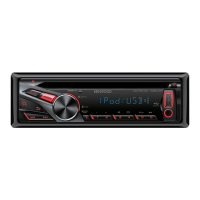
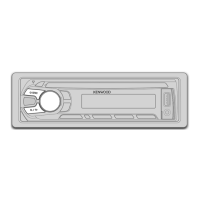
KDC-U449
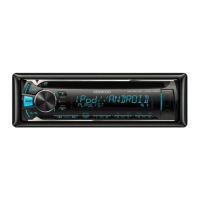
KDC-U3049
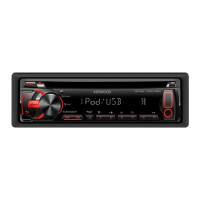
KDC-U349
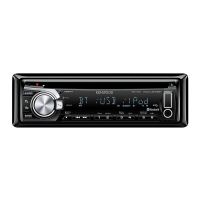
KDC-4051UM
CD-RECEIVER
INSTRUCTION MANUAL
GET0691-001A (MW/M2W/M0/M20)© 2010 Kenwood Corporation All Rights Reserved.
Declaration of Conformity with regard to the EMC Directive 2004/108/EC
Manufacturer:
Kenwood Corporation
2967-3 Ishikawa-machi, Hachioji-shi, Tokyo, 192-8525 Japan
EU Representative’s:
Kenwood Electronics Europe BV
Amsterdamseweg 37, 1422 AC UITHOORN, The Netherlands
About “KENWOOD Music Editor”
This unit supports the PC application “KENWOOD Music Editor Light ver1.0” or later.
When you use the audio file with database information added by the “KENWOOD Music Editor
Light ver1.0, you can search a file by title, album or artist name using Music Search.
In the Instruction manual, the term “USB device” is used to mean the device that contains audio
files with database information added with KENWOOD Music Editor.
“KENWOOD Music Editor Light ver1.0” is available from the following web site:
www.kenwood.com/cs/ce/
For further information on “KENWOOD Music Editor Light ver1.0, refer to the site above or the
application help.
About Audio file
Playable Audio file:
KDC-U449/ KDC-U3049/ KDC-U349:
MP3 (.mp3), WMA (.wma)
KDC-4051UM:
AAC-LC (.m4a),
MP3 (.mp3), WMA (.wma)
Playable disc media: CD-R/RW/ROM
Playable disc file format: ISO 9660 Level 1/2, Joliet, Romeo, Long file name.
Playable USB device file system: FAT16, FAT32
Although the audio files are complied with the standards listed above, the play maybe impossible
depending on the types or conditions of media or device.
For Turkey
Bu ürün 26891sayılı Resmi Gazetede yayımlanan Elektrikli ve Elektronik Eşyalarda Bazı Zararlı Maddelerin
Kullanımının Sınırlandırılmasına Dair Yönetmeliğe uygun olarak üretilmiştir.
This product complies with Directive, Number 26891 regarding “REGULATION ON THE RESTRICTION OF THE USE
OF CERTAIN HAZARDOUS SUBSTANCES IN ELECTRICAL AND ELECTRONIC EQUIPMENT.
“Made for iPod, and “Made for iPhone” mean that an electronic accessory has been designed to connect
specifically to iPod, or iPhone, respectively, and has been certified by the developer to meet Apple
performance standards. Apple is not responsible for the operation of this device or its compliance with safety
and regulatory standards. Please note that the use of this accessory with iPod or iPhone may affect wireless
performance.
iPhone, iPod, iPod classic, iPod nano, and iPod touch are trademarks of Apple Inc., registered in the U.S. and
other countries.
The AAC logo is a trademark of Dolby Laboratories.
This symbol mark indicates that Kenwood manufactured this product so as to decrease
harmful influence on the environment.
CoverRear_KDC-U449[M]4.indd 1-2CoverRear_KDC-U449[M]4.indd 1-2 9/7/10 10:26:53 AM9/7/10 10:26:53 AM


Questions and Answers

  • C
    cookjamesSep 23, 2025
    Why is the number of songs different on my Kenwood KDC-U449 Car Receiver vs iPod?
    • W
      William WilsonSep 23, 2025
      Podcast files are not counted in this unit because this unit does not support the playback of podcast files, so the number of songs contained in the “SONGS” category of your Kenwood Car Receiver might be different from that contained in the “SONGS” category of iPod.
  • K
    Kathryn GlassAug 23, 2025
    Why is the radio reception poor on my Kenwood KDC-U449?
    • M
      Mary BuchananAug 23, 2025
      If you're getting poor radio reception or static noise on your Kenwood Car Receiver, ensure the antenna is firmly connected and pull the antenna out completely.
  • D
    davidmarshallAug 25, 2025
    How to fix no sound on Kenwood KDC-U449 Car Receiver?
    • T
      Theresa HarrisAug 25, 2025
      If there is no sound coming from the Kenwood Car Receiver, adjust the volume to a suitable level and check the cords and connections.
  • D
    David HarrisAug 27, 2025
    What to do if “USB ERROR” appears on Kenwood Car Receiver?
    • R
      Rebecca RomeroAug 27, 2025
      If the Kenwood Car Receiver displays “USB ERROR”, first remove the USB device, turn the unit off, and then turn it back on. If the display doesn't change, try connecting a different USB device.
  • S
    smitherinAug 27, 2025
    What to do if my Kenwood KDC-U449 Car Receiver says “NO DISC”?
    • O
      ortizeddieAug 27, 2025
      If the Kenwood Car Receiver displays “NO DISC”, insert a playable disc into the loading slot.
  • T
    Timothy McmillanSep 18, 2025
    Why is the elapsed playing time incorrect on my Kenwood KDC-U449?
    • B
      brenda42Sep 18, 2025
      The elapsed playing time may not be correct on your Kenwood Car Receiver due to how the tracks were recorded.
  • D
    Debra GarciaSep 15, 2025
    Why don't tracks play as intended on my Kenwood KDC-U449?
    • S
      Susan ParksSep 15, 2025
      The playback order is determined when files are recorded, so tracks may not play back as intended on your Kenwood Car Receiver.
  • J
    Julia WrightSep 17, 2025
    Why does “READING” keep flashing on my Kenwood Car Receiver?
    • C
      Christopher HermanSep 17, 2025
      If “READING” keeps flashing on your Kenwood Car Receiver, it indicates that a longer readout time is required. Avoid using too many hierarchies and folders.
  • D
    Donna SinghSep 6, 2025
    Why won't my Kenwood KDC-U449 Car Receiver play CD-R/CD-RW?
    • M
      Molly RoseSep 7, 2025
      If your Kenwood Car Receiver won't play CD-R/CD-RW or skip tracks, make sure you insert a finalized CD-R/CD-RW, finalized with the component you used for recording.
  • D
    debbie44Sep 3, 2025
    What does “ERROR 99” mean on Kenwood KDC-U449 Car Receiver?
    • K
      Kathleen HutchinsonSep 3, 2025
      If your Kenwood Car Receiver displays “ERROR 99”, the unit is malfunctioning. Press the reset button on the unit.

Summary

About KENWOOD Music Editor

About Audio File

Declaration of Conformity with regard to the EMC Directive 2004;108;EC

Safety

WARNING

Stop the car before operating the unit.

Important to know...

General precautions to prevent unit damage, accidents, and ensure proper functioning.

Preparation

How to attach;detach the faceplate

Instructions for removing and attaching the unit's detachable faceplate.

How to reset your unit

Procedure to reset the unit to its factory default settings.

How to prepare the remote controller (RC-405)

Steps for preparing the remote controller for first-time use.

Getting started

Canceling the display demonstration

How to turn off the continuous display demonstration mode.

Setting the demonstration mode

Procedure to enable or disable the display demonstration mode.

Adjusting the clock

Instructions for setting the unit's internal clock time.

Initial settings before operations

Steps for configuring initial settings before operating the unit.

Preparation Details

Faceplate Attachment and Detachment

Detailed steps for removing and attaching the unit's detachable faceplate.

Unit Reset Procedure

Procedure to reset the unit to its factory default settings.

Laser Product Marking Explanation

Explanation of the Class 1 Laser Product marking.

Basic operations

Display window

Overview of the unit's display indicators and their meanings.

Muting upon the reception of a phone call

How the audio system mutes automatically when a phone call is received.

Basic operations

When you press or hold the following button(s)...

Details on main unit and remote controller button functions.

Getting started procedures

Canceling Display Demonstration

How to turn off the continuous display demonstration mode.

Setting Demonstration Mode

Procedure to enable or disable the display demonstration mode.

Clock Adjustment Procedure

Instructions for setting the unit's internal clock time.

Initial Operation Settings

Steps for configuring initial settings before operating the unit.

Maintenance Procedures

Unit Cleaning Instructions

Instructions for cleaning the unit's panel and connectors.

Disc Handling Precautions

Precautions and instructions for handling audio discs.

Radio Listening Guide

Radio Tuning Settings

Table of selectable settings for radio tuning and reception.

Memorizing Radio Stations

Procedure to memorize radio stations using the SRC button.

Frequency Step Adjustment

Radio Settings Customization

Customizing various radio reception and display settings.

External Components Playback

AUX Input Activation

Ensuring AUX input is enabled for external component playback.

Media Playback Guide

Starting Disc Playback

Steps to insert and begin playback of an audio CD.

Direct Music Search

Using the remote to directly search for tracks by number.

USB Device Connection

Guide on connecting USB storage devices to the unit.

iPod Connection

Instructions for connecting an iPod to compatible models.

Media Playback Modes

Repeat Playback Selection

Setting playback modes for repeating tracks or albums.

Random Playback Selection

Activating random playback for discs, USB, or iPod.

Scan Playback Selection

Enabling scan play to preview tracks.

Folder and Track Selection

Navigating and selecting audio files by folder or track.

USB Device Usage Information

Information and precautions for using USB storage devices.

iPod Functions

iPod Alphabet Search and Playlists

Searching songs by alphabet and managing playlists on iPod.

Playlist Song Playback

How to select and play songs from the created playlist.

Playlist Song Deletion

Steps to remove songs from the saved playlist.

iPod Control Modes

Switching between iPod direct control and unit control.

iPod Settings Customization

Customizing iPod playback settings.

iPod Function Details

Skip Search Functionality

Setting the ratio for skipping songs during music search.

My Playlist Deletion Option

Option to delete the saved My Playlist.

Compatible iPod;iPhone Information

Audio System Settings

Audio Control and EQ Settings

Adjusting audio settings like subwoofer level, bass boost, and EQ.

System Settings Configuration

General Settings and Display Options

Configuration options for AUX names, clock, display, and RDS settings.

Troubleshooting Common Issues

Unit Operation and Error Resolution

Resolving common problems like no sound, unit non-response, and error messages.

Disc Playback Error Handling

Troubleshooting CD-R/RW playback, skipping, and interruption issues.

USB and iPod Connectivity Troubleshooting

Resolving errors and problems related to USB and iPod connections.

Playback and Display Anomaly Correction

Addressing issues with playback order, time display, and character rendering.

Installation and Connection Guide

Installation Part List

List of components included for installation.

Installation Basic Procedure

General steps for installing the car audio unit.

Installation Safety Warnings

Critical safety warnings related to installation and wiring.

Installation Cautions

Important cautions for proper and safe installation.

Wiring Diagrams

KDC-U449;U3049;U349 Wiring

Wiring diagram for specific Kenwood models.

KDC-4051 UM Wiring

Wiring diagram for the KDC-4051UM model.

ISO Connector Details

Connection details for ISO connectors.

Unit Installation Procedures

Wiring Harness Connection

Steps for connecting the wiring harness before final installation.

Japanese Car Installation Method

Method for installing the unit in Japanese cars without a mounting sleeve.

Unit Removal Guide

Procedure for safely detaching the unit from the dashboard.

Technical Specifications

KDC-U449;U3049;U349 Specs

Technical specifications for FM/AM tuners and audio section.

KDC-4051 UM Specs

Technical specifications for FM/MW/LW tuners and audio section.

CD Player Specifications

Specifications related to the CD playback functionality.

USB Interface Specifications

Specifications for the USB connection and file system.

Auxiliary Input Specifications

Specifications for the auxiliary audio input.

General Unit Specifications

General operating voltage, current, size, and weight specifications.

Kenwood KDC-U449 Specifications

General IconGeneral
BrandKenwood
ModelKDC-U449
CategoryCar Receiver
LanguageEnglish

Related product manuals