EasyManua.ls Logo

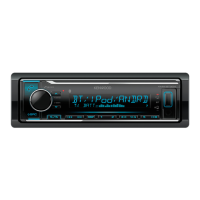
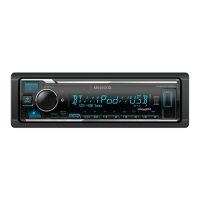
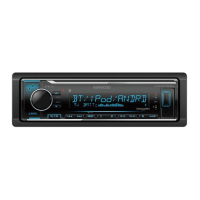
Kenwood KMM-BT522HD - User Manual

Kenwood KMM-BT522HD
128 pages
Print Icon
To Next Page IconTo Next Page
Loading...
Data Size: B6L (182 mm x 128 mm)
Book Size: B6L (182 mm x 128 mm)
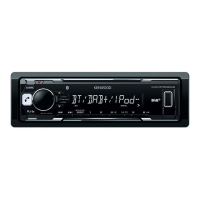
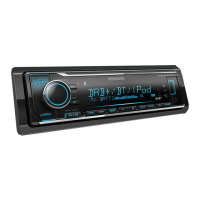
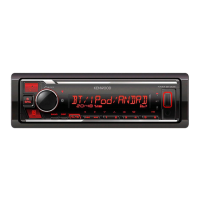
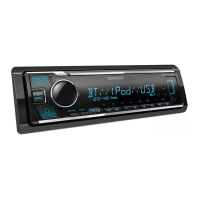
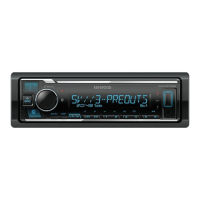
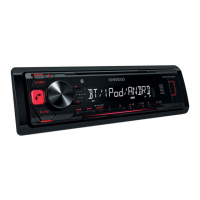
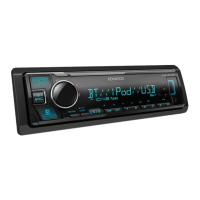
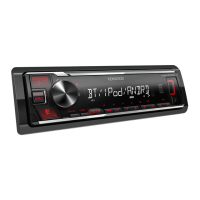
KMM-BT522HD
KMM-BT322U
KMM-BT322
DIGITAL MEDIA RECEIVER
INSTRUCTION MANUAL
RÉCEPTEUR MULTIMÉDIA NUMÉRIQUE
MODE D’EMPLOI
RECEPTOR DE MEDIOS DIGITALES
MANUAL DE INSTRUCCIONES
For your records
Record the serial number, found on the back of the unit, in the spaces designated on the warranty card, and in the space provided below.
Refer to the model and serial numbers whenever you call upon your Kenwood dealer for information or service on the product.
Model KMM-BT522HD/KMM-BT322U/KMM-BT322/KMM-BT240U/KMM-BT222U/KMR-M322BT
Serial number
US Residents Only
Register Online
Register your Kenwood product at http://www.kenwood.com/usa/
B5A-2105-00 (KN)© 2017 JVC KENWOOD Corporation
KMM-BT240U
KMM-BT222U
KMR-M322BT
JS_KWD_KMM_BT522HD_KN_C_9.indd 1JS_KWD_KMM_BT522HD_KN_C_9.indd 1 7/7/2017 11:24:29 AM7/7/2017 11:24:29 AM

Questions and Answers

  • J
    John MoranAug 15, 2025
    What to do if my Kenwood Receiver says 'NO DEVICE' or 'READING' keeps flashing?
    • J
      James LawsonAug 16, 2025
      If you see “NO DEVICE” or “READING” flashing, try these steps: first, switch off the developer options on your Android device. If that doesn't work, try reconnecting the Android device.
  • R
    rsmithAug 19, 2025
    What does 'NA FILE' mean on my Kenwood KMM-BT522HD?
    • E
      Elizabeth MayerAug 19, 2025
      If you see the message “NA FILE”, it means you should make sure the media you're using contains supported audio files.
  • L
    Lisa ConwayAug 21, 2025
    Why is there no sound coming from my Kenwood KMM-BT522HD Receiver?
    • S
      Stephanie PerezAug 22, 2025
      If you can't hear any sound, first adjust the volume to the desired level. If that doesn't work, check the cords and connections to ensure they are properly connected.
  • F
    frankericAug 25, 2025
    What to do if my Kenwood KMM-BT522HD Receiver says 'MISWIRING CHECK WIRING Turn the power off, then check to be sure the THEN PWR ON'?
    • V
      Victoria CarpenterAug 25, 2025
      If the message “MISWIRING CHECK WIRING Turn the power off, then check to be sure the THEN PWR ON” appears, turn off the power. Check to ensure the terminals of the speaker wires are properly insulated, then turn the power back on.
  • P
    Paul SmithAug 27, 2025
    How to fix Bluetooth pairing issues on my Kenwood KMM-BT522HD?
    • A
      ahansonAug 27, 2025
      If you're having trouble pairing a Bluetooth device, ensure that you've entered the same PIN code on both the Kenwood unit and the Bluetooth device. If the problem persists, delete the pairing information from both devices and try pairing them again.
  • M
    mindylawsonAug 30, 2025
    Why is no Bluetooth device detected by my Kenwood KMM-BT522HD Receiver?
    • D
      Derek BaileyAug 30, 2025
      If your Kenwood Receiver isn't detecting a Bluetooth device, try searching for the device again from the Bluetooth device itself. If that doesn't work, try resetting the unit.
  • G
    Gabriella ThompsonSep 3, 2025
    What does 'CH LOCKED LOCK CODE?' mean on my Kenwood KMM-BT522HD?
    • A
      Amanda GonzalezSep 3, 2025
      If your Kenwood Receiver displays “CH LOCKED LOCK CODE?”, you need to enter the correct pass code to unlock it.
  • W
    Wayne StricklandSep 6, 2025
    What does 'ADD ERROR' mean on my Kenwood KMM-BT522HD?
    • M
      Miss Amanda WilcoxSep 6, 2025
      The message “ADD ERROR” indicates that creating a new station was unsuccessful.
  • W
    Wendy CruzSep 8, 2025
    What does 'THUMBS N/A' mean on my Kenwood KMM-BT522HD?
    • S
      Stacey ChangSep 8, 2025
      The message “THUMBS N/A” means that registration of thumbs up/thumbs down is not allowed.
  • A
    Ann RamirezSep 12, 2025
    What does 'NO STATIONS' mean on my Kenwood KMM-BT522HD Receiver?
    • H
      hooverangelaSep 12, 2025
      The message “NO STATIONS” indicates that no stations were found.

Summary

Instruction Manual Overview

Before Use Guidelines

Important Usage Guidelines

Advises reading the manual, observing warnings/cautions, and keeping the manual accessible.

Driving Safety Warnings

Warns against operating functions that distract from safe driving.

Battery Safety Warning

Alerts about the danger of ingesting coin/button cell batteries and handling them with children.

Basics of Operation

Basic Operations

Details how to turn the unit on/off, adjust volume, and select sources.

Getting Started Guide

Select Display Language

Guides user through selecting the display language and canceling the demonstration mode.

Set Clock and Date

Provides instructions for setting the current time and date on the unit.

Configure Initial Settings

Details how to set initial preferences for Audio Control, Display, and Easy Menu.

USB;iPod;Android Connectivity

Starting Playback

How to connect and begin playback from USB, iPod, or Android devices.

Playback Controls

Instructions for controlling playback functions like play/pause, skip, repeat, and random modes.

SiriusXM Radio Operation

SiriusXM Setup and Activation

How to connect the tuner, check the Radio ID, and activate the subscription.

SiriusXM Listening and Tuning

Guides on selecting bands, categories, channels, and using direct access tuning.

Bluetooth Connectivity

Pairing and Connecting Devices

Step-by-step guide to pair and connect Bluetooth devices for the first time.

Bluetooth Mobile Phone Use

Automatic Device Pairing

How auto-pairing works when connecting iPhone/iPod/Android via USB.

Receiving and Managing Calls

Instructions for answering, rejecting, ending calls, and managing dual calls.

Bluetooth Call and Voice Settings

Call Receiving Settings

Options for auto-answering calls and displaying battery/signal strength.

Voice Quality Adjustments

How to adjust microphone gain, noise reduction, and echo cancellation for better call quality.

Bluetooth Making Calls

Making Calls via Phonebook;History

How to make calls using call history, phonebook, or voice commands.

Storing and Dialing Contacts

Instructions for storing contacts in memory and making calls from stored numbers.

Bluetooth Advanced Settings

Voice Recognition and Personal Assistant

How to use voice recognition and personal assistant functions with connected phones.

Bluetooth Audio Playback

Audio Player Control

Instructions for selecting BT AUDIO source and controlling playback of audio players via Bluetooth.

Bluetooth App Integration

KENWOOD Remote Application Setup

How to configure the KENWOOD Remote application for iPhone/iPod/Android.

Audio Settings Configuration

Subwoofer and Equalizer Settings

Adjusting subwoofer level, manual EQ, Q factor, and preset equalizer settings.

Advanced Audio Adjustments

Speaker and Crossover Settings

Configuring speaker sizes, tweeter settings, and crossover frequencies for optimal sound.

Troubleshooting Guide

General Troubleshooting

Solutions for common issues like no sound, wiring errors, and unit protection mode.

HD Radio and USB;iPod Issues

Troubleshooting steps for HD Radio reception and USB/iPod connectivity problems.

Device-Specific Troubleshooting

Android and Pandora Issues

Solutions for common problems encountered with Android devices and Pandora app.

Connectivity Troubleshooting

App and Streaming Issues

Troubleshooting for iHeartRadio, Spotify, SiriusXM connectivity and errors.

Bluetooth Communication Problems

Solutions for Bluetooth connection errors, pairing issues, and call quality problems.

Bluetooth Performance Troubleshooting

Bluetooth Audio and Control Issues

Solutions for interrupted sound, lack of control, and device connection errors.

Technical Specifications

Installation and Wiring

Wiring Connection Guide

Detailed instructions for connecting wires for power, speakers, and accessories.

Installation Warnings and Cautions

Important safety precautions and advice for professional installation.

Connecting External Components

Kenwood KMM-BT522HD Specifications

General IconGeneral
Receiver CategoryDigital Media Receiver
DIN SizeSingle DIN
Peak Output50 watts x 4 channels
BluetoothYes
HD RadioYes
SiriusXM ReadyYes
USB PortYes
USB InputYes
Subwoofer ControlYes
Display TypeLCD
Display ColorVariable Color
Pandora ControlYes
iHeartRadio ControlYes
Spotify ControlYes
Android Music PlaybackYes
iPhone/iPod Music PlaybackYes
FLAC PlaybackYes
Wireless Remote ControlYes
Faceplate SecurityDetachable
AUX InputFront

Related product manuals