Control
Option 1: Control via Remote Control
Refer to IR Remote Control section for complete control options via IR.
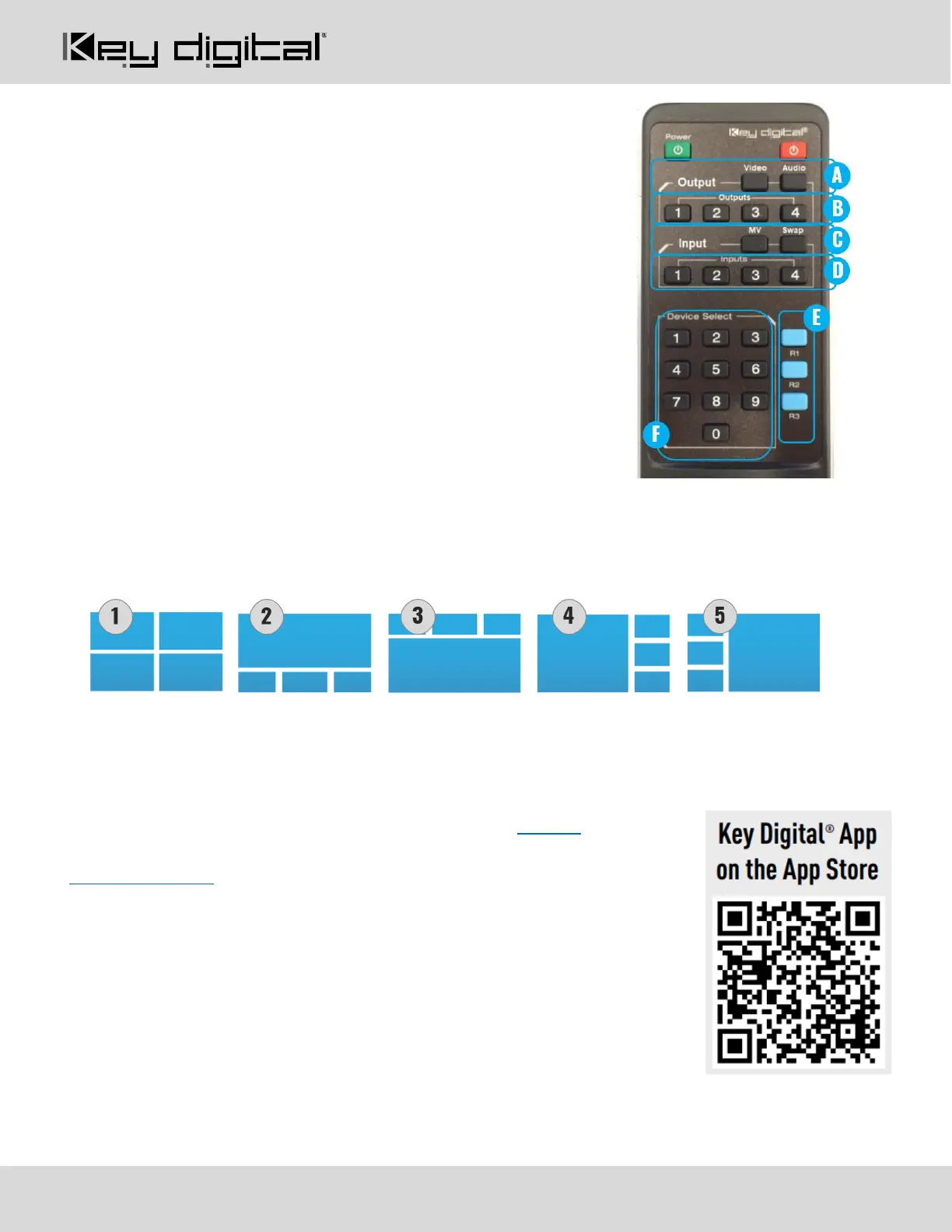
• Switching HDMI AV + External Audio together
1. R1 button (section E)
2. Output button (section B)
3. Input button (section D)
• Select multi-view layout for all multi-view zones
1. R1 button (section E)
2. Layout 1-9, using Device Select buttons (section F)
▪ 1-5 = same as layouts 1-5 on front panel and
pictured below
▪ 6-9 = custom layouts
• Audio Selection in Multi-View mode
1. Audio button (section A)
2. MV button (section C)
3. Input button (section D)
Option 2: Control via KD-App, KDMS Pro™
KD-MLV4x4Pro is controllable by Key Digital’s user-friendly iOS App
(downloadable in the App Store) or Key Digital® Management Software™ Pro
(downloadable here).
1. Connect and Configure your KD- MLV4x4Pro as described in the Connect
& Configure sections
2. Download and open KD-App and/or KDMS™
3. Ensure the iOS device and/or PC computer are on the same network with
KD- MLV4x4Pro
4. Perform a network scan in the KD-App/KDMS™
5. Select and control the selected KD- MLV4x4Pro
6. To enter KDMS Pro end-user mode, key CTRL + ALT + N after selecting
the unit in the devices tree.


 To Next Page