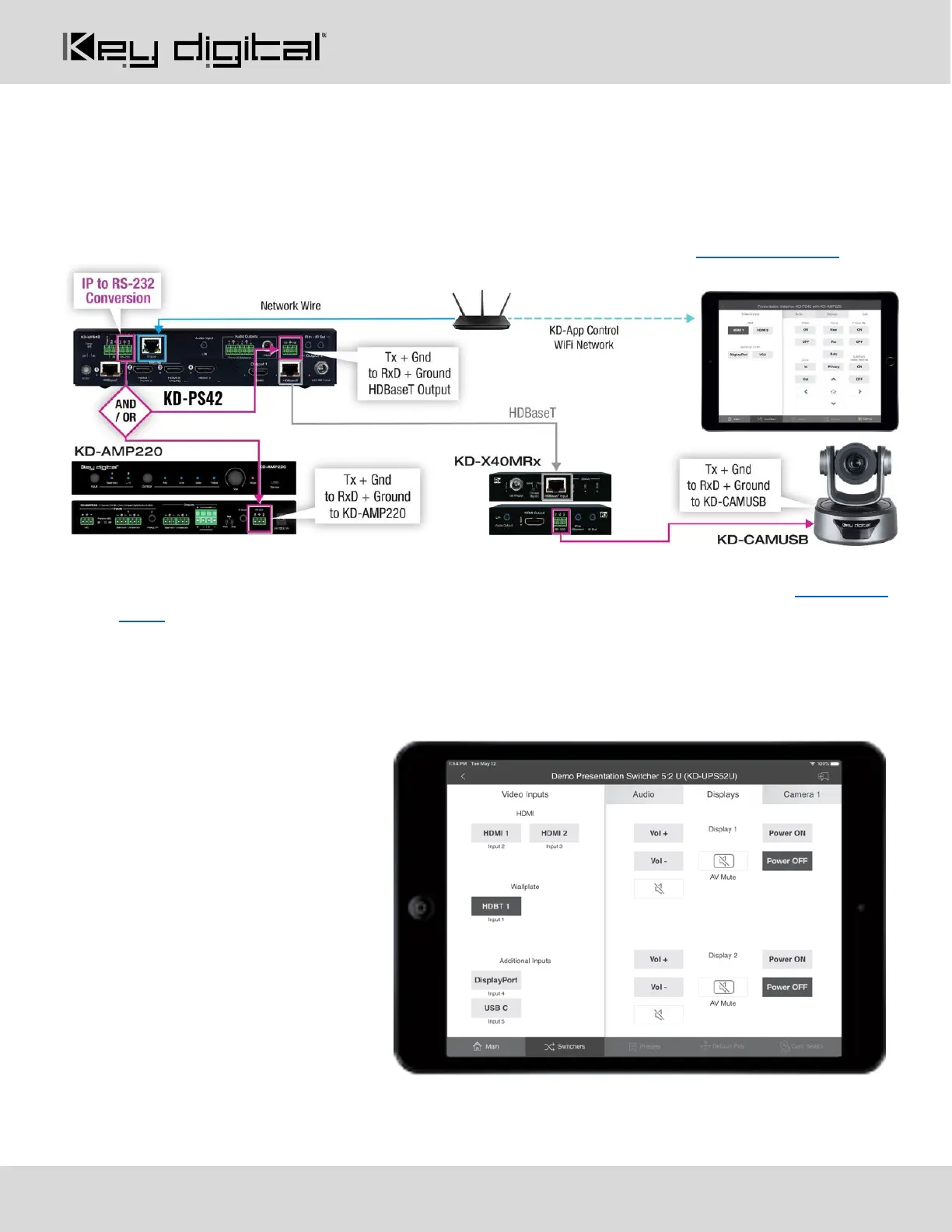
System Integration with KD-CamUSB, KD-Amp220, KD-App
KD-PS42 may be integrated with KD-CamUSB and/or KD-Amp220 and controlled by the Key Digital iOS app for
a simplistic, user-friendly AV system that does not require programming a professional control system.
• Download the Key Digital iOS app for free from the App Store
• Ensure Connection steps 5, 6, and 7 have been completed according to the Quick Setup Guide section
• Ensure Configuration steps 4, 5, 9, 10, and 11 have been completed, as instructed in the Quick Setup
Guide section
• Ensure the iPad / iOS device is on the same network with KD-PS42
• Open Key Digital app and press DEVICES button to begin scan
• Select the KD-PS42 unit to enter control GUI
KD-PS42 control GUI
Video source selection is always visible
at the left-side of screen.
Input names entered in KDMS Pro are
visible as sub-text beneath each Video
Input button
Display CEC control page is visible on
the right-side of screen.
If an output is turned OFF in KDMS
Pro, that display control button group is
no longer visible.
Output names entered in KDMS Pro are visible at the top-center of each Display control button group.


 To Next Page