6 7
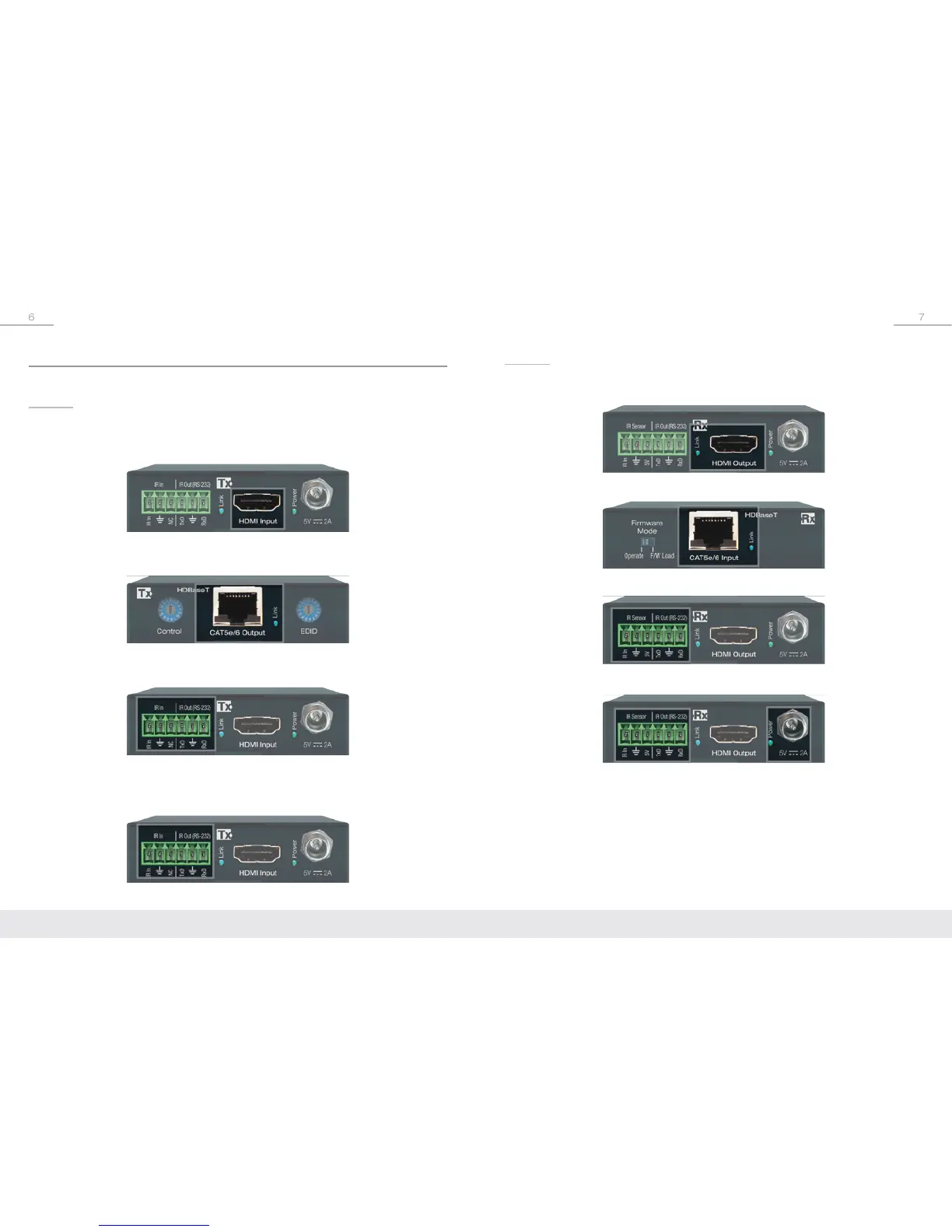
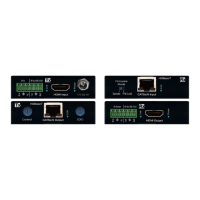
Rx Unit:
➔ Using a short HDMI cable, connect your output / display device to the HDMI port
labeled “HDMI Output”.
➔ Connect the CAT5e/6 cable at the port labeled “CAT5e/6 Input”.
➔ If you are sending or receiving IR, connect included IR Sensor and/or IR Emitter
➔ If you are transmitting or receiving RS-232, connect to the IR out (RS-232) port
➔ After all the connections are made, connect power to the Tx and Rx
(KD-X222 only) using the included power supplies and then power up
your source and display equipment.
Connections
Before making any connections, power off your source and display devices.
Tx Unit:
➔ Using a short HDMI cable, connect your source device to the HDMI port labeled
“HDMI Input”. For DVI-D/DVI-I sources, use appropriate adapters. For Display
Port, use active converters.
➔ Connect the CAT5e/6 UTP or STP cable that connects to the Rx Unit at the port
labeled “CAT5e/6 Output”.
➔ Make IR In and Out connections to receive (IR In port) or send (IR Out port)
control signals.
Refer to the “Extending IR & RS-232 Control” for more information.
➔ Connect a stripped wire to DB9 adapter cable for bi-directional RS-232 control.
Refer to the “Extending IR or RS-232 Control” and the “RS-232 Commands”
section for more information.


 To Next Page