1 2 3 4 5 6 7 8
O
N
9
No. System status Description
DIP 1 Auto/manual 0 = standard; auto: If an active HDMI input is identified in QP air, it is automatically
activated (exemption: WiFi hotspot).
1 = manual: Touch the “touch-sensitive button” of the desired input to activate
this input (button backlight flashes if no suitable signal has been identified).
DIP 2 Empty 0 = standard
DIP 3 WLAN frequency 0 = standard; to switch the WLAN hotspot from 2.4GHz to 5GHz, briefly turn this switch
to 1 and then back to 0 (The hotspot will then restart in a dierent frequency band).
Also for running a firmware update of the WIFI hotspot.
DIP 4 Power supply
WLAN stick
0 = standard; always ON
1 = OFF, in order to save power (it may take up to 1 minute to start the hotspot)
DIP 5 Power supply
60-GHz transmitter
0 = standard; always ON
1 = OFF, in order to save power (only local HDMI output can be used)
DIP 6 Empty 0 = standard
DIP 7
DIP 8
EDID – Information
(Includes monitor data)
00 = standard; transmits the EDID signal from the playback monitor at the receiver
(60GHz) to the HDMI inputs (1)
01 = preferably 1080p (setting also for 4k display).
10 = preferably 720p
11 = transmits the EDID signal from the playback monitor at the HDMI output (3)
to the HDMI inputs (1)
* The scope of supply for QuickPresent Air Lite does not include batteries
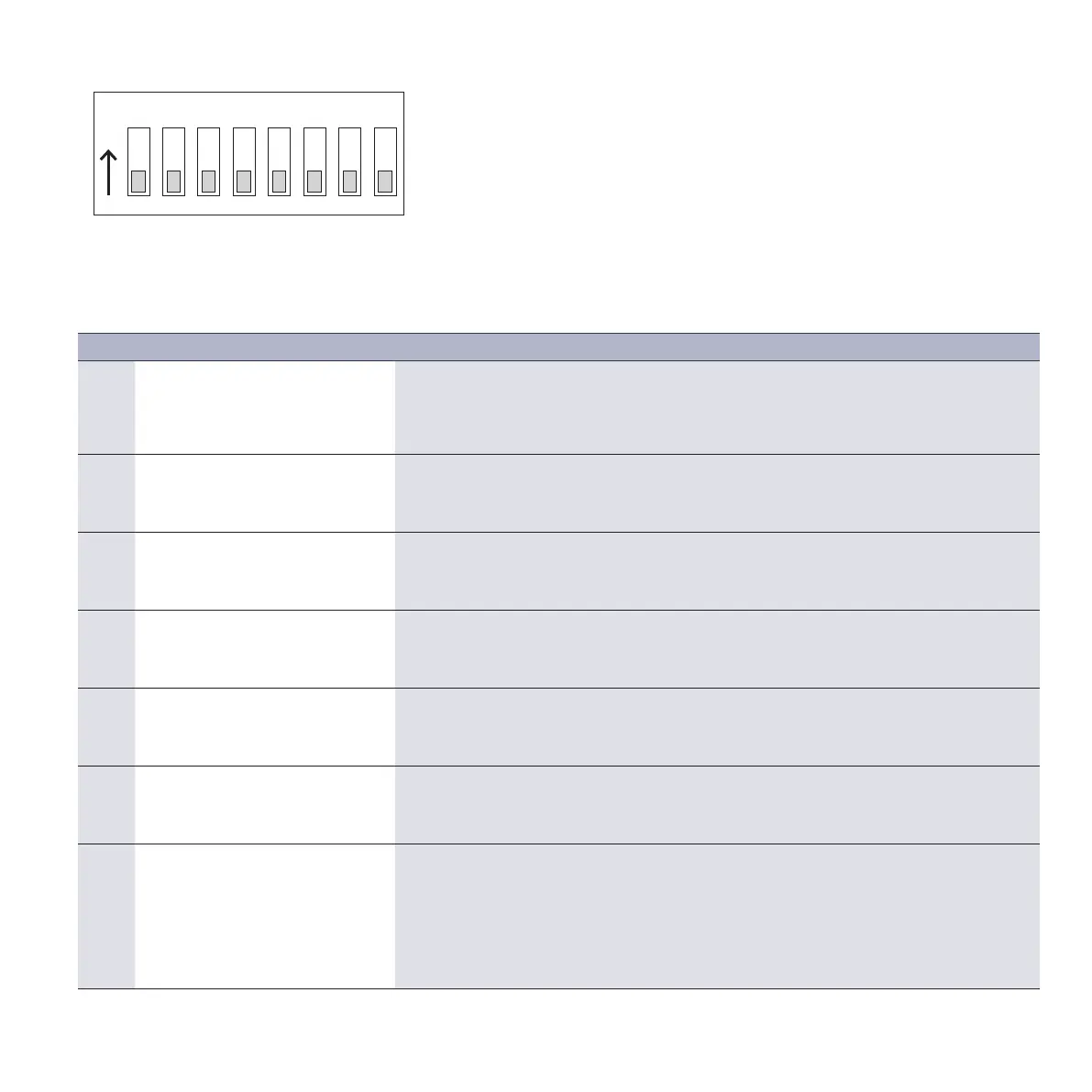
2.1.3. Device configuration via DIP switch (5)
Use an object (e.g. pen) to set the DIP switches 1 to 8 to “ON” (“top” in arrow direction) or
“OFF” (bottom switch position) according to the following table as desired.
All switches in the drawing are set to “OFF”.



 To Next Page