Using the Code Reader
CODE RETRIEVAL PROCEDURE
then turn back ON to reset the computer.
- Ensure your vehicle is OBD2 compliant. See Vehicles Covered on
page 6 for vehicle compliance verification information.
¾ The CanScan will display a code only if codes are present in the vehicle’s
computer memory. If no codes are present, a “0” is displayed.
¾ The CanScan is capable of retrieving and storing up to 32 codes in
memory, for immediate or later viewing.
8. To read the display:
Refer to Display Functions on page
11 for a description of LCD
display elements.
¾ A visible icon
indicates that the CanScan is being powered through the
vehicle’s DLC connector.
¾ A visible icon indicates that the CanScan is linked to (communicating
with) the vehicle’s computer.
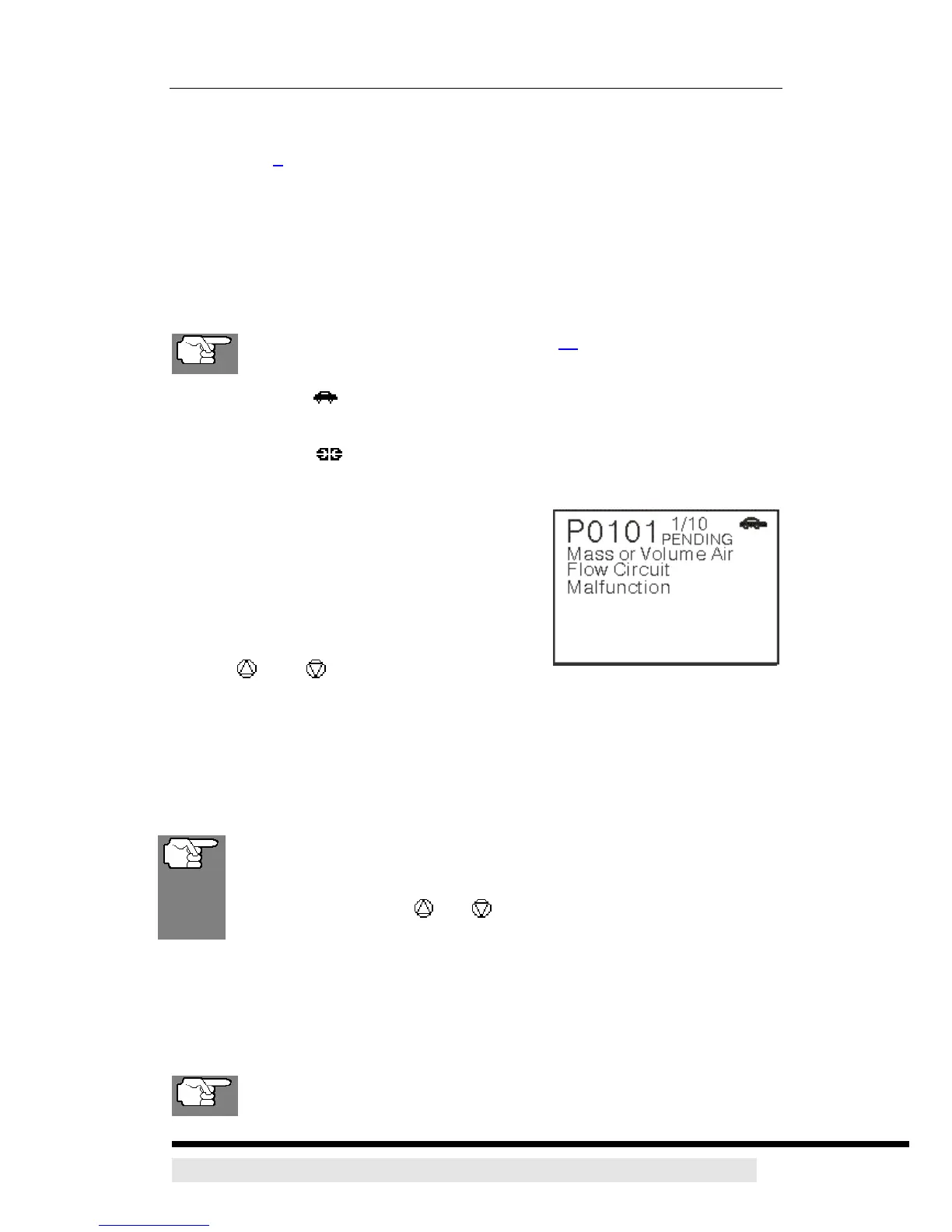
¾ The Diagnostic Trouble Code (DTC) and
related code definition are shown in the
lower section of the LCD display. In the
case of long code definitions, a small arrow
is shown in the upper/lower right-hand
corner of the code display area to indicate
the presence of additional information. Use
the and buttons, as necessary, to
view the additional information
¾ If the code being displayed is a PENDING code, the PENDING icon is
shown.
¾ The Diagnostic Trouble Code (DTC) and related code definition are shown
in the lower section of the LCD display.
In the case of long code definitions, or when viewing Freeze Frame
data, a small arrow is shown in the upper/lower right-hand corner of
the code display area to indicate the presence of additional
information. Use the and buttons, as necessary, to view the
additional information.
9. Read and interpret Diagnostic Trouble Codes/system condition using the
LCD display and the green, yellow and red LEDs.
D900 CanScan 23
The green, yellow and red LEDs are used (with the LCD display) as
visual aids to make it easier to determine engine system conditions.


 To Next Page