Page 8
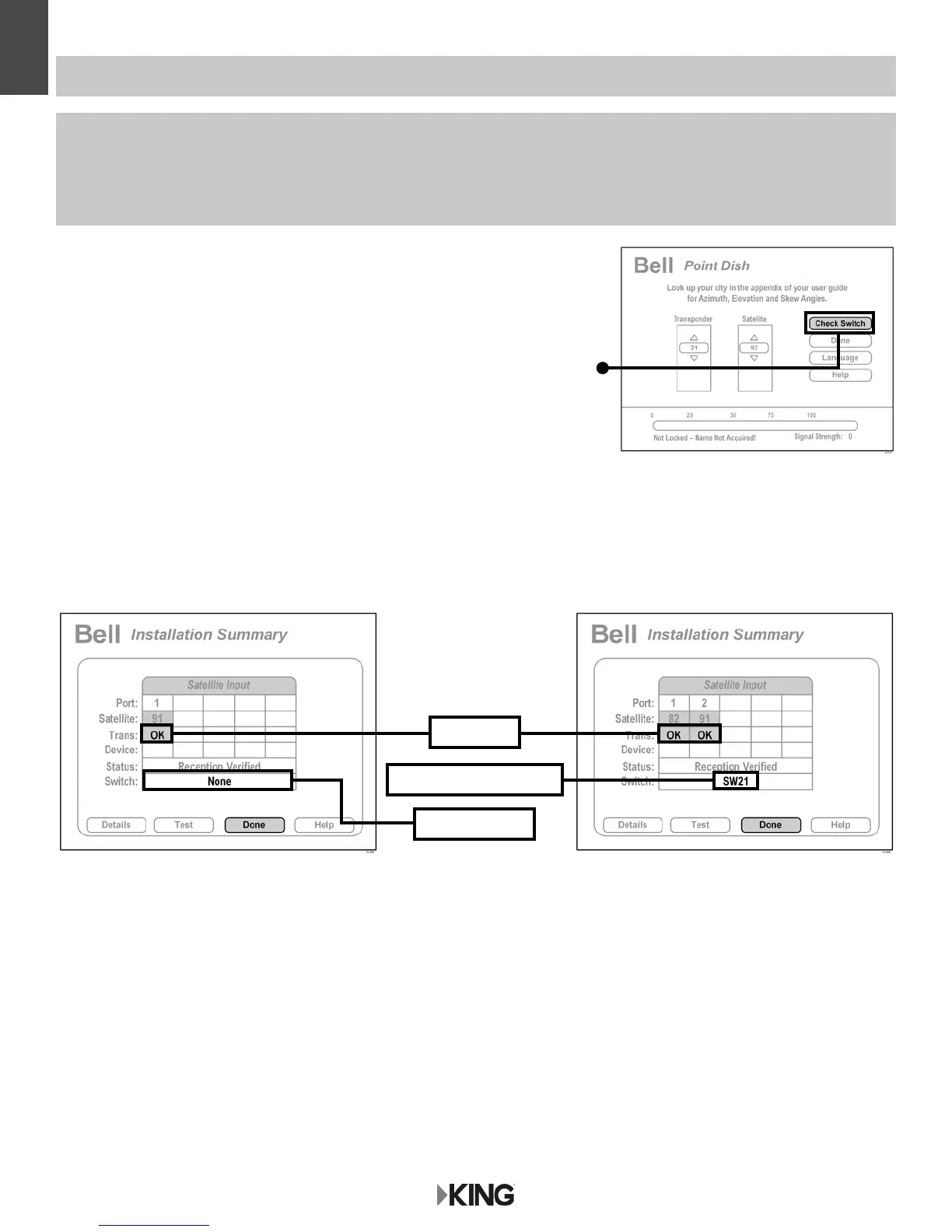
1. On the receiver remote, press MENU, 6, 1, 1
to access the Point Dish screen.
2. Highlight “Check Switch” and press SELECT on your remote.
The receiver will perform a check switch test. This process can take a little while so
PLEASE BE PATIENT.
3. When test is complete, a screen similar to one below should appear.
The SW21 switch is a receiver software conguration that is loaded into the receiver after successfully running a check switch test
with the antenna locked on the 82 and 91 satellites.
This one time procedure will not need to be repeated after successful installation, unless:
a) check switch test is run again while the receiver is connected to a home dish system.
b) check switch test is run when the receiver is not connected.
BELL RECEIVER CONFIGURATION
If the indicated results are not obtained, go back to Step 1 and run test again.
Contact KING if the check switch fails to load after 4 attempts.
4. When the installation summary shows the successful check switch test results, highlight “Done.”
Press SELECT on your remote to exit the screen.
5. Conguration is complete. Watch TV and enjoy!
You can now use the instructions in the BELL: OPERATION section for subsequent use.
Screen graphics may vary.
Bell TV SD Bell TV HD and SD
“None”
Bell TV
NO “X”s
MUST SHOW “SW21”



 To Next Page