This document serves as a Quick Start Guide for the Kingtop Mobile Hotspot KT-M3A, providing essential information for its setup, operation, and troubleshooting.
Function Description
The Kingtop Mobile Hotspot KT-M3A is a portable 5G MiFi device designed to provide high-speed internet access to multiple Wi-Fi-enabled devices and computers. It acts as a gateway, allowing smartphones, tablet computers, game consoles, laptops, and other Wi-Fi devices to connect to the internet via a 5G or 4G cellular network. The device supports both Wi-Fi connectivity and wired internet access for computers via a USB Type-C cable.
Important Technical Specifications
- Model Name: KT-M3A
- Connectivity: 5G MiFi (Mobile Wi-Fi)
- Dimensions:
- Height: 5.12 inches
- Width: 3.23 inches
- Depth: 0.73 inches
- SIM Card Type: Nano-SIM card
- Charging Port: USB Type-C
- Indicator Lights: Four indicator lights for:
- Wi-Fi status
- 4G cellular network status
- 5G cellular network status
- Battery level status (red when battery capacity is less than 20%)
- Default Wi-Fi Password: 12345678 (Note: The last 4 digits of the device MAC may also be part of the SSID, e.g., "5G-MIFI-2.4G-xxxx" or "5G-MIFI-5G-xxxx")
- Device Management Website IP Address:
http://192.168.43.1
Usage Features
The KT-M3A offers several user-friendly features for seamless internet connectivity:
- Easy SIM Card Installation: The device allows for straightforward installation and removal of a Nano-SIM card. Users are advised to power off the device before installing or removing the SIM card to prevent damage.
- Flexible Charging Options: The device battery can be charged using two methods:
- Via a power socket using a power adapter and USB cable.
- Via the USB-A port of a computer or laptop.
- Multi-Device Connectivity: It enables multiple Wi-Fi devices (smartphones, tablets, game consoles, etc.) to connect simultaneously to the internet.
- Wired Connectivity: Computers and laptops can access the internet through the 5G MiFi KT-M3A via a USB Type-C cable, offering an alternative to Wi-Fi.
- Intuitive Indicator Lights: The four pilot lamps provide clear visual feedback on the device's operational status, including Wi-Fi activity, cellular network connection (4G/5G), and battery level. The battery indicator turns red when the charge drops below 20%.
- Device Management Web Interface: Users can log into a web-based management page (
http://192.168.43.1) to configure various settings.
- Customizable Wi-Fi Settings: The web interface allows users to change the Wi-Fi Name (SSID) and Password, enhancing security and personalization. The default password for the web management page needs to be reset upon first access.
- Functional Menu Navigation: The pilot lamp button can be pressed to switch between functional menus on the device display (if applicable, though not explicitly detailed as a screen in the provided excerpts, the "functional menu" implies some form of display or interaction).
- Power Control: The power button is used to turn the device on and off. A long press (9 seconds) initiates a shutdown, and a shorter press (3 seconds) turns on Wi-Fi.
- Reset Button: A dedicated reset button allows for a forced shutdown (1.2.1 Reset button: One button forced shutdown) and can be used to restore factory settings.
Maintenance Features
The KT-M3A includes features and guidelines to help users maintain the device and troubleshoot common issues:
- SIM Card Handling Precautions: Users are warned not to remove the SIM card while the device is powered on, and to avoid bending, scratching, or exposing the SIM card to static electricity, water, or dirt.
- Troubleshooting Guide: The manual provides a comprehensive troubleshooting section for various issues:
- Unresponsive Device: Suggests rebooting the device by pressing the power button for about 5 seconds to access the reboot option, or performing a factory reset.
- USB Connection Issues: If a PC/laptop cannot automatically establish a connection via USB, users are advised to uninstall and reinstall the driver software.
- Wi-Fi Connection Issues: Recommends ensuring Wi-Fi is enabled, refreshing the network list, selecting the correct SSID, checking IP address settings (ensuring automatic IP acquisition), and entering the correct Wi-Fi password.
- Internet Access Issues: Advises checking the nano-SIM card's availability, finding a location with a good signal, verifying WAN connection mode settings, and contacting the service provider to confirm APN settings.
- Web Configuration Page Access Issues: Suggests entering the correct IP address (
http://192.168.43.1), using only one network adapter on the PC, and avoiding proxy servers.
- Factory Reset: Holding the Reset button for 15 seconds will restore all user-defined Wi-Fi settings and Admin settings to their factory defaults, which is useful for resolving persistent issues or preparing the device for a new user.
- Software License and Copyright: The manual includes information on proprietary rights, patents, and software licenses, emphasizing restrictions on disassembly, decompilation, reverse engineering, and unauthorized copying of software drivers. This highlights the importance of adhering to legal guidelines for device usage and maintenance.

 Need help?
 General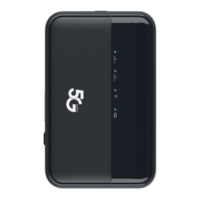

 To Next Page