5.2 Setting up Wi-Fi connection
5.2.1 Press and hold the 'Power' button for 3 seconds until the WiFi indicator light comes on and Wi Fi
is turned on.
5.2.2 Use your terminal to search the wireless network connection with the Wi-Fi’s Name of
“5G-MIFI-2.4G-xxxx”or “5G-MIFI-5G-xxxx” and click “Connect”. If the security mechanism is applied,
you need to enter the correct PASSWORD.
The default password is 12345678.
Note: XXXX is the last 4 digits of device MAC
You can also find the default SSID and password through the Wi Fi information on the device
back cover label.
5.3 How to change the Wi-Fi Name & Password
Through web UI:
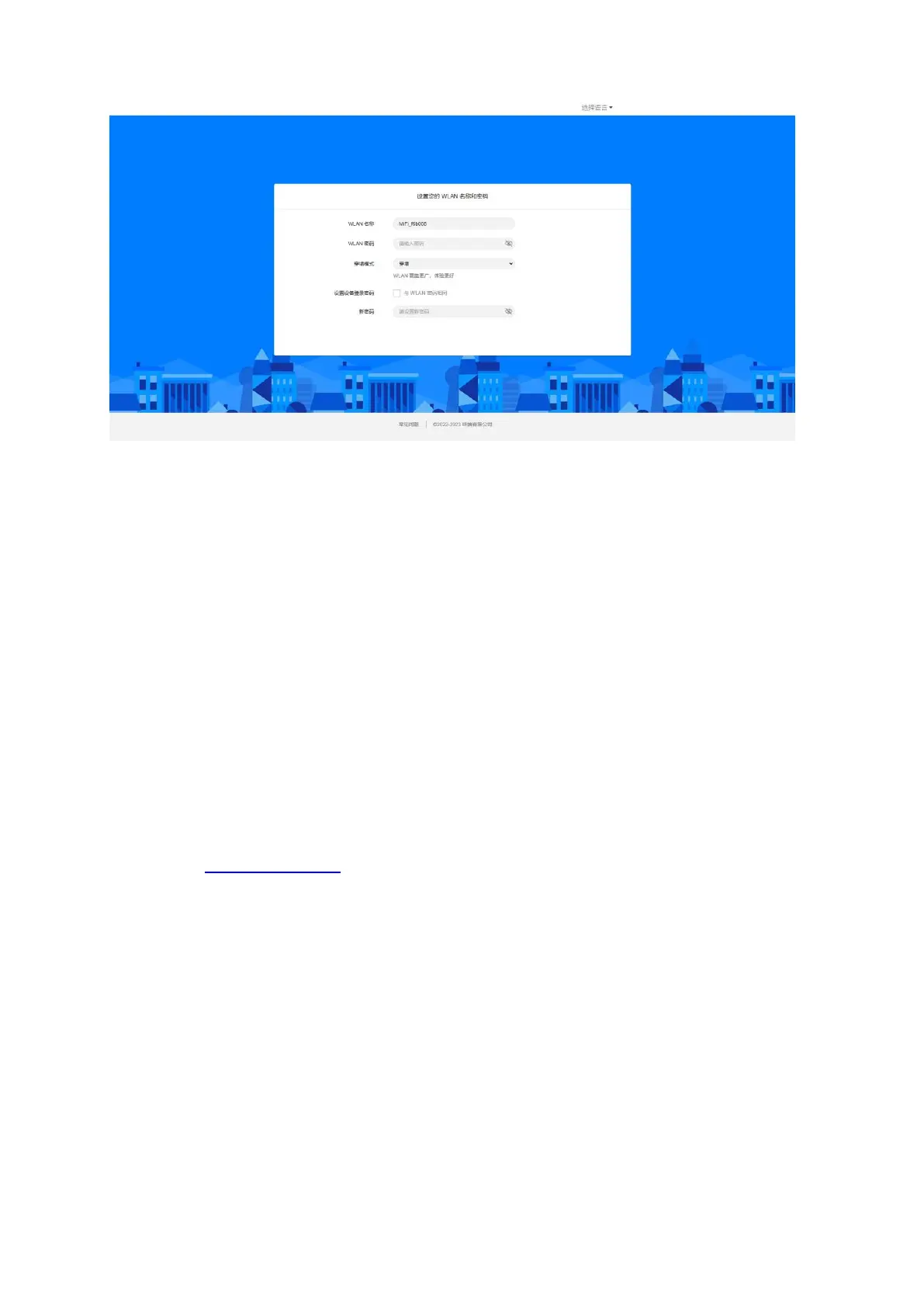
1. Log in to http://192.168.43.1 and enter the management page.
2. Select WLAN> WiFi Basic Settings, then you will see “Wi-Fi Name ” and “WiFi Password”, Make
sure you delete the old name and password and enter the new name and password as you
require.
3. Select “Save” button, wait for the screen to display prompting “Success”, and then log out.
4. Wait for the computer or laptop screen to display the Wi-Fi icon. This means the wireless network
connection has been successful.
5.4 Power Off
Press the Power button and hold for 9 seconds, it will display shutting downing


 To Next Page