4
INSTALLATION
USING THE DRIVER
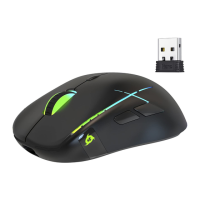
Wireless mode: connect the USB receiver to your PC and move the switch located under the
mouse to the ON position.
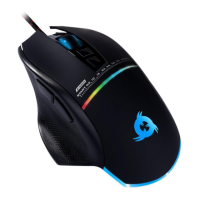
Wired mode: connect the mouse to your PC via the USB cable.
In the event it does not light up or is not recognized by the system, please refer to the
Troubleshooting section at the end of this manual.
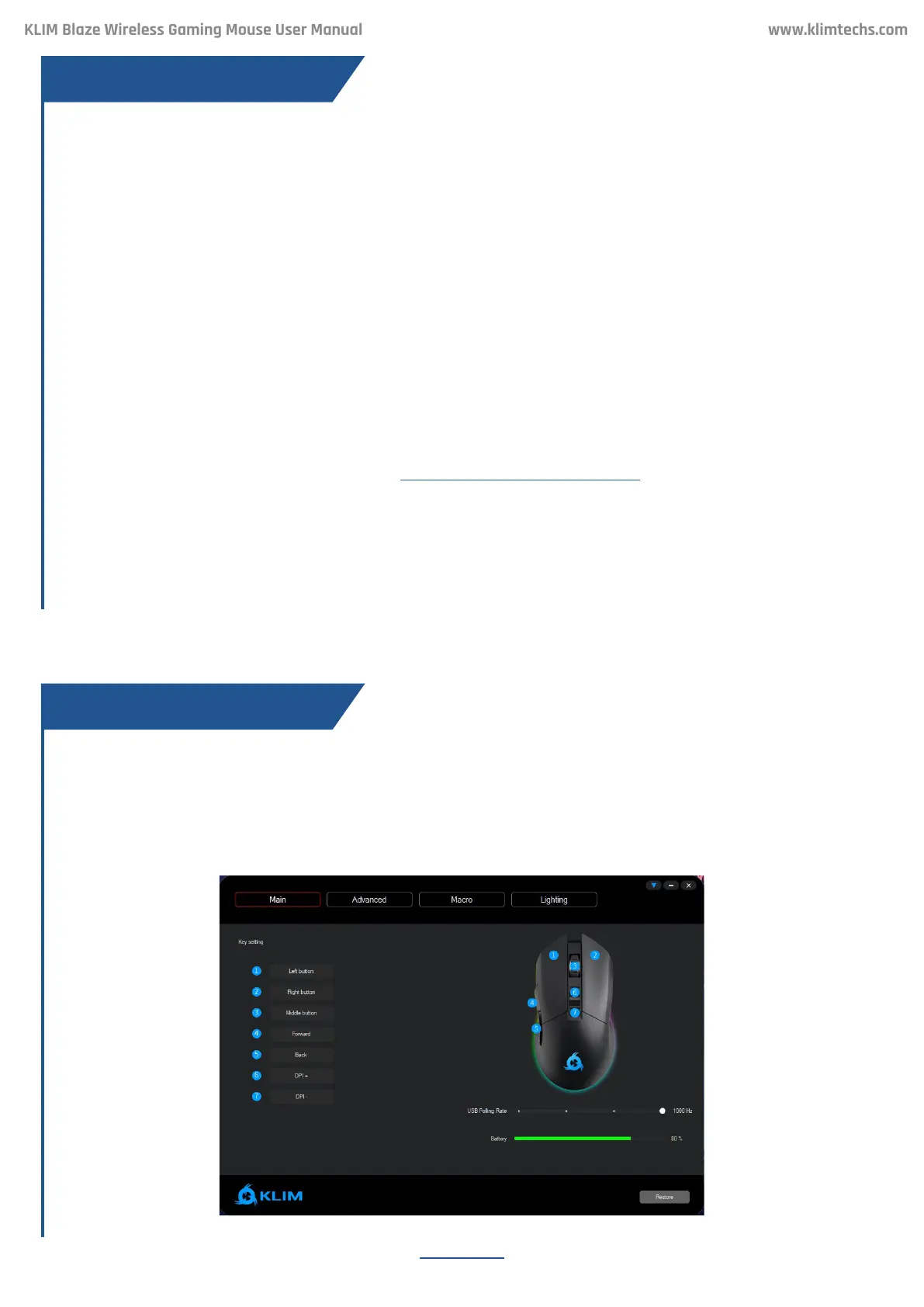
Once you open the driver, it will show its main screen, which allows you to adjust Report Rate,
check the baery level, and change what each buon does.
Our dedicated soware for Windows lets you customize several aspects such as lighting,
buon mapping, macros and more.
You can download it from our website: www.klimtechs.com/manual
NOTE: if you receive a warning indicating that the program is potentially harmful, this is due
to Windows certications. We are in the process of obtaining these certications. However,
the driver remains perfectly safe to use.
Once the driver has been downloaded you can use a decompressing tool such as WinRar to
extract the le. Once in your hard drive, double click on the KLIM_Blaze_Setup.exe to start
the installation process
Mouse installation
MAIN SCREEN
Driver Installation
KLIM Blaze Wireless Gaming Mouse User Manual


 To Next Page