7
1. Click on New Macro and write a Macro Name.
2. Check or uncheck the “Automatic recording time delay” depending on your needs:
When checked, it will record the key presses in real time
When unchecked, it will only record the key presses one right aer the other
3. Click Start Record and use the keyboard to record a sequence of key presses for this macro.
4. When done, click Stop Record.
5. Review your macro. If you need to add mouse clicks, or modify any events, refer to the next
section: “Deleting/Modifying events” and “Inserting events”.
6. Select the cycle type based on your needs:
Cycle until the key released: the macro plays as long as you press down the mouse buon.
Cycle until any key pressed: the macro plays innitely until you press another mouse buon.
Cycle times: the macro plays a xed number of times with each press of the mouse buon.
7. Click the Save buon.
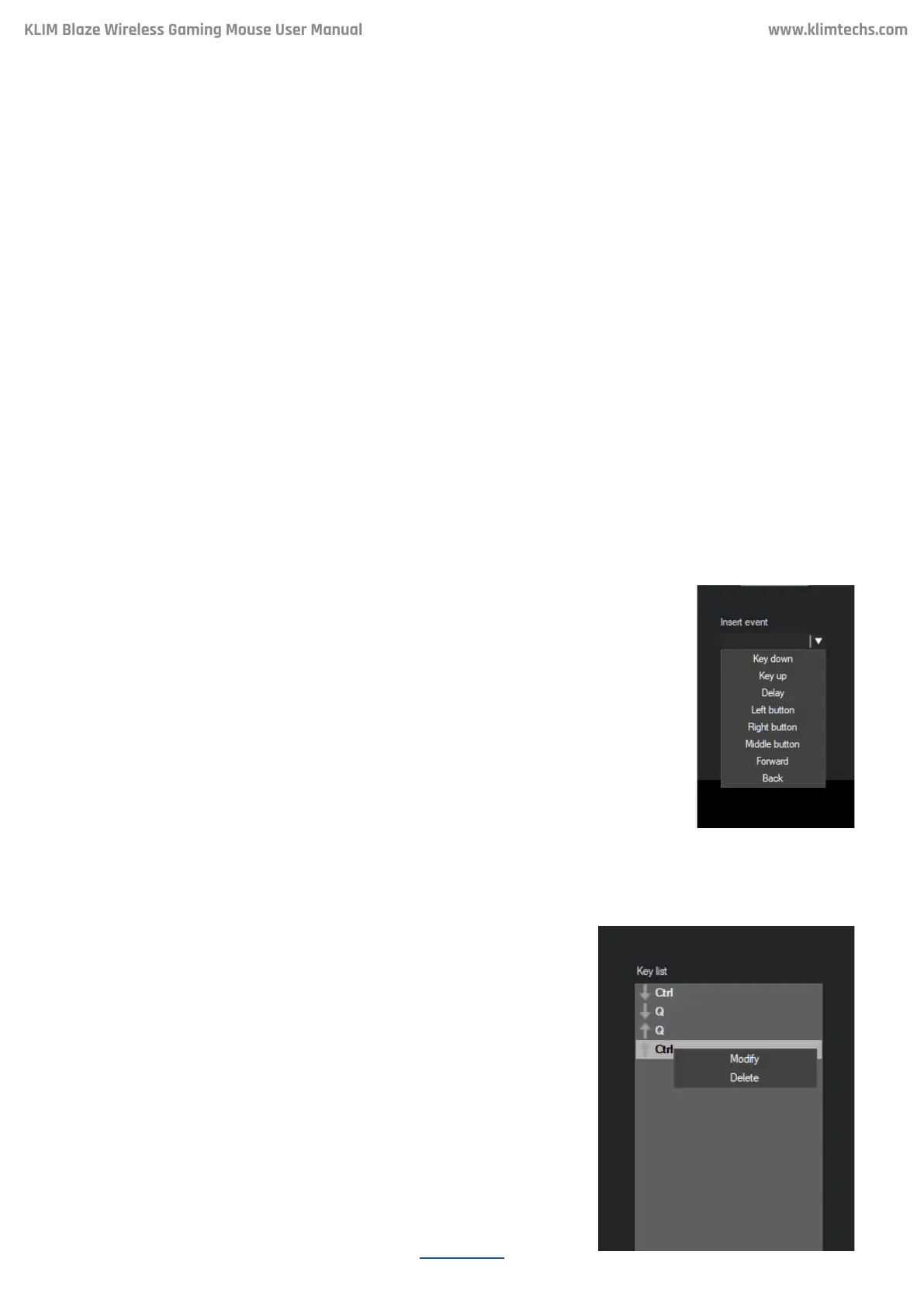
Use the Insert Event dropdown to include mouse actions, keyboard
actions, or add delay if needed. The event is added at the end of the
sequence if no event is selected, or above the selected event.
You may delete key presses by right clicking on them, or adjust the delay
between key presses by double clicking on the delay event. The default
delay is 50 ms.
Right click on an event and select Delete or Modify.
Creating and editing a macro
Inserting an event
Delete/Modify an event
KLIM Blaze Wireless Gaming Mouse User Manual


 To Next Page