5
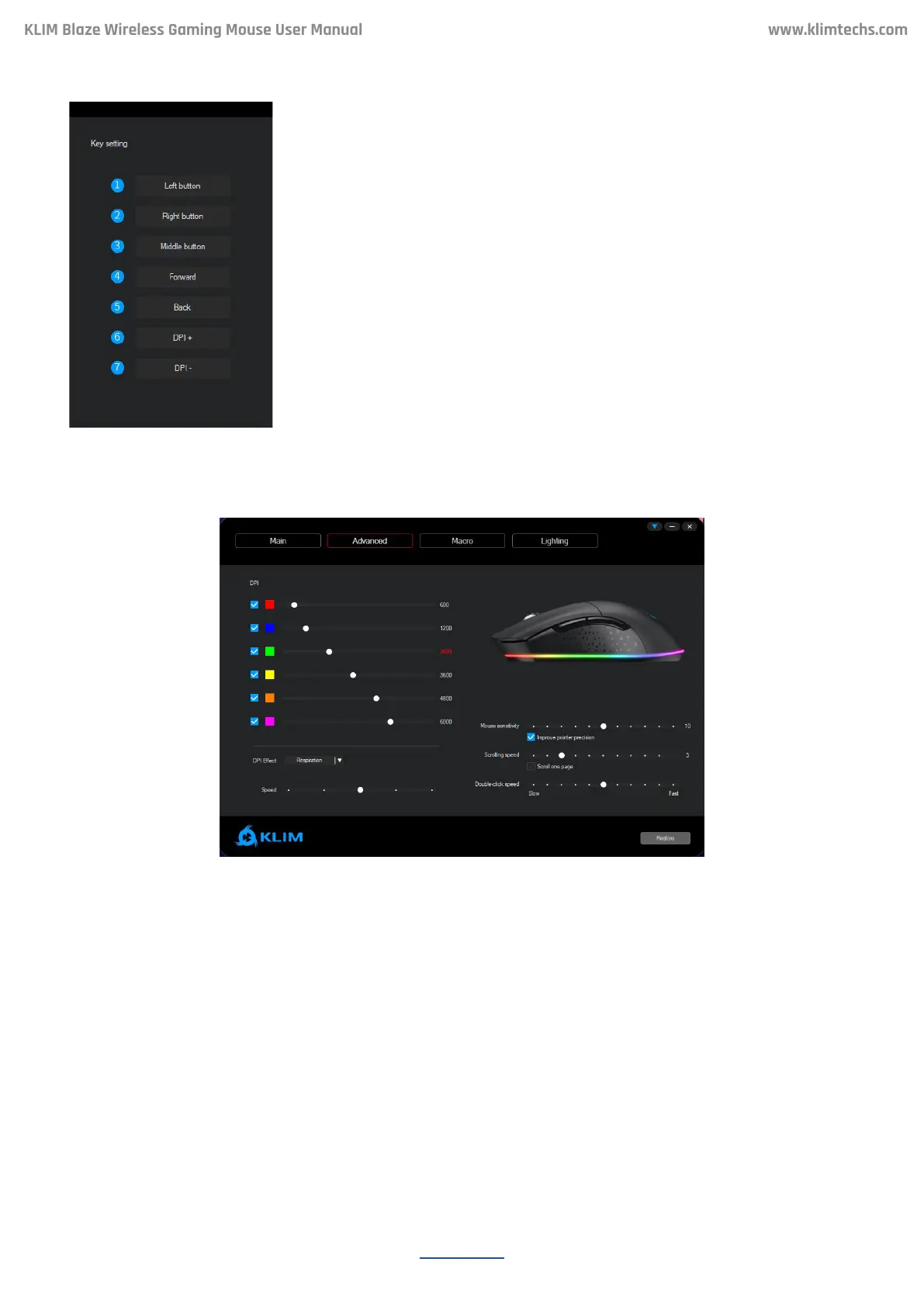
Click on the desired buon to customize and select a new function
for that buon. You may also assign macros aer they are created
(refer to section Macros below).
To revert back to the original values, click Restore.
IMPORTANT: the Restore buon resets ALL seings to their
default values, including buons, DPI and Lighting. Macros are still
preserved but become unassigned from any buons.
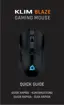
The KLIM Blaze has 6 different DPI levels, which you can change using the DPI + and DPI -
buons (6 & 7). Use this screen to specify the DPI for each one of the 6 levels. If you prefer
to have less DPI levels, tick the checkbox on the le so that the mouse loops only between
the selected levels.
Use the sliders to select what DPI to set for each level.
Logo color:
The logo on the mouse changes colors depending on the DPI levels. Use the DPI effect menu
to change between Steady, Respiration or Off modes.
Steady mode: the logo is always lit. Use the Brightness slider to select the brightness level
Respiration: the logo turns on and off. Use the Speed slider to control the speed of the effect.
Click on the colored square to change the color that corresponds to each DPI level. If you
prefer to always see the same color regardless of the current DPI, select the same color for
all levels.
Button Settings
ADVANCED SCREEN
KLIM Blaze Wireless Gaming Mouse User Manual


 To Next Page