How to Set OSD MENU SET UP Functions
27
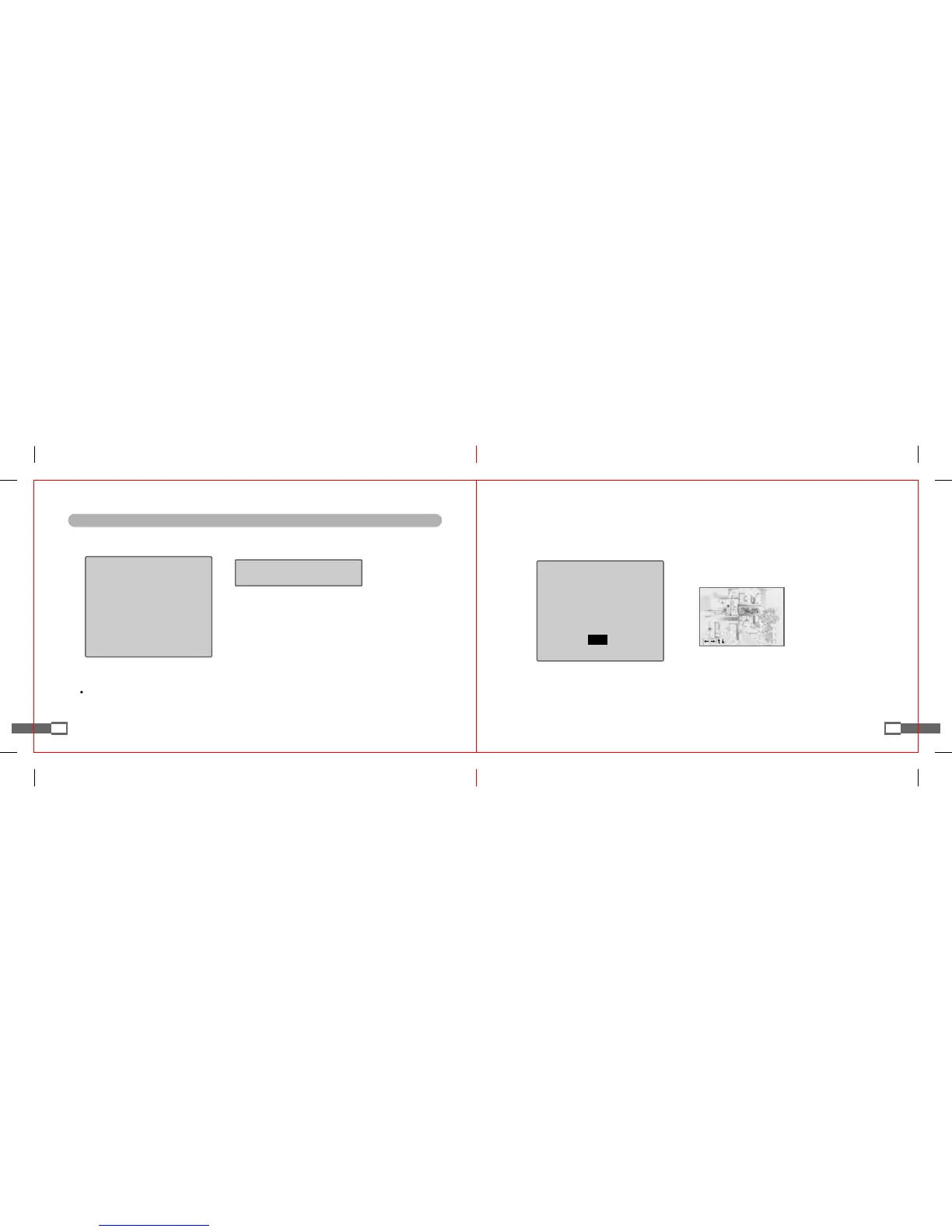
3) After setting CAMERA ID as "ON," press SET UP button.
CameraID
ABCDEFGHIJKLM
NOPQRSTUVWXYZ
abcdefghijklmno
pqrstuvwxyz
-.0123456789
<-->CLRPOSEND
---------------
4) Up to 15 letters are available for CAMERA ID.
CameraID
---------------
(1) Using LEFT or RIGHT button, move cursor to a desired letter.
(2) Using UP,DOWN or LEFT, RIGHT button, select letters out of
A to Z, a to z, or 0 to 9.
(3) Press SET UP, fix a selected letter.
※
If pressing SET UP button to fix a selected letter,
cursor moves the next space.
(4) After completing to input a desired CAMERA ID, place cursor at "END"
and press SET UP button to finish.
[Notes]
If a wrong ID is input, move cursor to CLR and press SET UP to clear all letters input. To modify a letter,
move cursor to the arrow at the bottom left corner and press SET UP. Move and place cursor to a letter
that a user wants to input, and press SET UP button.
CameraID
ABCDEFGHIJKLM
NOPQRSTUVWXYZ
abcdefghijklmno
pqrstuvwxyz
-.0123456789
<-->CLRPOSEND
---------------
28
5) If CAMERA ID is created, select the location where created CAMERA ID is displayed.
(1) After moving cursor to "POS," press SET UP.
(2) A created CAMERA ID is displayed at the upper
left corner of screen.
KCC-D51
toLocate,thenSET
(3) If CAMERA ID is displayed as shown in the picture above, select the location of CAMERA ID
in the screen using UP, DOWN or LEFT, RIGHT button, and press SET UP.
(4) After the location is fixed, select "END" and press SET UP to finish ID input.


 To Next Page