How to Set OSD MENU SET UP Functions
3. After finishing setup, press SET UP button.
25
■
SENS UP
Automatically detects darkness at night or under dim light and keeps clear images.
1. If SET UP screen is displayed, make an arrow point to "SENS UP" item using UP or DOWN button.
2. Press LEFT or RIGHT button to select a desired mode.
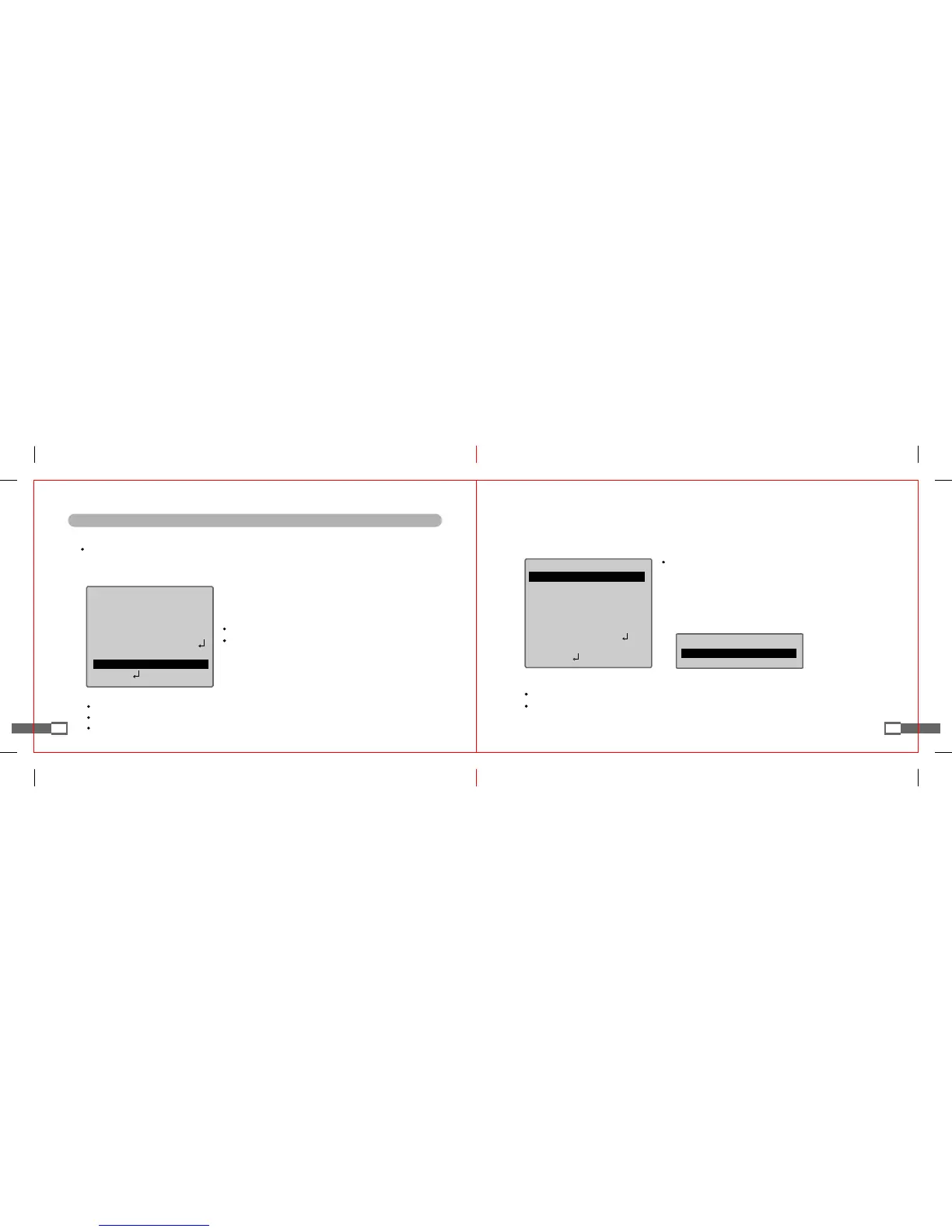
SETUP
MANUALLENS
SHUTTER ESC
WHITEBAL. ATW
BACKLIGHT OFF
AGC MIDDLE
DNR LOW
▶SENS-UP OFF
SPECIAL
[Notes]
Press SET UP button in AUTO menu to adjust magnification (12 steps).
As magnification becomes higher, the screen becomes brighter but the residual image of moving object grows more.
If magnification is increased when SEN UP works, noise or spots may occur. But such phenomenon is normal.
[Notes]
If AGC is set as OFF mode, SENS UP function doesn't work.
If SHUTTER is set as MANUAL mode, SENS UP function
doesn't work.
◎
AUTO : Automatic mode
◎
OFF : De-selection mode
26
■
SPECIAL Functions
1. If SET UP screen is displayed, make an arrow point to "SPECIAL" item using UP or DOWN button.
2. Press LEFT or RIGHT button to select a desired mode.
SPECIAL
OFF▶CAMERAID
COLOR ON
INT
SYNC
MOTIONDET OFF
PRIVACY OFF
MIRROR OFF
SHARPNESS ON
RESET
RETURN
SPECIAL
ON▶CAMERAID
CAMERA ID : If a user inputs an ID of installed CAMERA,
such CAMERA ID is displayed in monitor.
1) Using UP or DOWN button, make an arrow point to
"CAMERA ID" item.
2) By pressing LEFT or RIGHT button, set the present
state as "ON."
[Notes]
If CAMERA ID is set as "OFF" mode, even if input by a user, it is not displayed in the monitor screen.
If CAMERA ID is set as "ON" mode, it is displayed in the screen of installed monitor.


 To Next Page