EasyManua.ls Logo

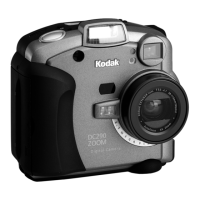
Kodak DC290 - User Manual

Kodak DC290
100 pages
Print Icon
To Next Page IconTo Next Page
Loading...
KODAK
DC290 Zoom Digital Camera
User’s Guide
Visit Kodak on the World Wide Web at www.kodak.com

Table of Contents

Other manuals for Kodak DC290

Questions and Answers

  • C
    cooperrebeccaSep 12, 2025
    Why can't I access EX files from my Kodak DC290 Digital Camera using the software?
    • K
      Katherine GraySep 12, 2025
      If the EX files from your Kodak Digital Camera cannot be accessed using the software but can be viewed on the camera, a previous file with the same name was not fully processed. Transfer the unaffected files to the computer and perform a Scandisk, Defrag, and reformat using the PCMCIA or CompactFlash card reader.
  • R
    Robert BennettSep 9, 2025
    Why is the image on my monitor jagged or inappropriately colored from my Kodak Digital Camera?
    • M
      Megan NguyenSep 9, 2025
      If your Kodak Digital Camera displays images on your monitor that are jagged or inappropriately colored, the monitor settings may not be configured correctly. Adjust your monitor display settings to resolve this issue.
  • G
    Gregory SanchezSep 8, 2025
    Why are my stored pictures damaged on my Kodak Digital Camera?
    • S
      Scott SteeleSep 8, 2025
      If the stored pictures on your Kodak Digital Camera are damaged, it's possible the memory card was removed while the Ready light was blinking. Always ensure the Ready light is not blinking before removing the memory card.
  • J
    Jose SimonSep 7, 2025
    What does it mean when the ready light is amber on my Kodak Digital Camera?
    • C
      Christopher FowlerSep 7, 2025
      If your Kodak Digital Camera shows an amber ready light, it means the camera is too close to the subject. Move the camera to a minimum of 0.3 m (1 ft) from the subject.
  • E
    Eric KleinAug 23, 2025
    How to fix a Kodak DC290 that won't turn on?
    • T
      Travis DixonAug 23, 2025
      If your Kodak Digital Camera isn't turning on, ensure that the batteries are correctly installed according to the diagram inside the battery door. If they are properly installed, try replacing them with new ones or using the AC adapter, as the current batteries may be weak or depleted.
  • J
    Joyce MartinezSep 5, 2025
    What does 'Corrupted Image' mean on my Kodak Digital Camera?
    • C
      Calvin MartinSep 5, 2025
      If your Kodak Digital Camera shows a 'Corrupted Image' message on the Color LCD in Review mode, but the thumbnail appeared normal in Capture mode, it could be because the memory card was ejected during processing or the batteries were too low to complete processing. You should retake the picture, and ensure that you replace the batteries or use the AC Adapter.
  • V
    Virginia WilliamsSep 4, 2025
    What does it mean when the ready light is red on my Kodak DC290 Digital Camera?
    • W
      wellsmichaelSep 4, 2025
      If your Kodak Digital Camera displays a red ready light, it indicates that there is either no memory card inserted or the memory card is full. Insert a new memory card to resolve this issue.
  • H
    Heather PattersonSep 3, 2025
    How to fix a picture that is too light on my Kodak DC290?
    • S
      Samantha LoweSep 3, 2025
      If your Kodak Digital Camera is producing pictures that are too light, try changing to automatic flash. If the subject is too close when the flash was used, move at least 0.5 m (1.6 ft) away from the subject. Also, make sure that your hands or other objects are not covering the light sensor.
  • L
    Lisa ThompsonSep 1, 2025
    How to fix a picture that is too dark on my Kodak DC290 Digital Camera?
    • B
      Brandi WilsonSep 2, 2025
      If your Kodak Digital Camera is producing pictures that are too dark, make sure the flash is turned on. If it is on, ensure that the subject is not too far away; move closer so there is no more than 4 m (13 ft) between the camera and the subject. Also, check if the subject is in front of a bright light, and if so, change your position so the light is not behind the subject.
  • C
    Caitlin PrattAug 31, 2025
    Why doesn't the shutter button work on my Kodak DC290?
    • N
      Nicholas WoodsAug 31, 2025
      If the shutter button on your Kodak Digital Camera isn't working, first ensure the camera is powered on and the green Ready light is illuminated. Then, check that the Mode dial is set to Capture. If the Ready light is blinking, wait for it to stop before taking another picture. Also, verify that the memory card isn't full; if it is, transfer pictures to your computer or use a different memory card.

Summary

1 Getting Started

Introduction

Overview of the camera's capabilities and purpose.

Camera Features

Lists key functionalities and built-in components of the camera.

Camera Front

Identifies external components on the front of the camera.

Camera Top

Identifies external components on the top of the camera.

Camera Back

Identifies external components on the back of the camera.

Camera Bottom

Identifies external components on the bottom of the camera.

Camera Specifications

Controls and Indicators

Softkeys

Explains the function and usage of the camera's softkey buttons.

Mode Dial and Four-Way Controller

Describes the camera's mode dial and directional control buttons.

Your Status LCD

Flash Settings

Explains the camera's flash settings and their functions.

Core Picture Settings

Exposure Compensation

How to adjust camera exposure for better picture results.

Picture Type

Explains different picture types like Still, Burst, and Time-lapse.

Advanced Modes and Memory

Pictures Remaining

Indicates the number of pictures that can be stored on the memory card.

Advanced Capture Mode

Covers modes like External Flash and Long-Time Exposure.

Self-Timer

Describes the self-timer function for delayed picture taking.

IrDA (Infrared) Communication

Batteries

Installing the Batteries

Step-by-step guide for battery installation.

Quality

Understanding Quality and Resolution

Explains the relationship between quality and resolution.

Removable Memory Card

Inserting the Memory Card

Steps to insert the memory card.

Removing the Memory Card

Steps to remove the memory card.

Power Management

Understanding Sleep Mode

Explains the camera's sleep mode.

Using the AC Adapter

Instructions for using the AC adapter.

Using the Battery Charger

Battery Guidelines

2 Taking Pictures

Turning the Camera On or Off

How to power the camera on and off.

Setting the Camera to Capture Mode

Steps to set the camera to capture mode.

Capturing Pictures

Steps and options for taking pictures.

Setting Flash, Exposure, Type, and Quality

Setting the Self-Timer

Steps to activate the self-timer.

Using Zoom

Digital Zooming

How to use the digital zoom feature.

Defining the Capture Settings

Picture Type Settings

Detailed configuration for picture types and resolution.

Album Settings

How to create and manage photo albums.

White Balance Settings

Adjusts color balance based on lighting.

Watermark Settings

Adds date, time, text, or logo to pictures.

Advanced Exposure Modes Settings

Selects different exposure modes.

Advanced Focus Mode Settings

Selects different focus modes.

Preferences Settings

Capture Preferences

Specific capture-related preferences.

Date and Time Settings

How to set the camera's date and time.

Camera Name Setting

How to set a name for the camera.

Using Scripts

Choosing a Script on the Camera

How to select and run a script.

Adding Sound to Pictures

3 Reviewing Your Pictures

Review Mode Operations

Switching to review mode and viewing pictures.

Review Mode Preferences

Customizing overlay, slideshow, and video output.

Picture Organization and Protection

Marking, album creation, protection, print orders, copying, apps.

Advanced Picture Operations

Copying pictures between cameras and using on-camera applications.

4 Installing the Software

Windows System Requirements and Software

PC requirements and list of KODAK software for Windows.

Macintosh System Requirements and Software

5 Connecting Your Camera

Connection Methods

Options for connecting the camera to a computer.

USB Support Verification

Steps to verify USB compatibility on Windows 98.

Connecting the Camera

Step-by-step guide for physically connecting the camera.

Starting KODAK Software

Launching the KODAK software after connection.

6 Tips and Troubleshooting

Maintenance and Safety

Camera care, cleaning, and safety precautions.

Connection and Monitor Issues

Troubleshooting connection problems and adjusting monitor display.

Printing Tips

Advice for improving the quality of printed photos.

Troubleshooting

Common Camera Problems

Table of problems, causes, and solutions for the camera.

7 Where to Get Help

Support Resources

Information on online services, fax, and software help.

Customer Support Contact

Contact details for customer support representatives worldwide.

8 Warranty and Regulatory Information

Warranty Details

Warranty period, coverage, and limitations.

Obtaining Service and Support

Procedures for service requests and application support.

Regulatory Compliance

FCC and Canadian DOC compliance statements.

Kodak DC290 Specifications

General IconGeneral
Image SensorCCD
Camera typeCompact
Max resolution1792 x 1200
Effective Pixels2.1 MP
LensFixed
Digital zoom2x
Focus adjustmentAuto
ISO100-400
ViewfinderOptical
Aperturef/2.8
Metering modesCenter-weighted
LCD screen size2.0 inch
Storage typesCompactFlash
BatteryLithium-Ion rechargeable battery
Weight330 g
Image Resolution1792 x 1200
Aperture RangeF2.8 - F8
ISO Sensitivity100
Flash ModesAuto, Fill-in, Off, Red-Eye Reduction
Exposure ModesAuto, Manual
White BalanceAuto, Daylight, Tungsten, Fluorescent
Self-Timer10 sec
Video OutputNTSC/PAL
InterfaceUSB
Power SourceAC adapter
Sensor size1/2 inch (6.4 x 4.8 mm)
Storage MediaCompactFlash Type I/II

Related product manuals